
How to Configure Onsite Offers with Images Only
This article explains how to enable image-only onsite offers in the platform.
This setting allows you to display just the offer creative — without any text overlays — giving you full creative control over how your onsite offers appear.
For more information on the benefits of using image-only onsite offers, check out this article What are Onsite Offers with Images Only?
Step-by-Step Instructions
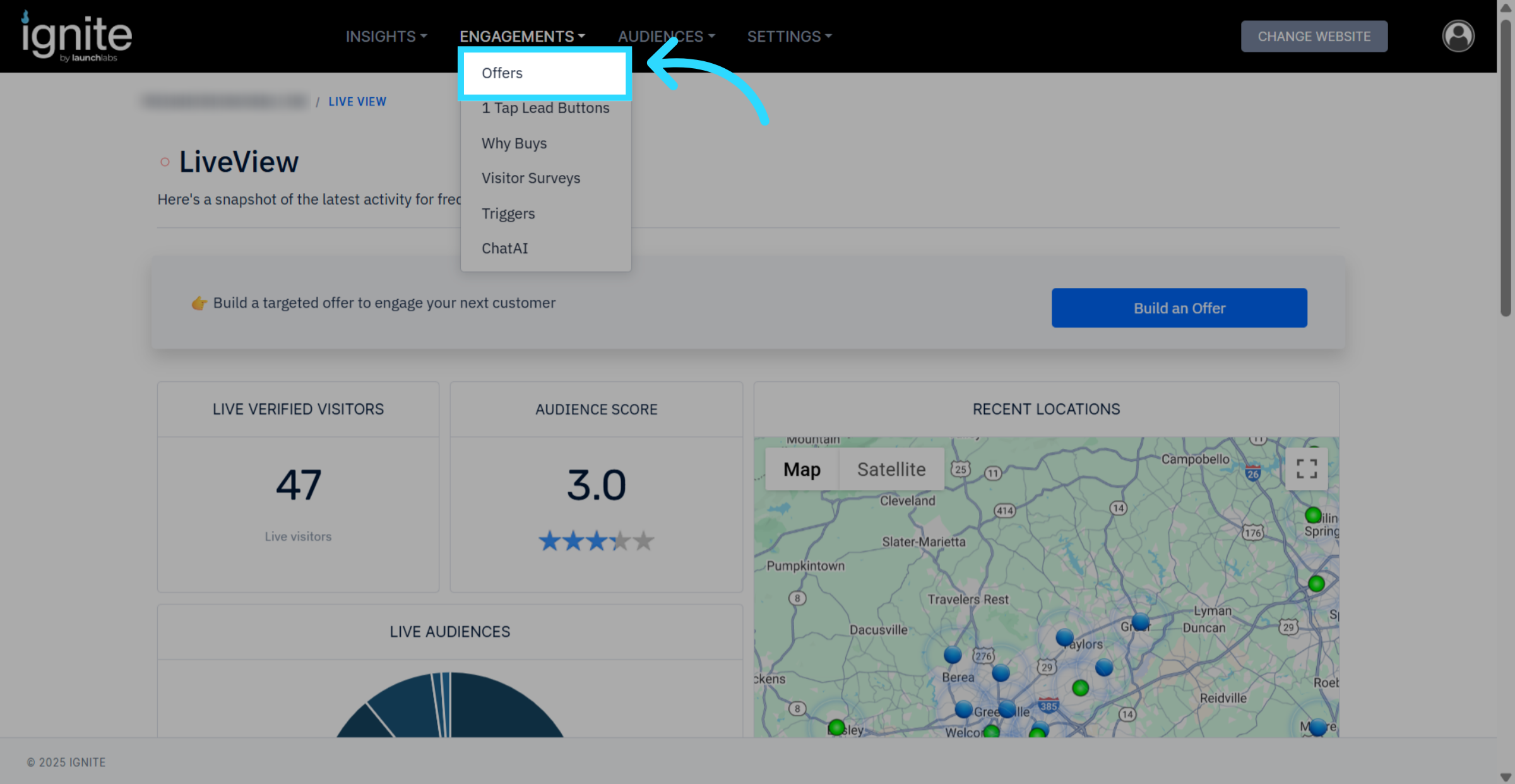
1. Go to Offer Settings
In the platform, navigate to Engagements → Offers.
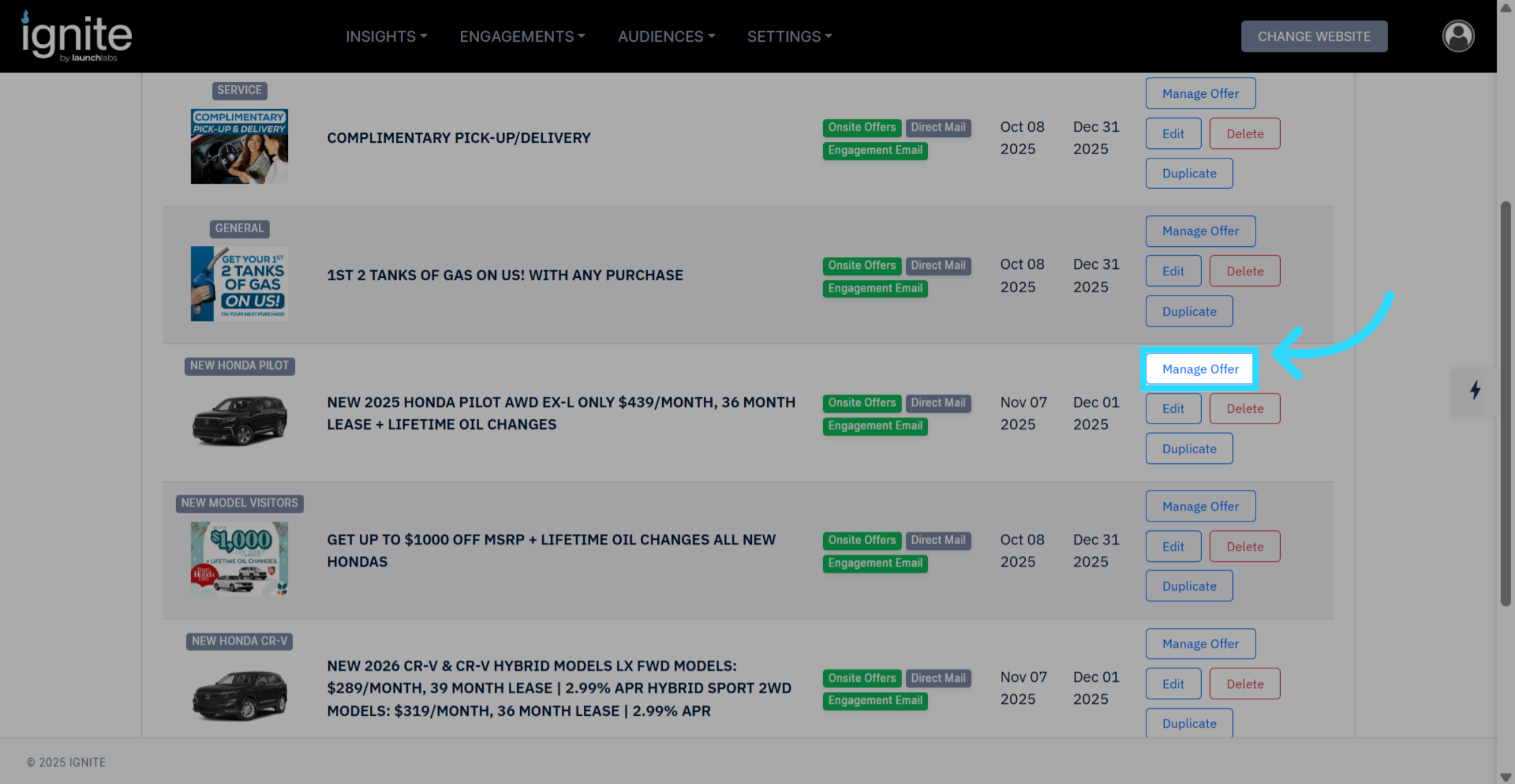
2. Manage Offer
Locate the offer you want to modify and click Manage Offer.
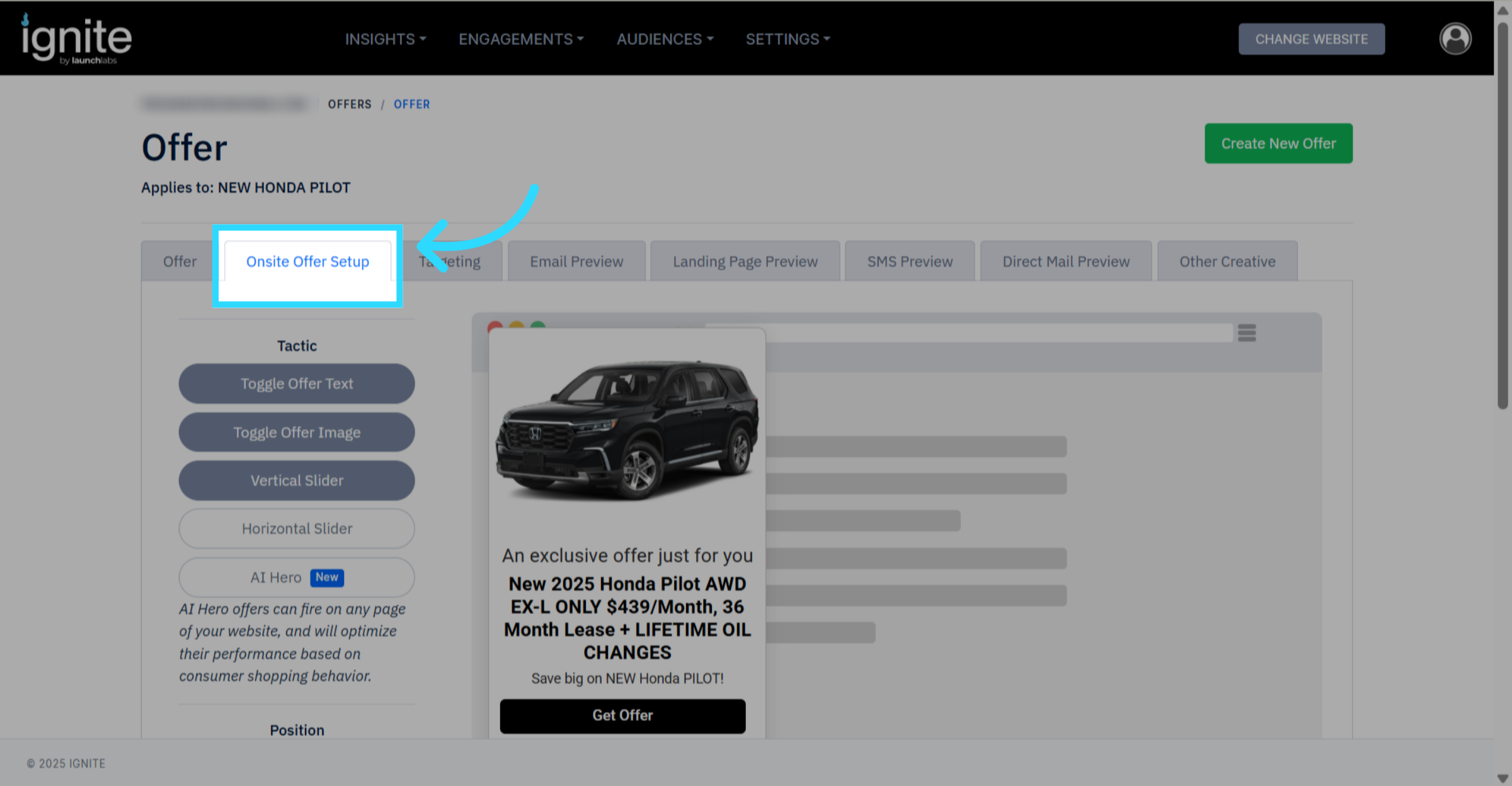
3. Set up Offer
Click on the Onsite Offer Setup section.
4. Disable Offer Text
Toggle Offer Text to the Off position.
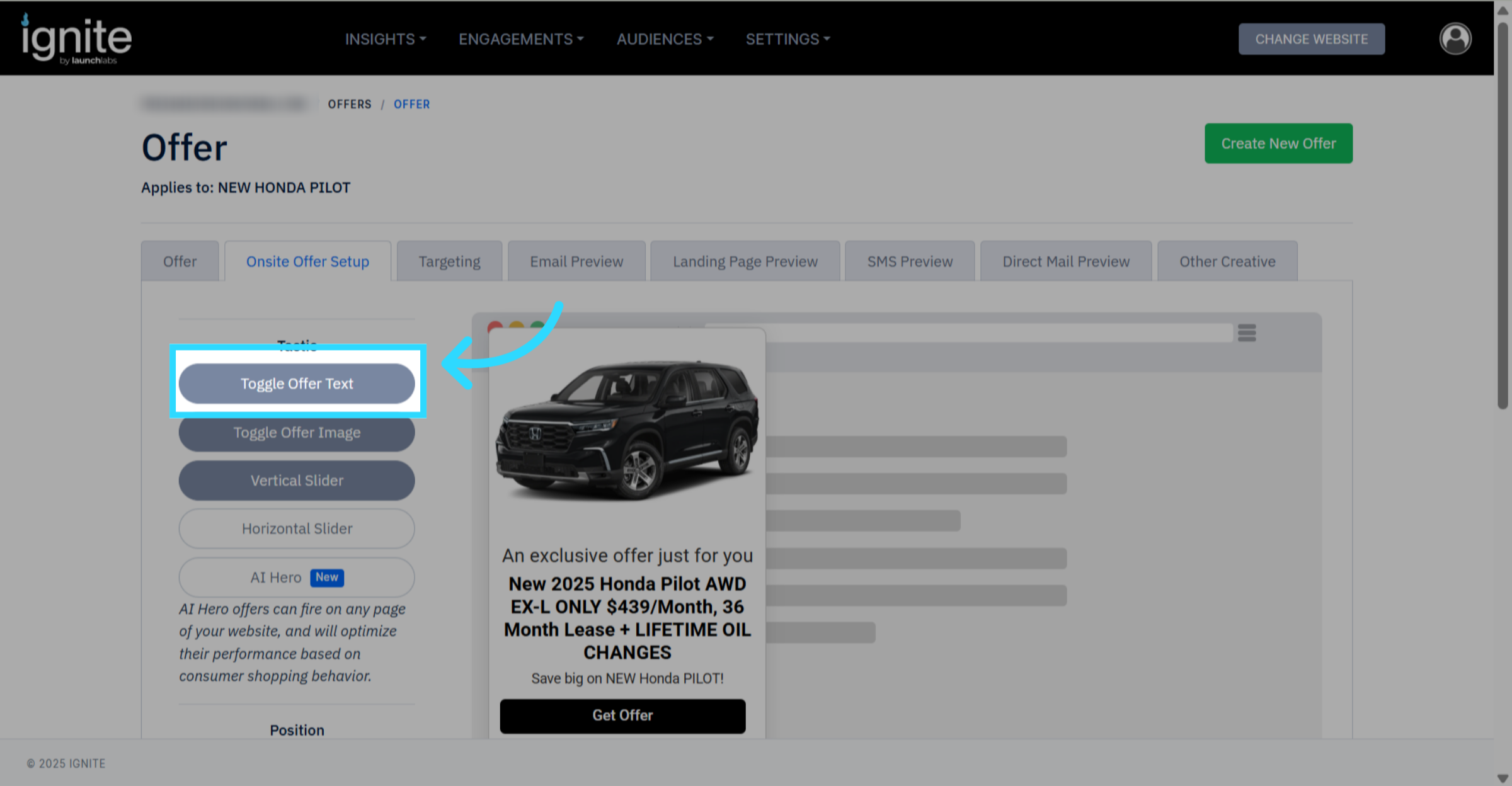
Once disabled, only your uploaded offer image will appear on the onsite offer. No additional text or overlay will be displayed.
Tip
After enabling this setting, preview your onsite offer on both desktop and mobile to ensure your creative appears correctly.