How to Export Audiences from Ignite?
This article explains how to export audience data from Ignite, specifically focusing on first-party audiences collected through your website. You can export these as CSV files for analysis or marketing use.
Watch this video tutorial to see the full process in action:
Step-by-Step Instructions
1. Access Audience Manager
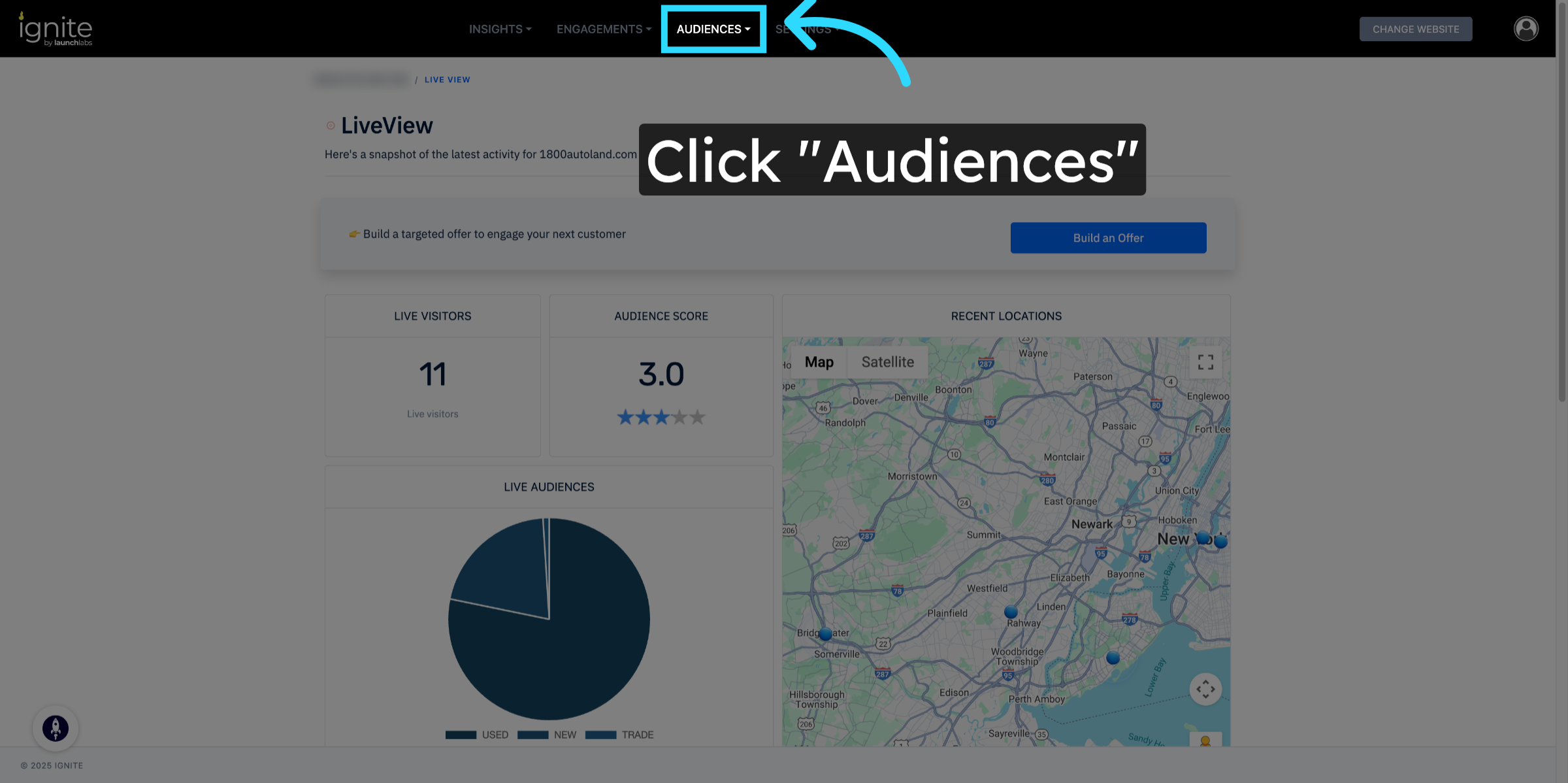
After logging into your account, click on Audiences in the top navigation to access the audience management section where all audience segments are stored.
2. Select First Party Audiences & Begin the Export Process
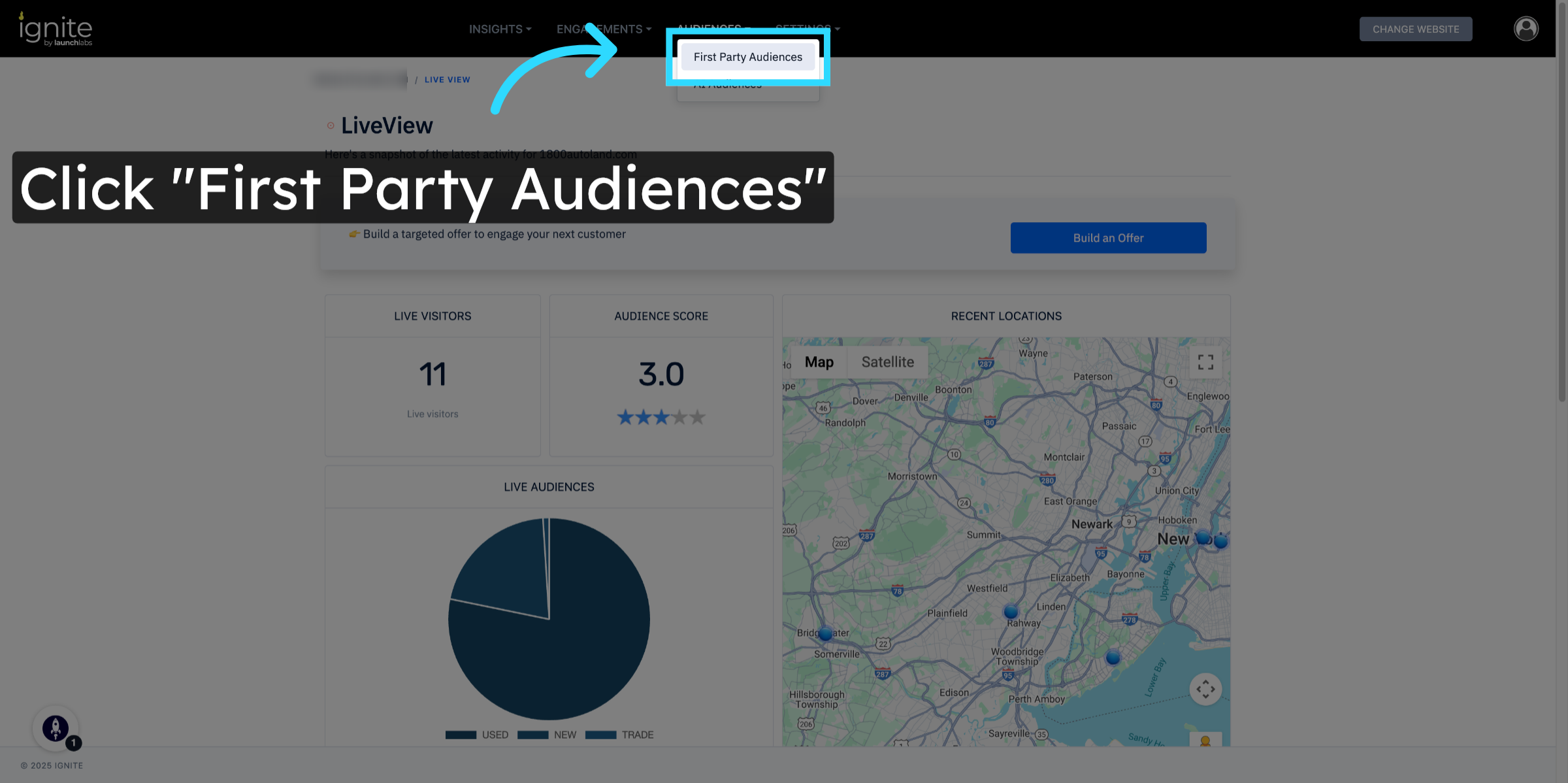
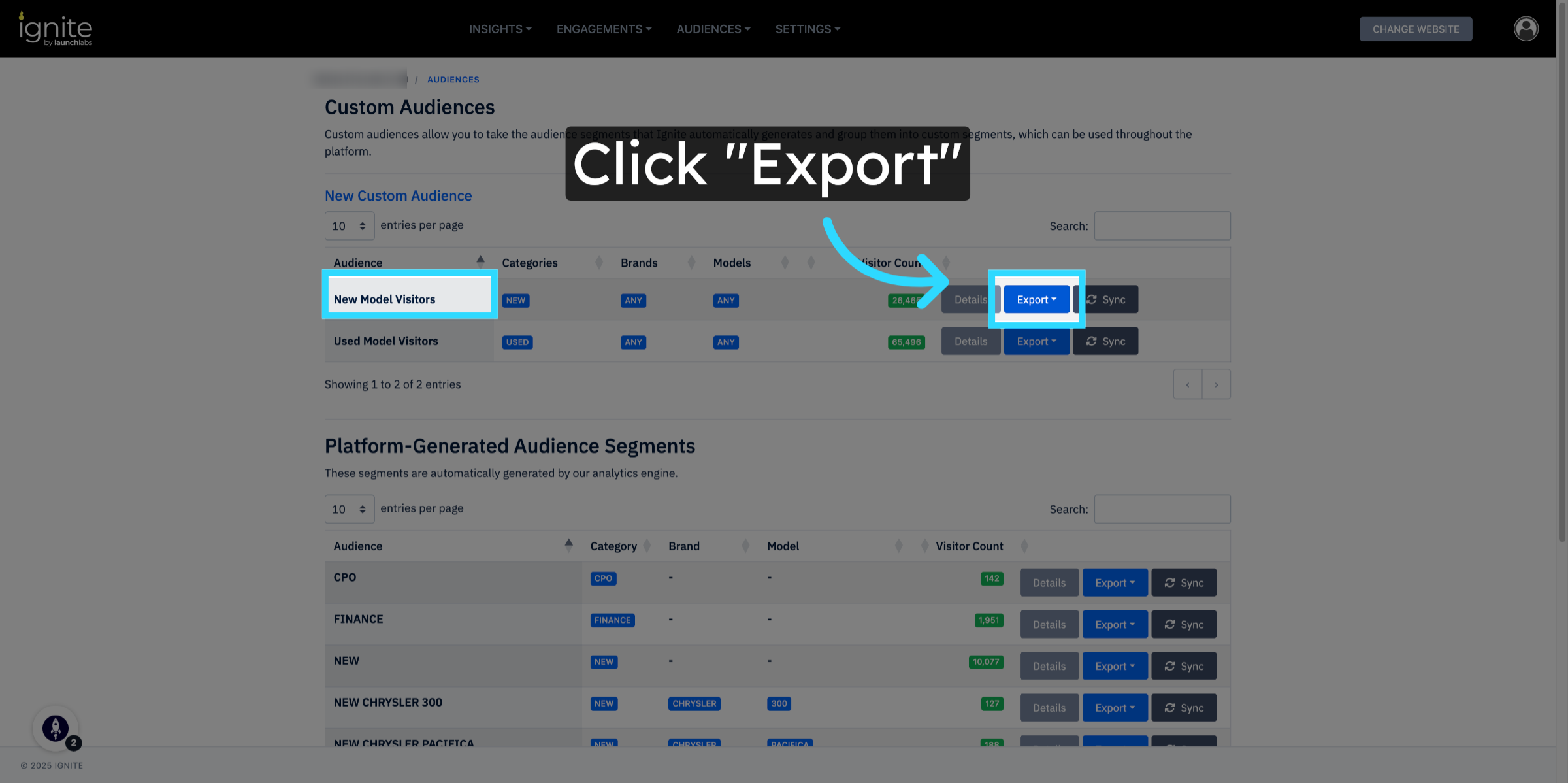
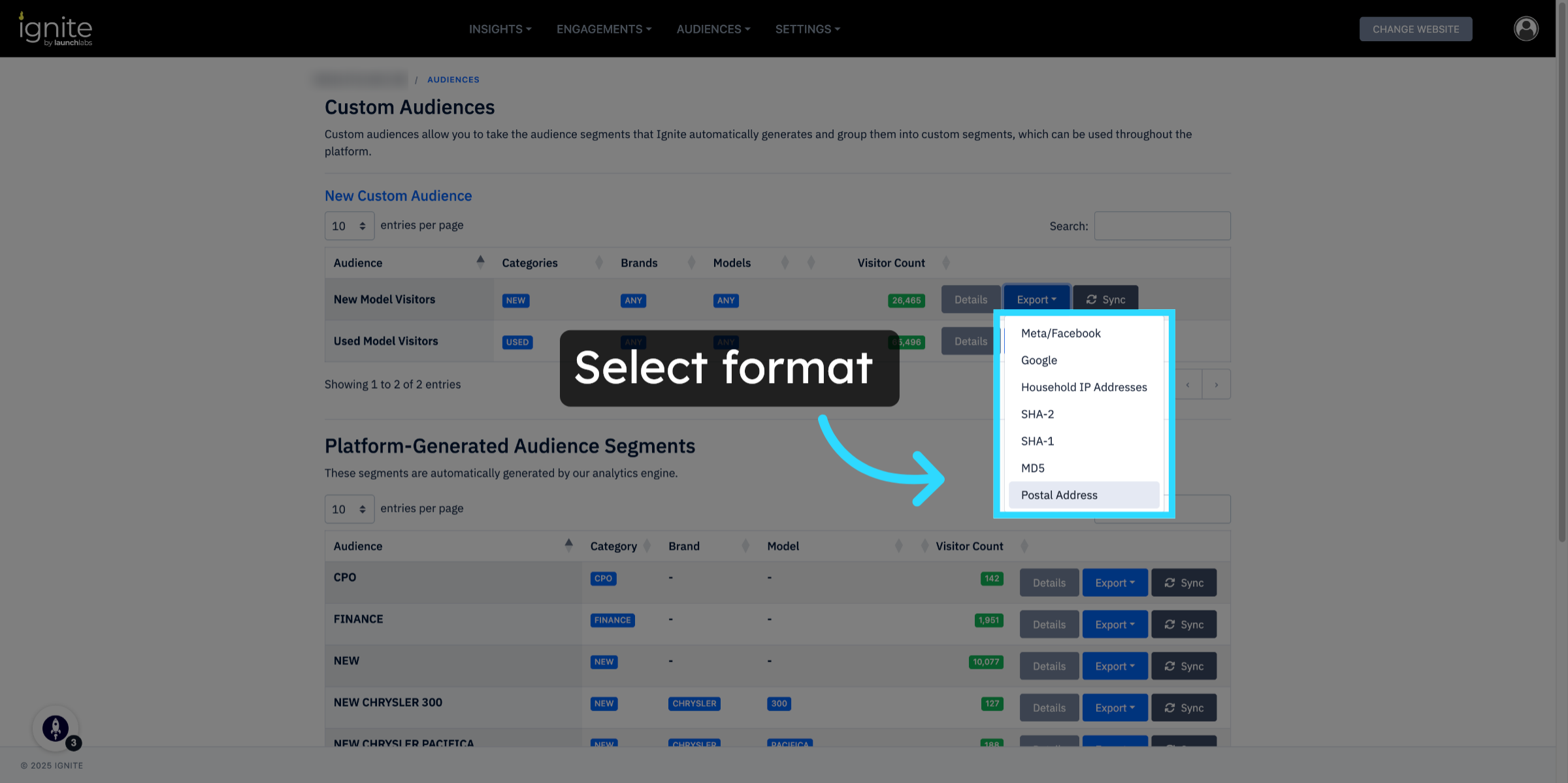
Once in the audience manager, click on First Party Audiences. This will display all website visitor data collected directly through your site. In this example, we’ll work with the New Model Visitors audience. Click Export next to the audience you'd like to export. You’ll be prompted to choose a few export options.
4. Choose Export Format and Time Range
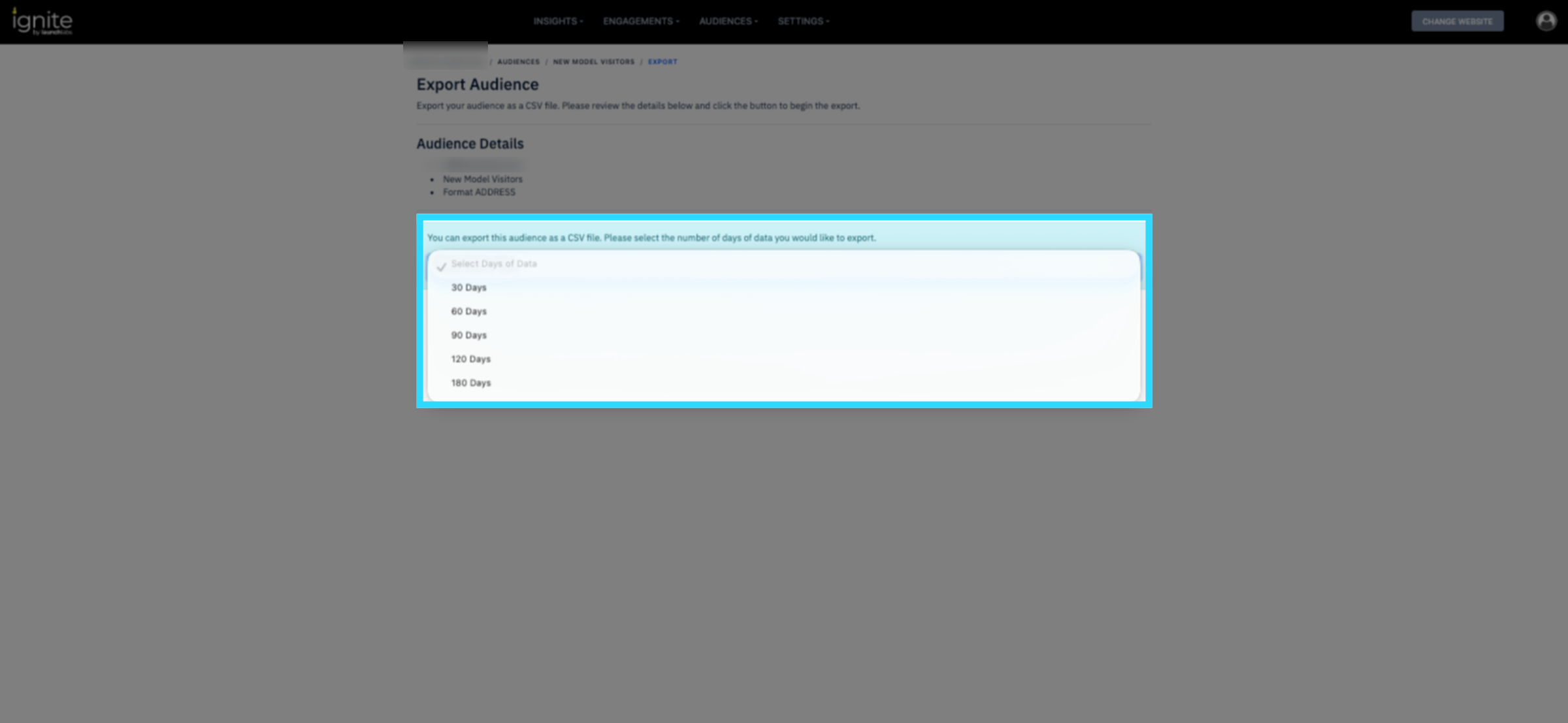
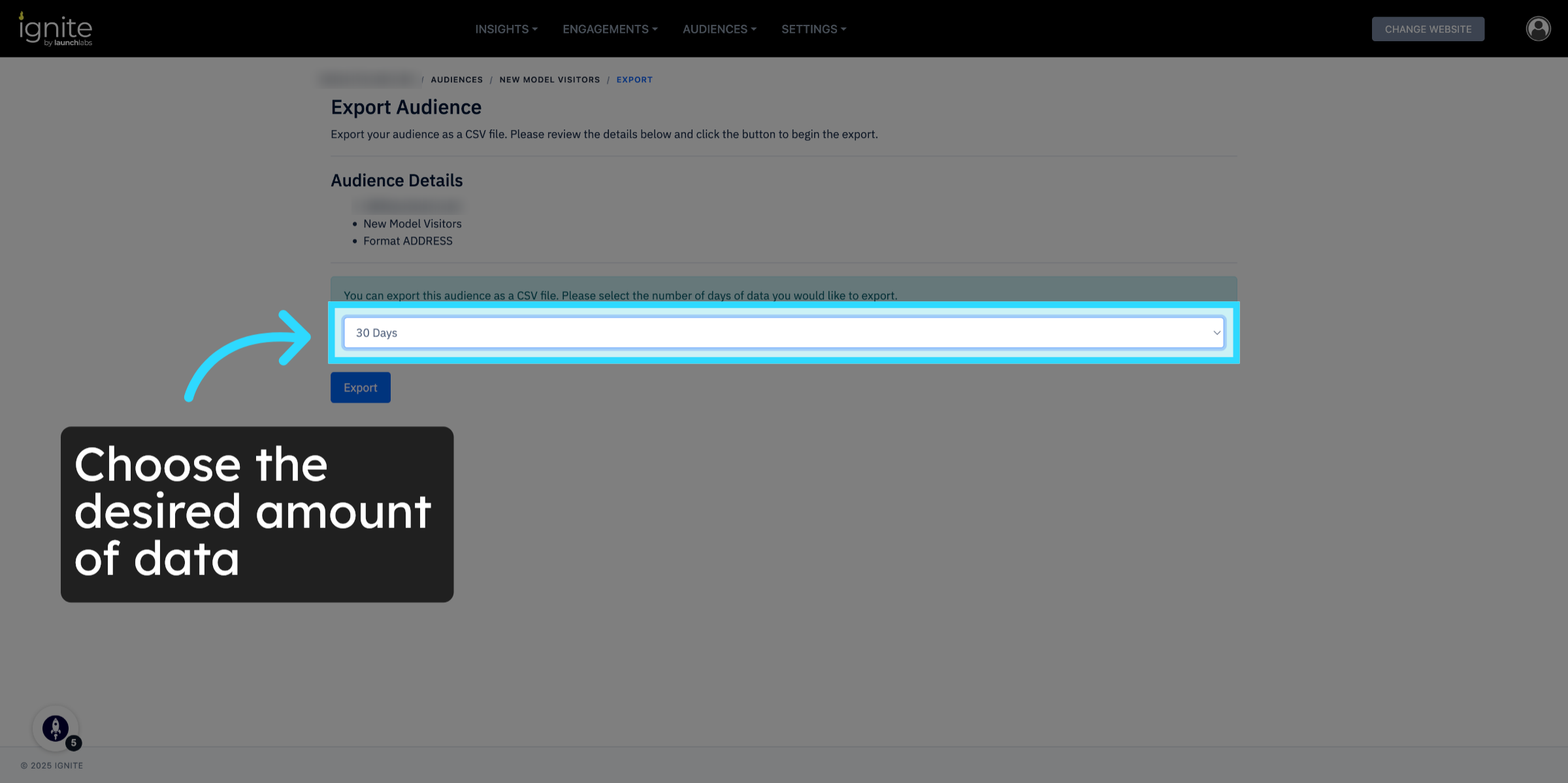
Start by selecting the format you want to export the data in. Then, choose the date range for the data you'd like to include. Ignite allows you to export between 30 to 180 days of data.
5. Complete the Export
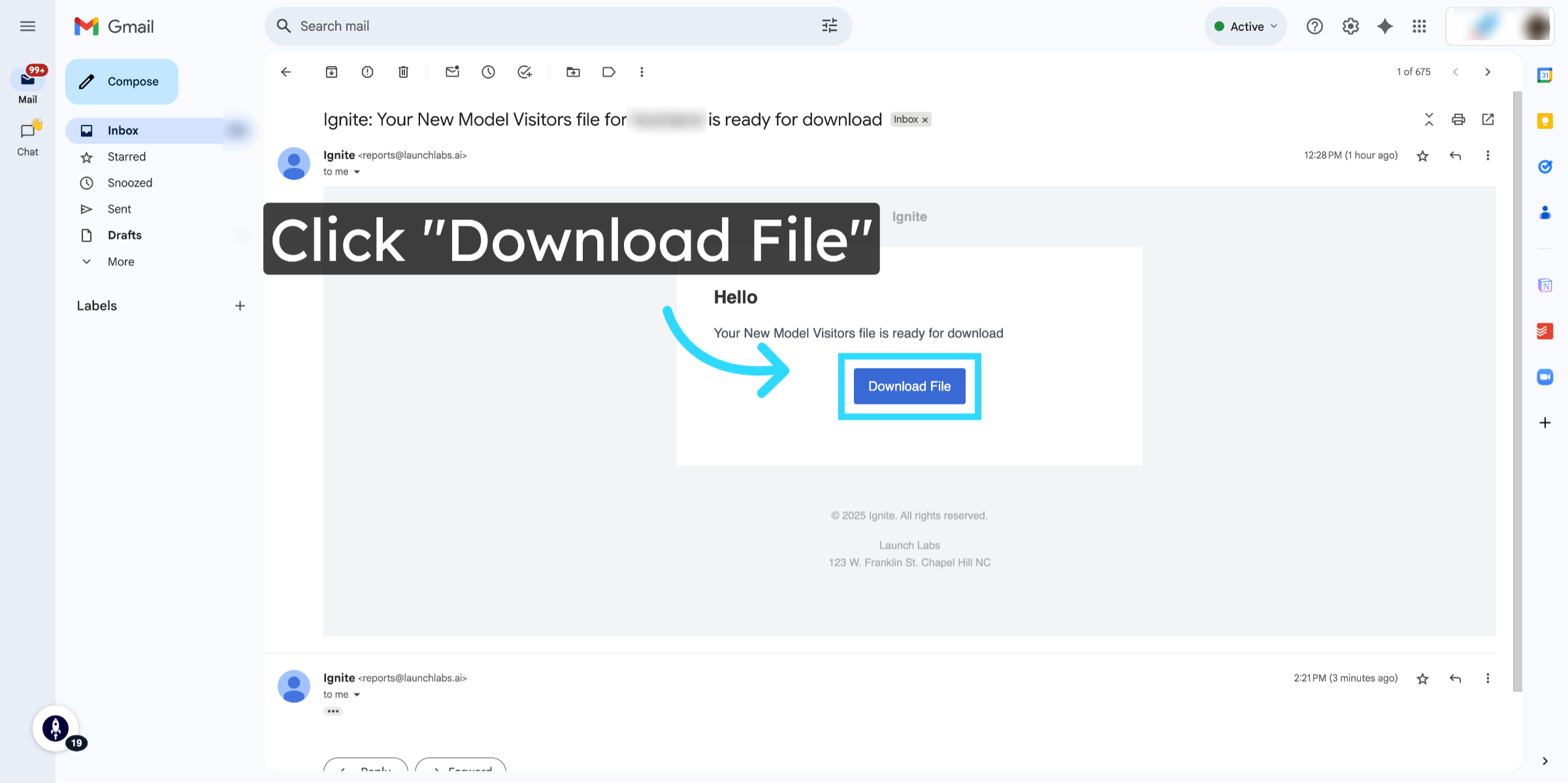
After confirming the settings, click Export to initiate the export process. You’ll receive a confirmation, and shortly after, an email with the exported audience file.

6. Download the File
Open the email you received from Ignite and click Download File to download your audience data. The file will be in CSV format and can now be used for additional analysis or other marketing workflows.