How To Connect TikTok Ads Account
Connecting your TikTok Ads account lets you sync audiences between TikTok and the platform so you can use your data for targeting and measurement. In this guide, you’ll learn how to connect your TikTok Ads account, authorize access, and confirm everything is set up correctly.
⚠️ Important Notes: Connecting TikTok to the platform will NOT WORK ON SAFARI. For the best experience please use the Chrome browser. Also please note that connecting TikTok Ads requires the Audience Manager Package.
Step-by-Step Instructions
-
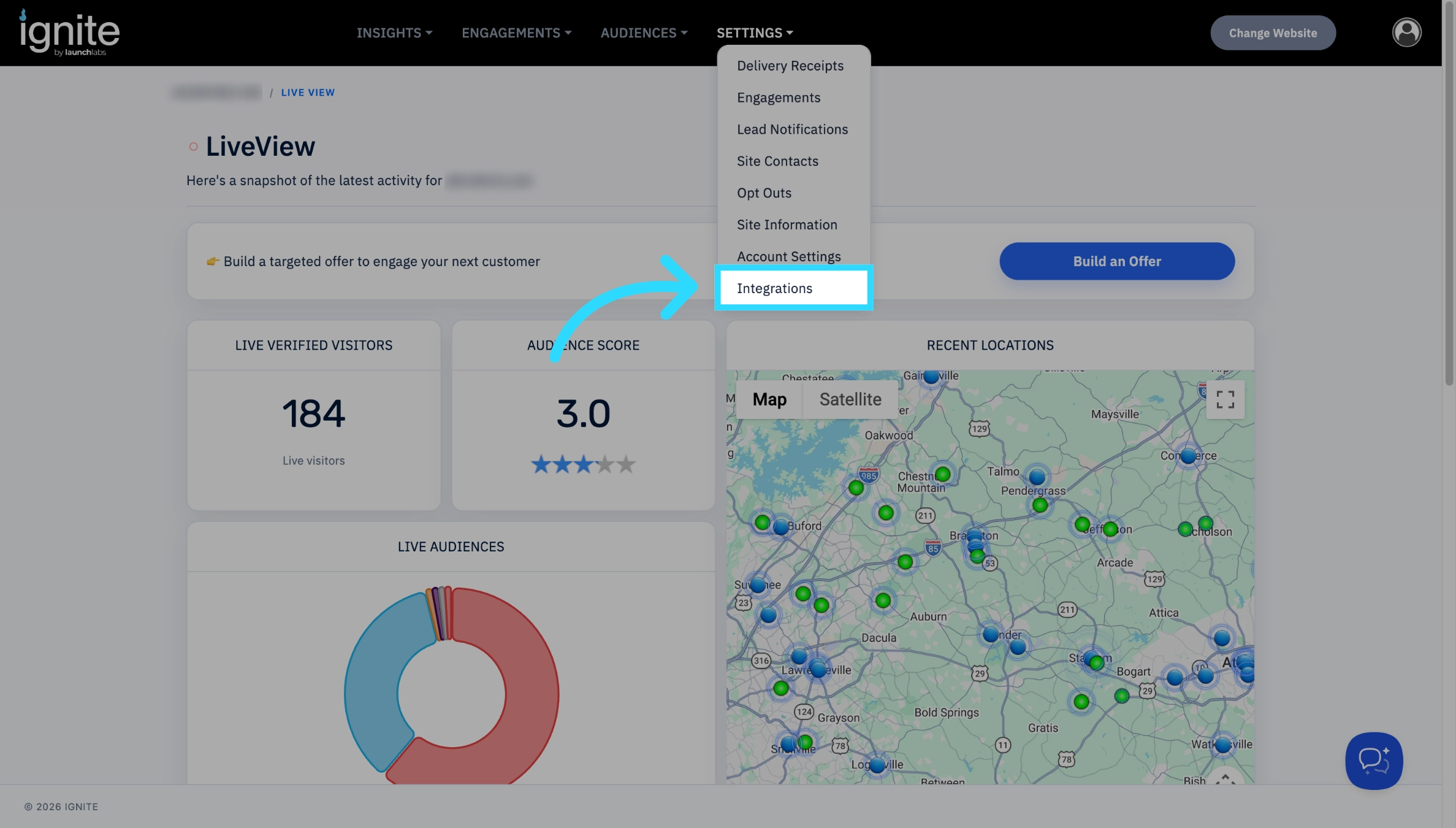
From the LiveView page, navigate to Settings → Integrations.
-
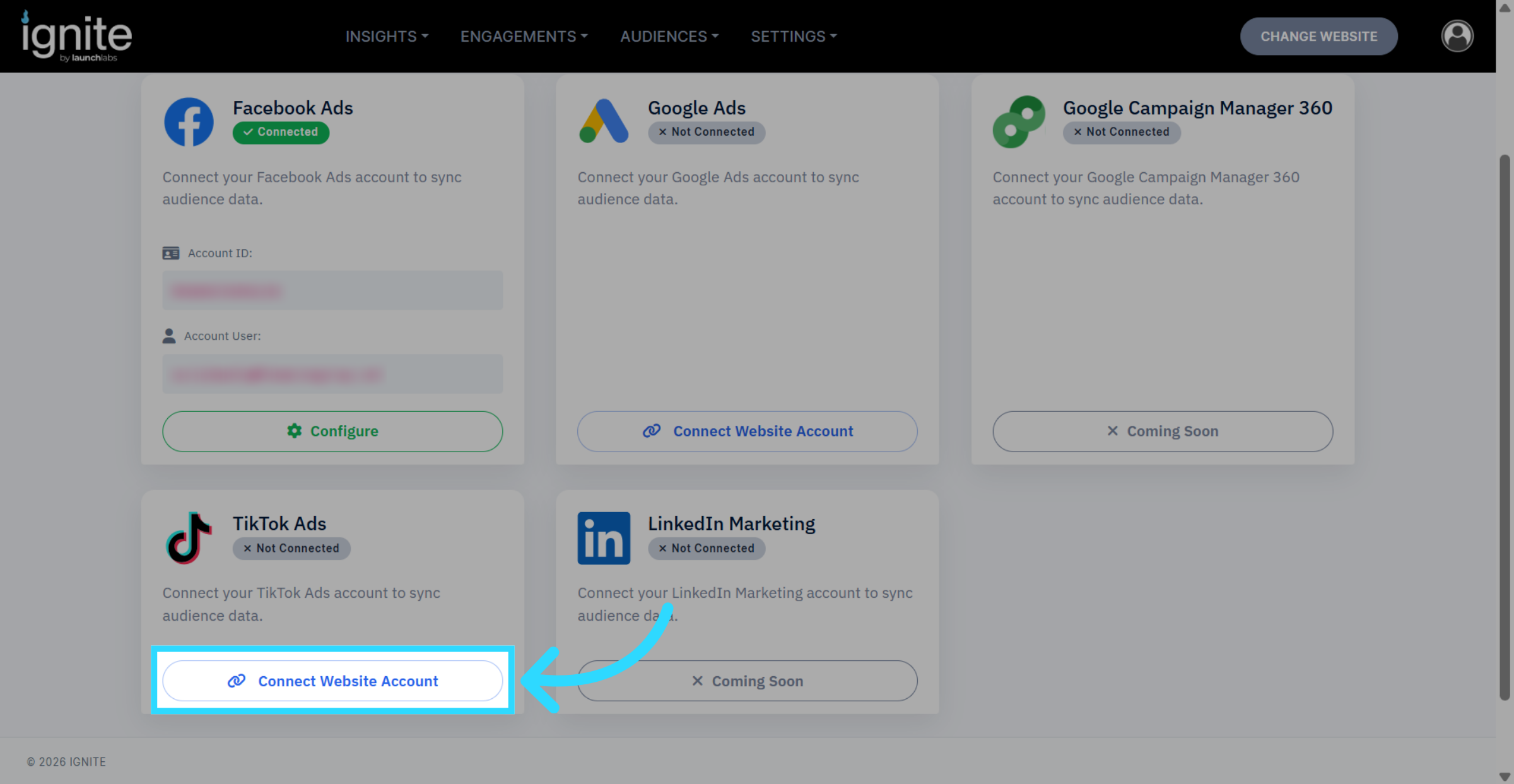
Find TikTok Ads and click Connect Website Account.
-
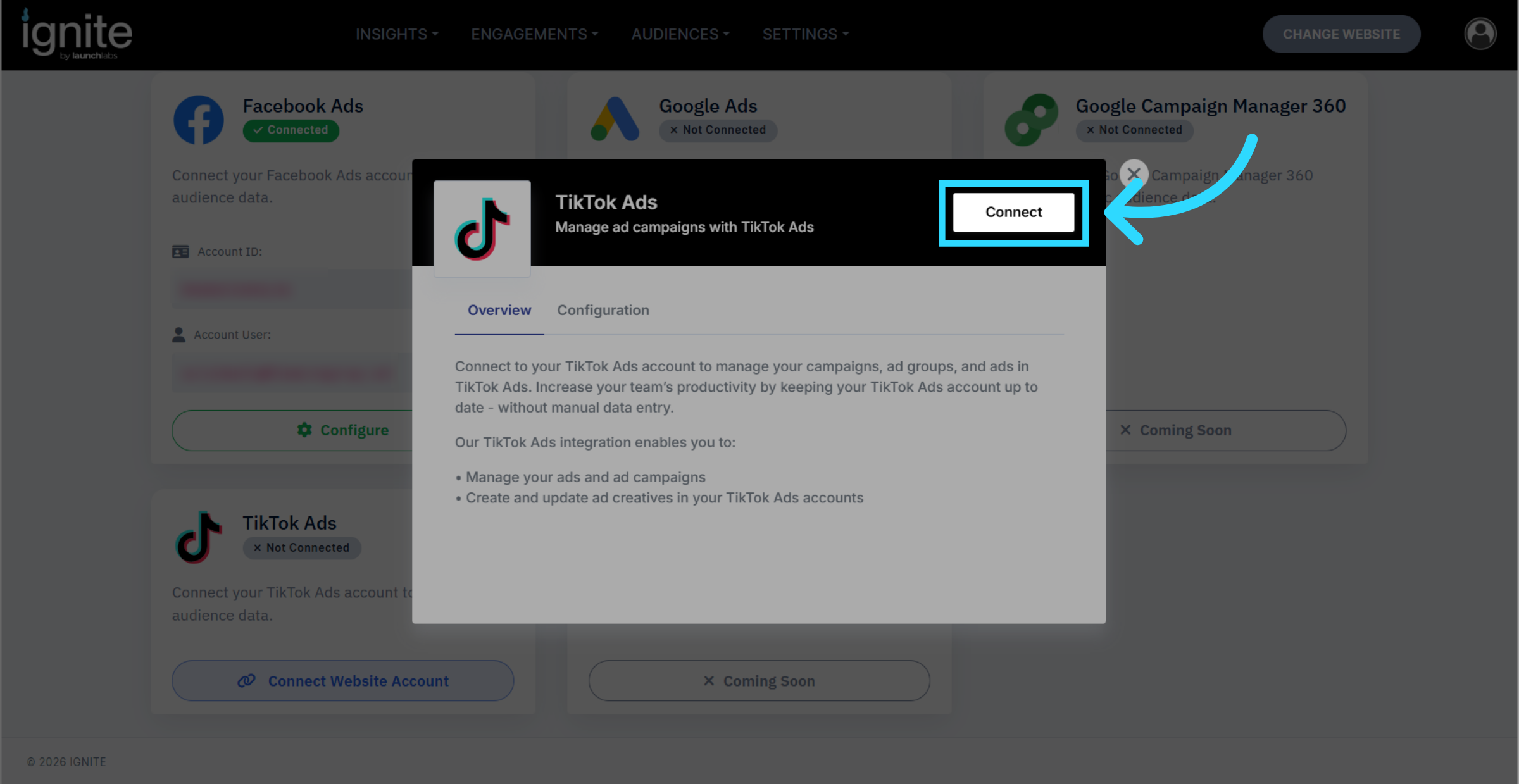
A popup will appear. Click Connect in the top right corner to continue.
- If you're already logged into TikTok in another tab, you'll be asked to allow the platform access. Check the appropriate boxes, then click Confirm in the bottom right corner.
-
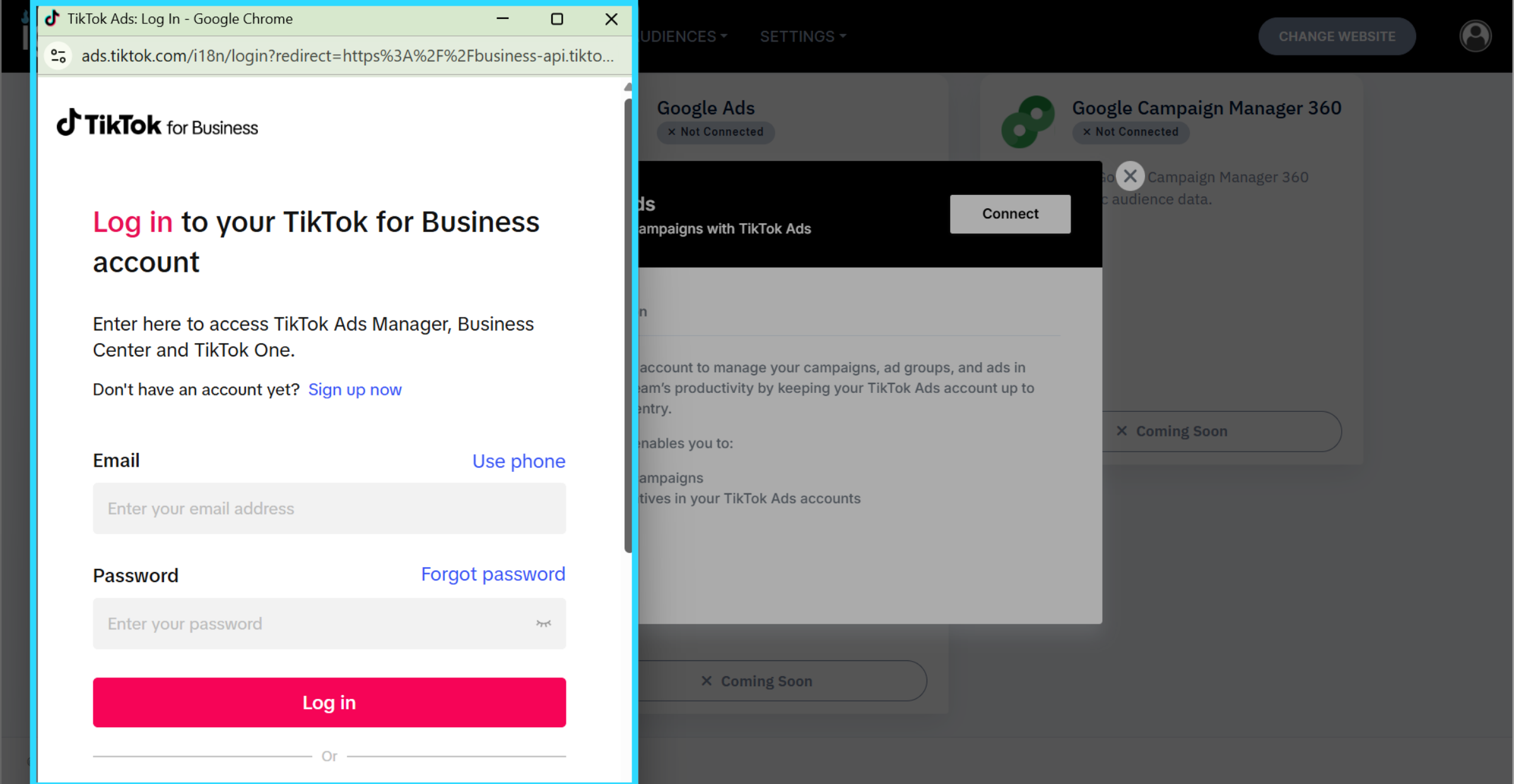
If you're not logged in, you'll be prompted to log in first, then follow the same process.
-
- If the connection is successful, you'll see a green checkmark and a message confirming your account was connected. You'll then be returned to the Integrations page.
-
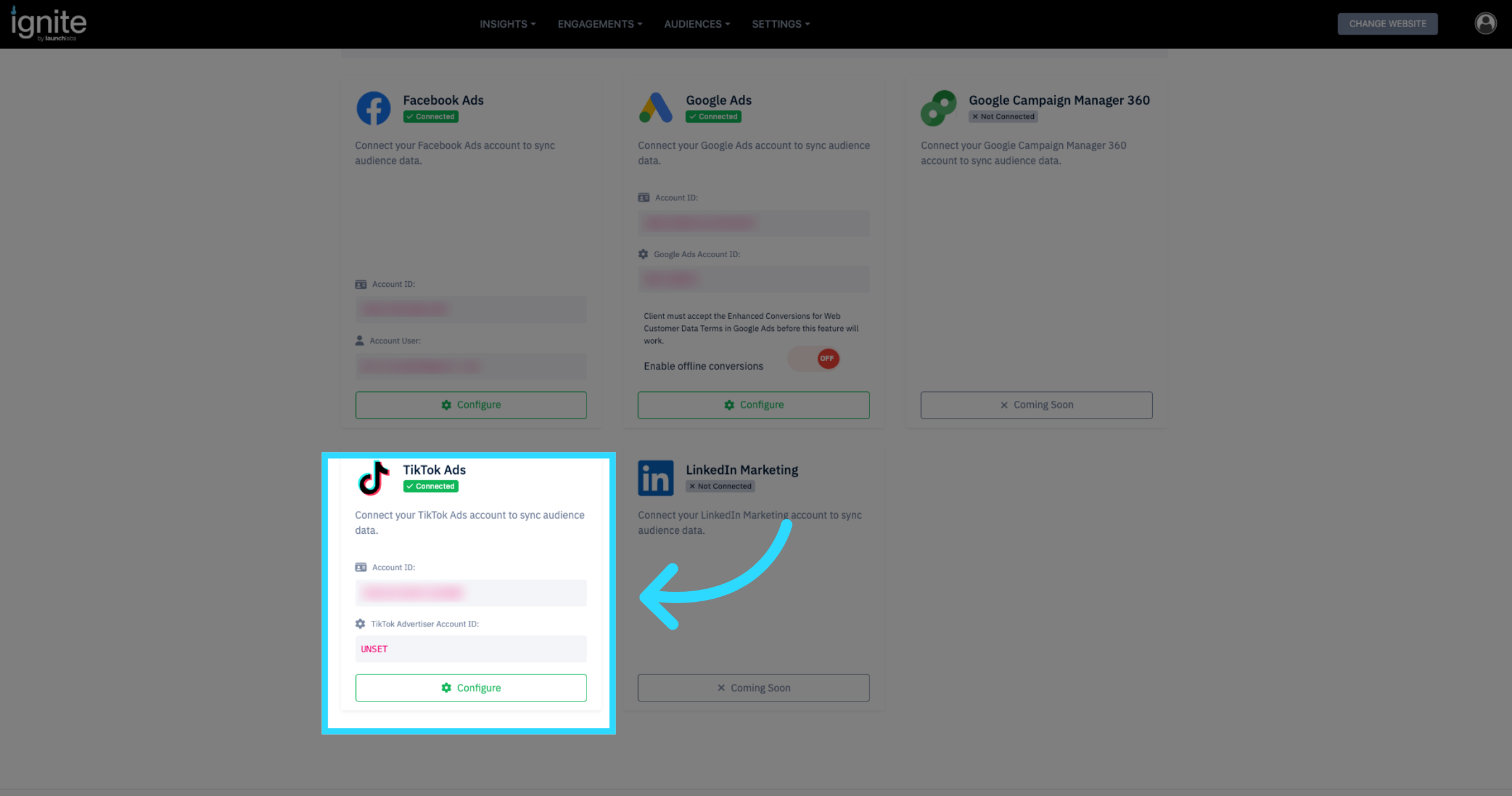
On the Integrations page, the TikTok Ads block should now show a green Configure button at the bottom. Click this button to set the Account ID
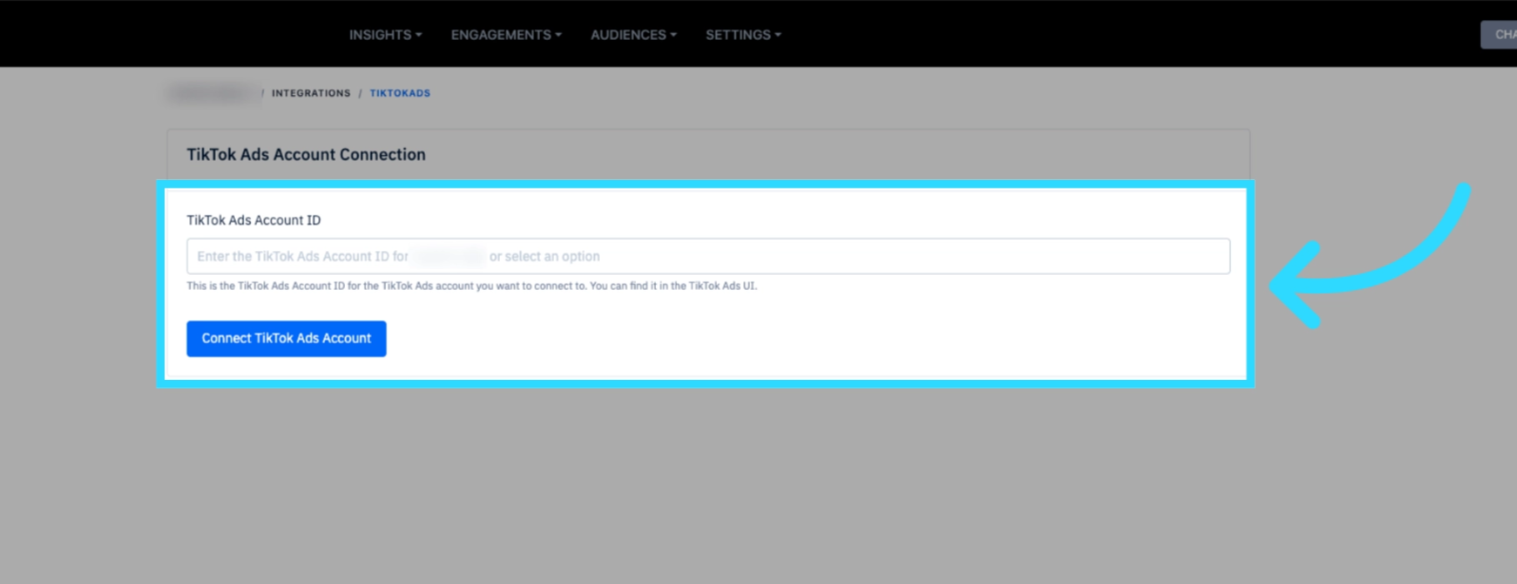
- Add your TikTok Ads Account ID, then click Connect TikTok Ads Account.
-
You can find your ID in the TikTok Ads UI and copy it over.
-
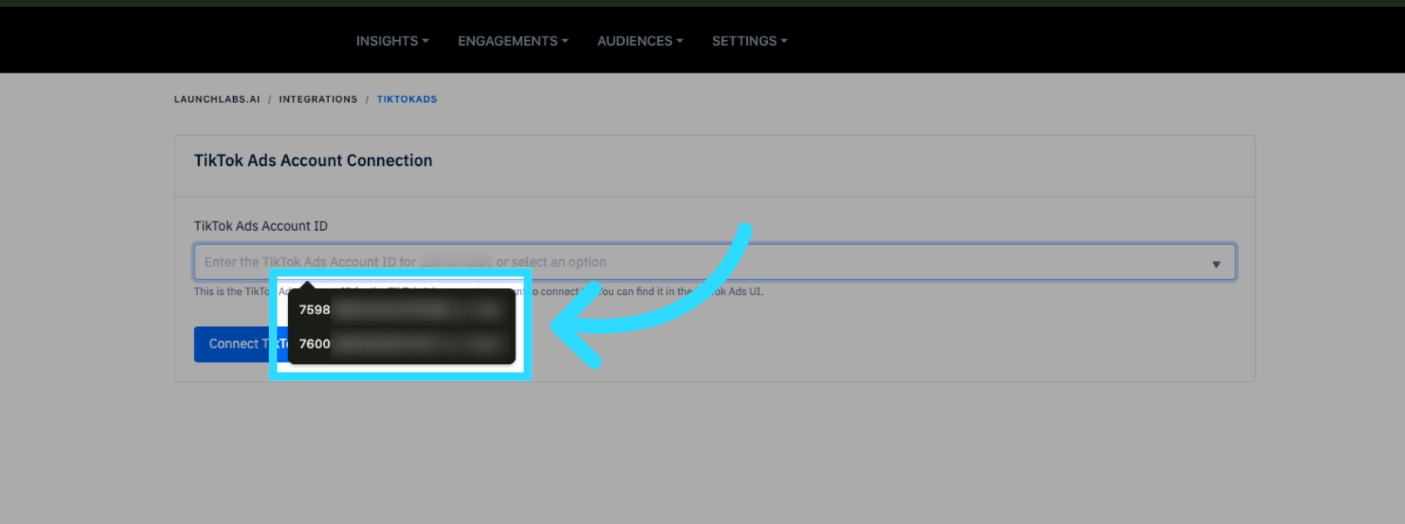
Alternatively, you can click into the field via arrow icon on far right and select from the dropdown list of available accounts.
-
- If the account was added successfully, a green checkmark will appear with a confirmation message. TikTok Ads have now been successfully connected to the platform.
