How to Check Your Google Ads Access Level
If you are experiencing issues during the How to Set Up Google Ads Integration process, or if your audiences are failing to sync, it is highly likely an issue with your account permission levels.
For many agencies, Google Ads are managed via an MCC (My Client Center) Manager Account. An MCC is an umbrella account that houses multiple individual client ad accounts. However, simply having access to an MCC is not enough to integrate with Ignite.
💡 To import Ignite audiences into a Google Ads account, your user email must be added to the individual client account as a Standard or Admin-level user. Because Ignite ties directly to a specific website/account, umbrella MCC access alone will cause the integration to fail.
How to Check Your Access Level
- Go to ads.google.com.
- Click on your profile/user icon in the top right corner of the interface.
-
Look at the accounts listed directly under your name. These are the individual accounts you have direct access to.
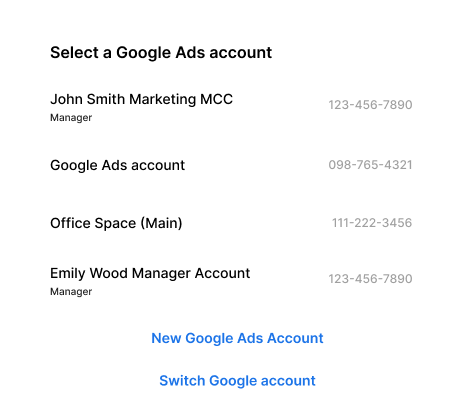
You can only sync Ignite audiences to the individual accounts listed here. If the client account only lives inside your MCC umbrella, you must be added to it individually.
How to Verify Your Permission Role on an Individual Account
- Navigate into the specific individual client account in Google Ads.
- Go to Admin > Access and security.
-
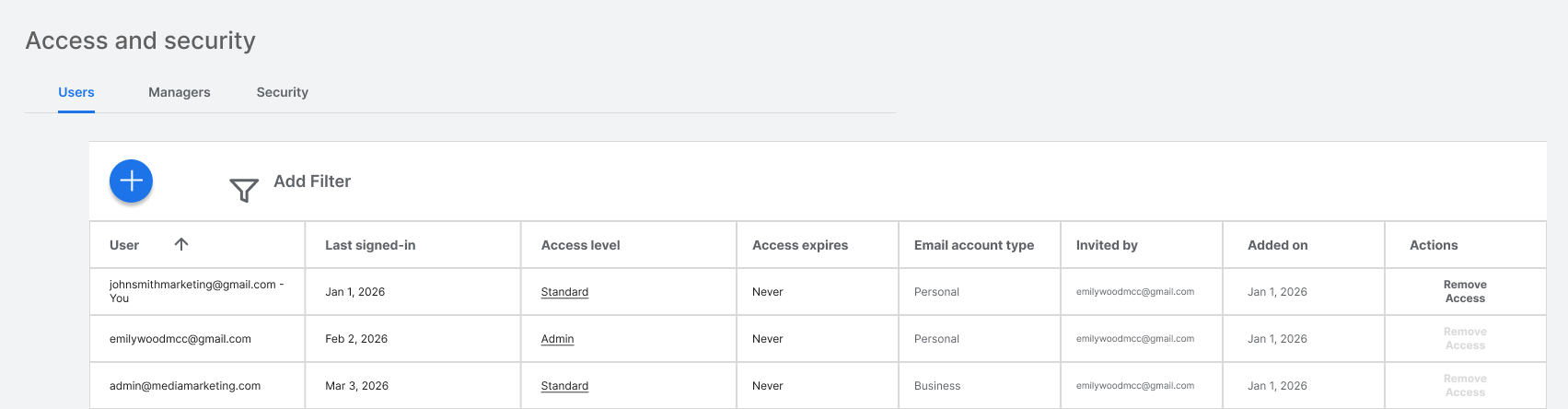
Under the Users tab, check if your email is listed. If your email is listed here with Standard or Admin access, you have the correct permissions.
-
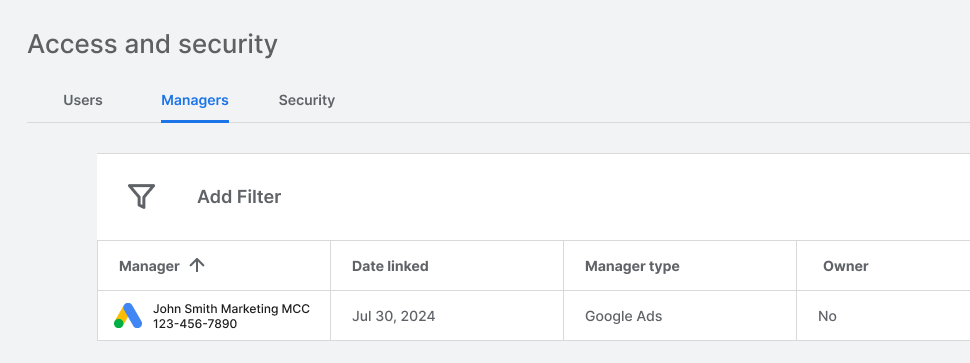
If you only see the Managers tab populated with the name of your MCC, and your email is not under Users, you do not have the required direct access to sync Ignite audiences.
How to Get Granted Access to an Individual Google Ads Account
If you need direct access, an existing Admin on the individual account must invite you:
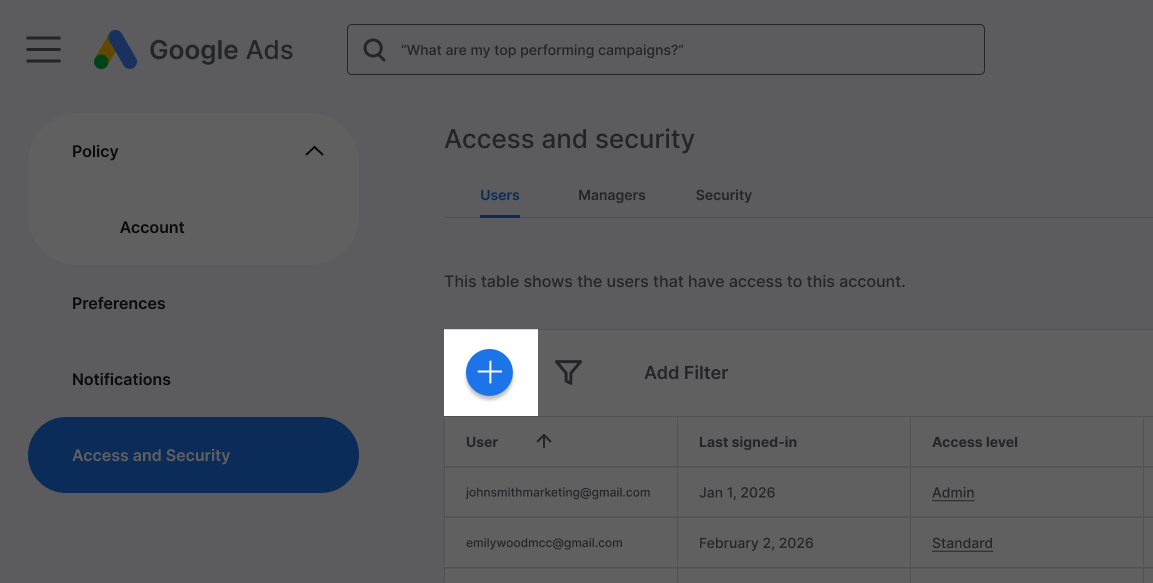
- Have the Admin go to Admin > Access and security > Users.
-
Click the blue [+] button.
-
Enter your email address and select Standard or Admin access.
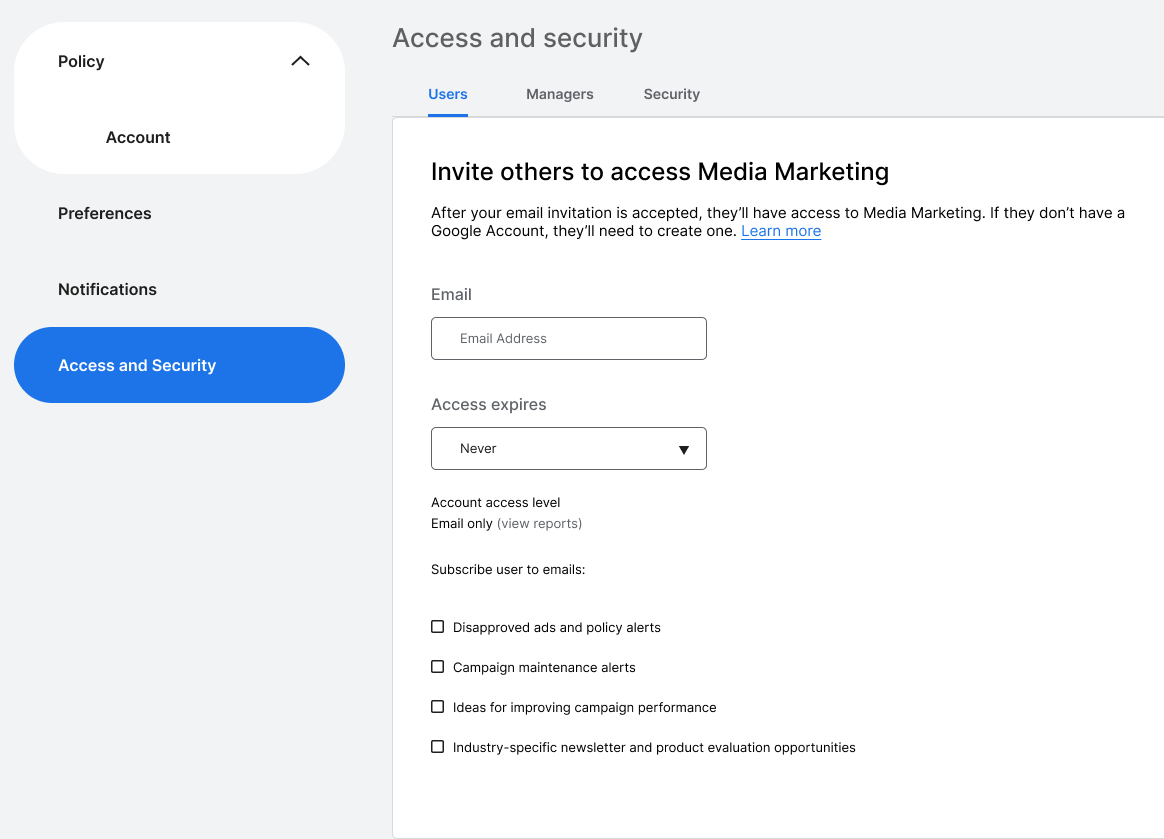
- Once the Admin sends the request, you will receive an email inviting you to join the account. Accept the invite, and you will be ready to integrate with Ignite!
