Inventory Insights
This article explains how to access and analyze Inventory Insights in the platform. Inventory Insights provides visibility into your dealership’s inventory performance, helping you understand shopper demand, top-performing vehicles, and areas for improvement.
Watch this video tutorial to see Inventory Insights in action:
👉 Before following this guide, ensure you have access to the Insights module in the platform.
Step-by-Step Instructions
1. Open Insights
Go to the platform and click Insights from the top navigation bar.

2. Select Inventory Insights
From the Insights dashboard, click Inventory Insights to open the inventory performance view.

3. Review Vehicle Performance
Analyze how each vehicle in your inventory is performing based on shopper engagement and interest levels. This may include views, clicks, or conversions tied to individual vehicles.
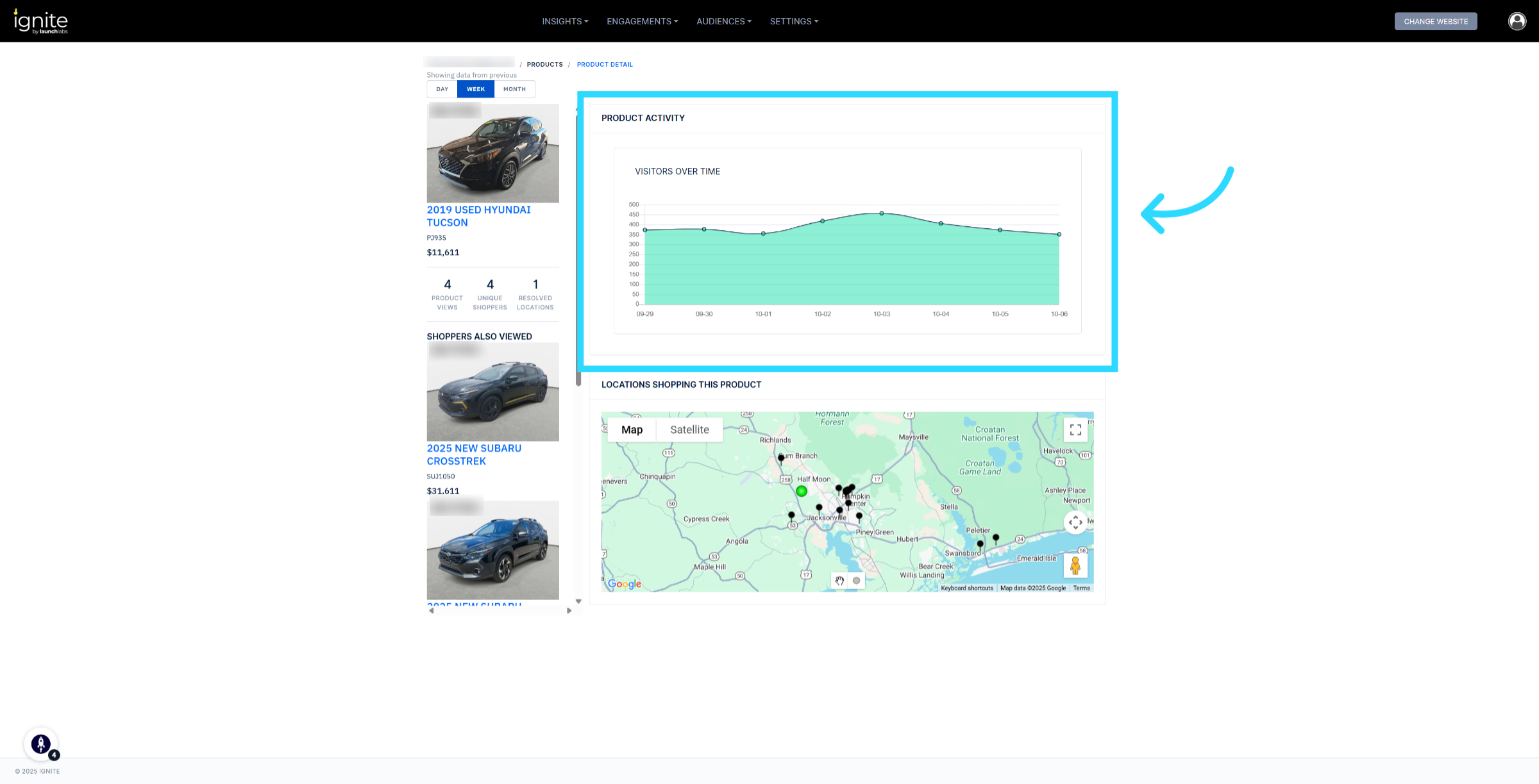
4. Identify Top and Low Performers
Use the dashboard to identify which vehicles are generating the most engagement and which may need additional promotion or merchandising support.
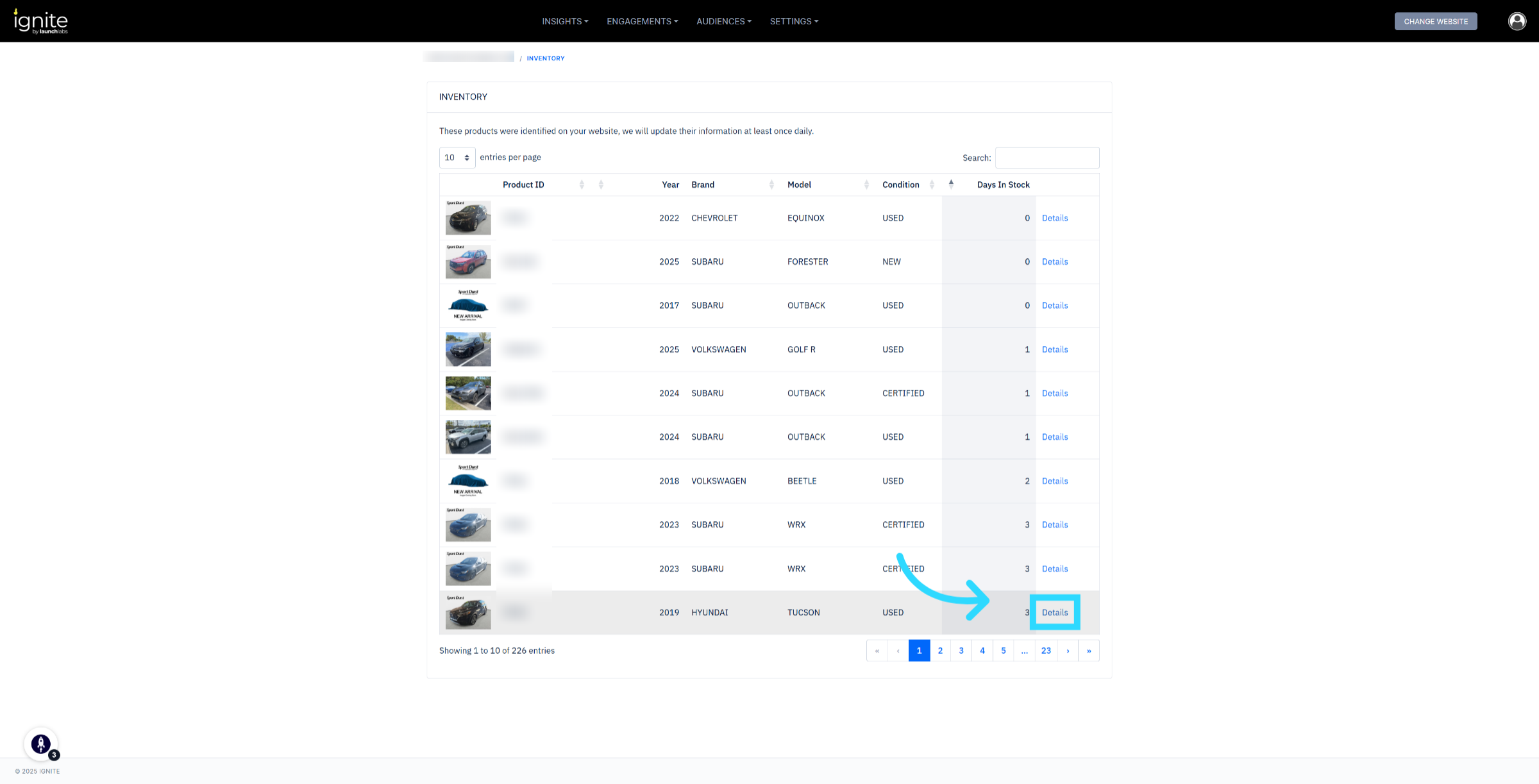
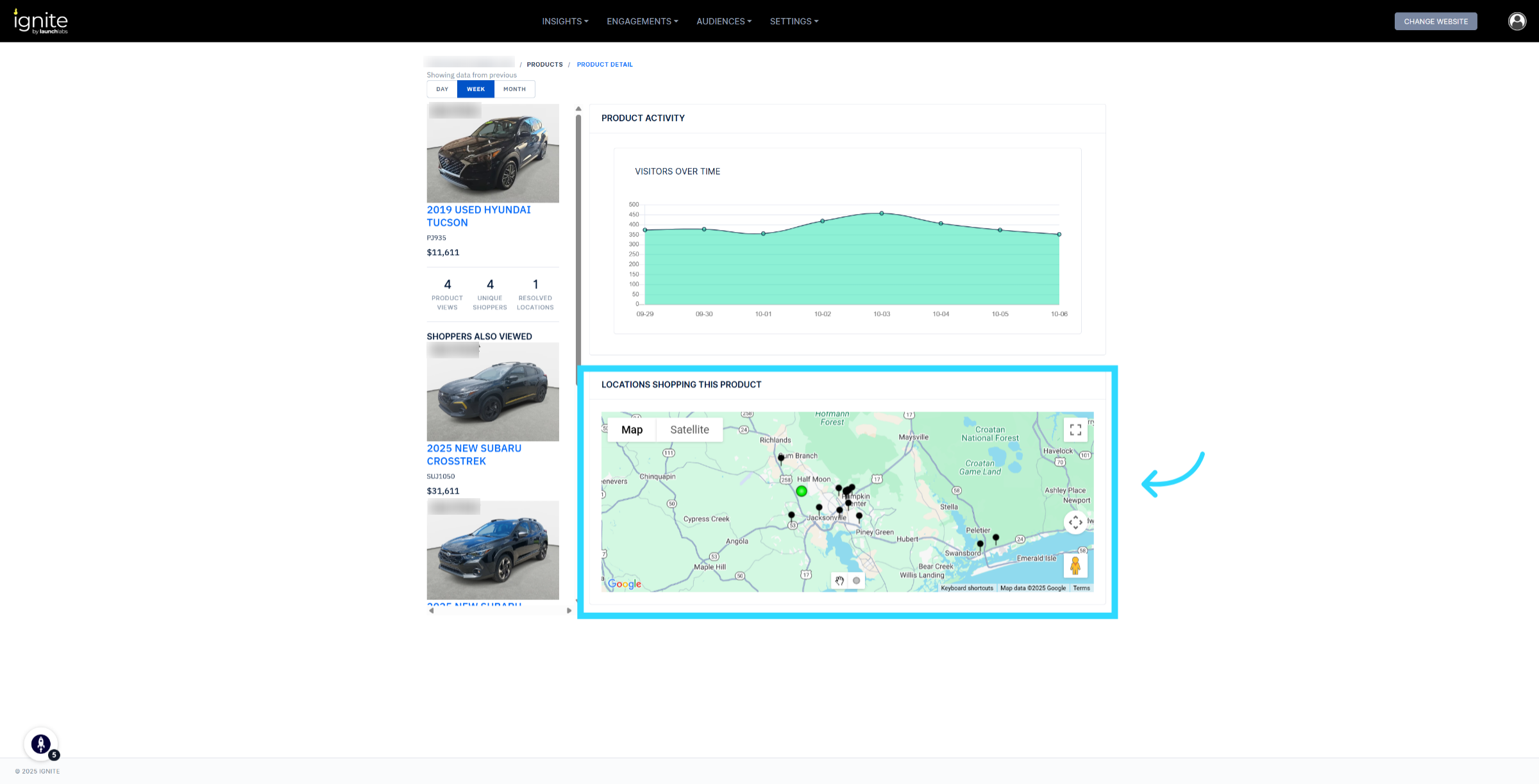
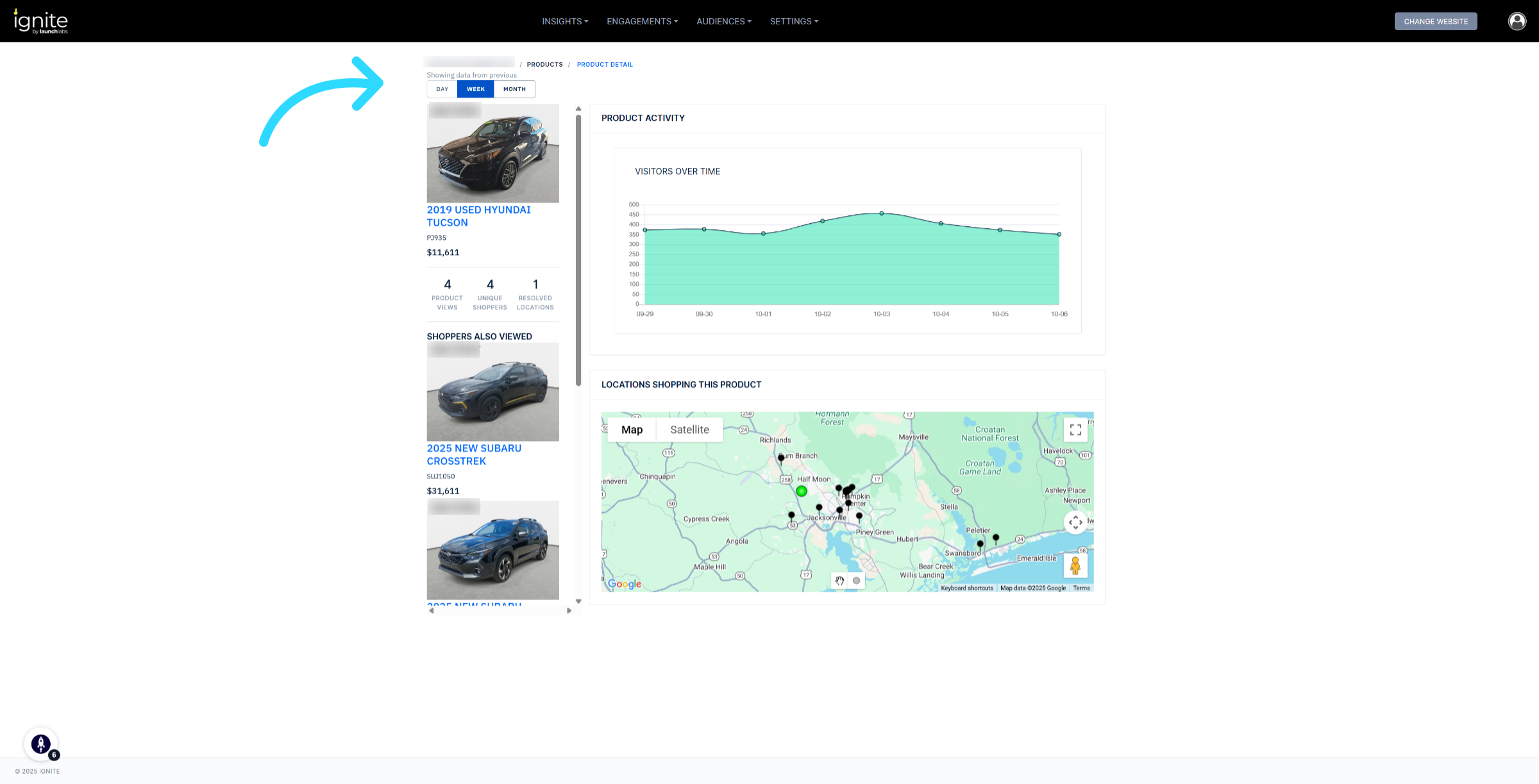
5. Apply Filters
Refine your analysis by applying filters such as day, week, month.
Next Steps
Once you’ve reviewed Inventory Insights, you can:
- Highlight top-performing vehicles in your marketing campaigns.
- Adjust inventory strategy to focus on shopper demand.
- Revisit merchandising for underperforming vehicles.