How to Configure the Conversion Hub
This article explains how to configure the Conversion Hub in the platform.
The Conversion Hub is an on-site conversion module designed for mobile and desktop visitors. It provides a persistent “hub” of quick actions and key links that encourage engagement and increase lead conversions.
Watch this video tutorial to see the full setup process in action:
Step-by-Step Instructions
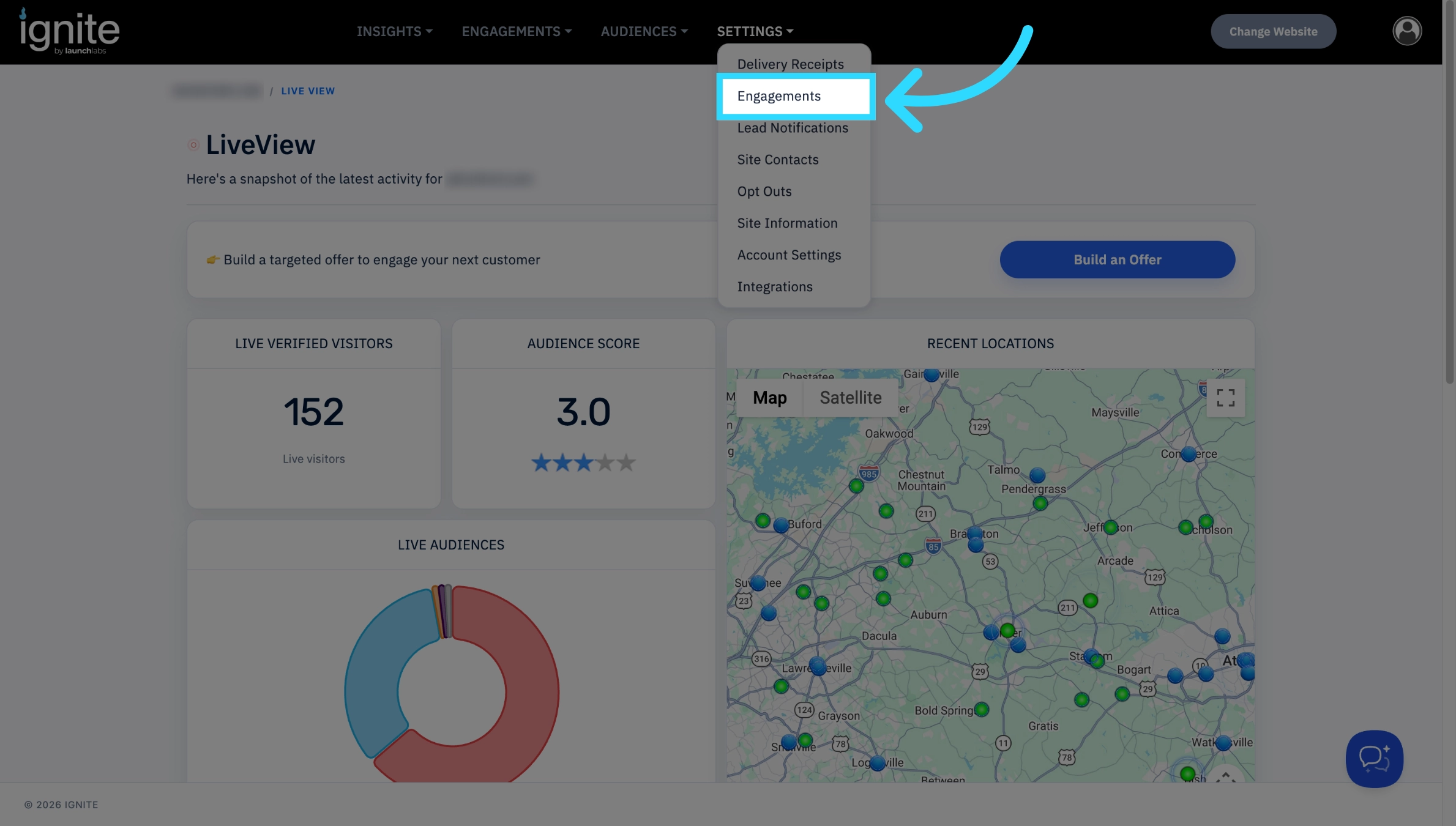
1. Access the Engagements Settings
- From the top navigation bar, click Settings.
-
From the drop-down menu, select Engagements to open the Engagements page.
2. Locate and Enable the Conversion Hub
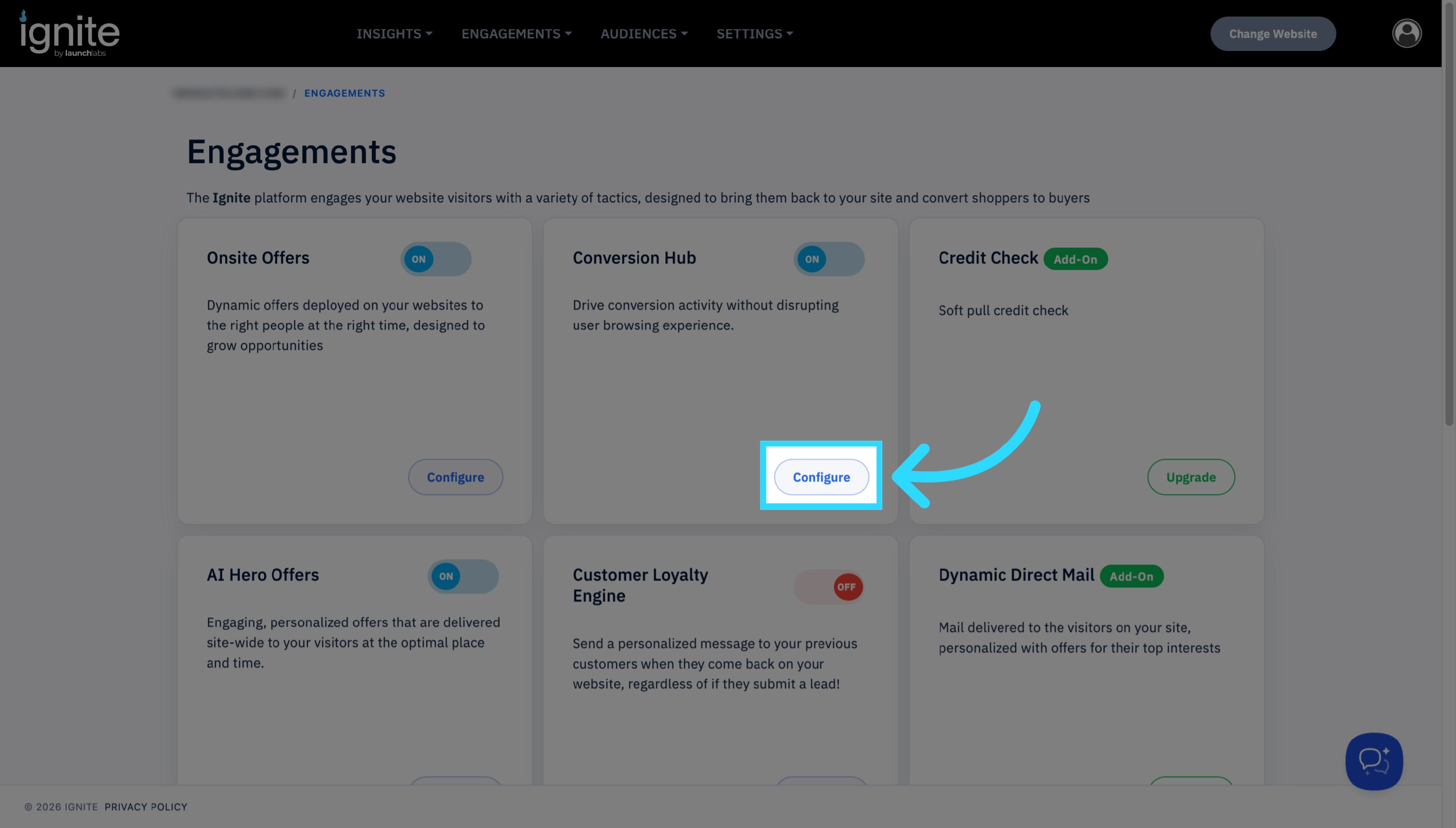
- On the Engagements page, find Conversion Hub and confirm that it is toggled ON.
-
Then, click Configure to begin setup.
3. Create Template Buttons
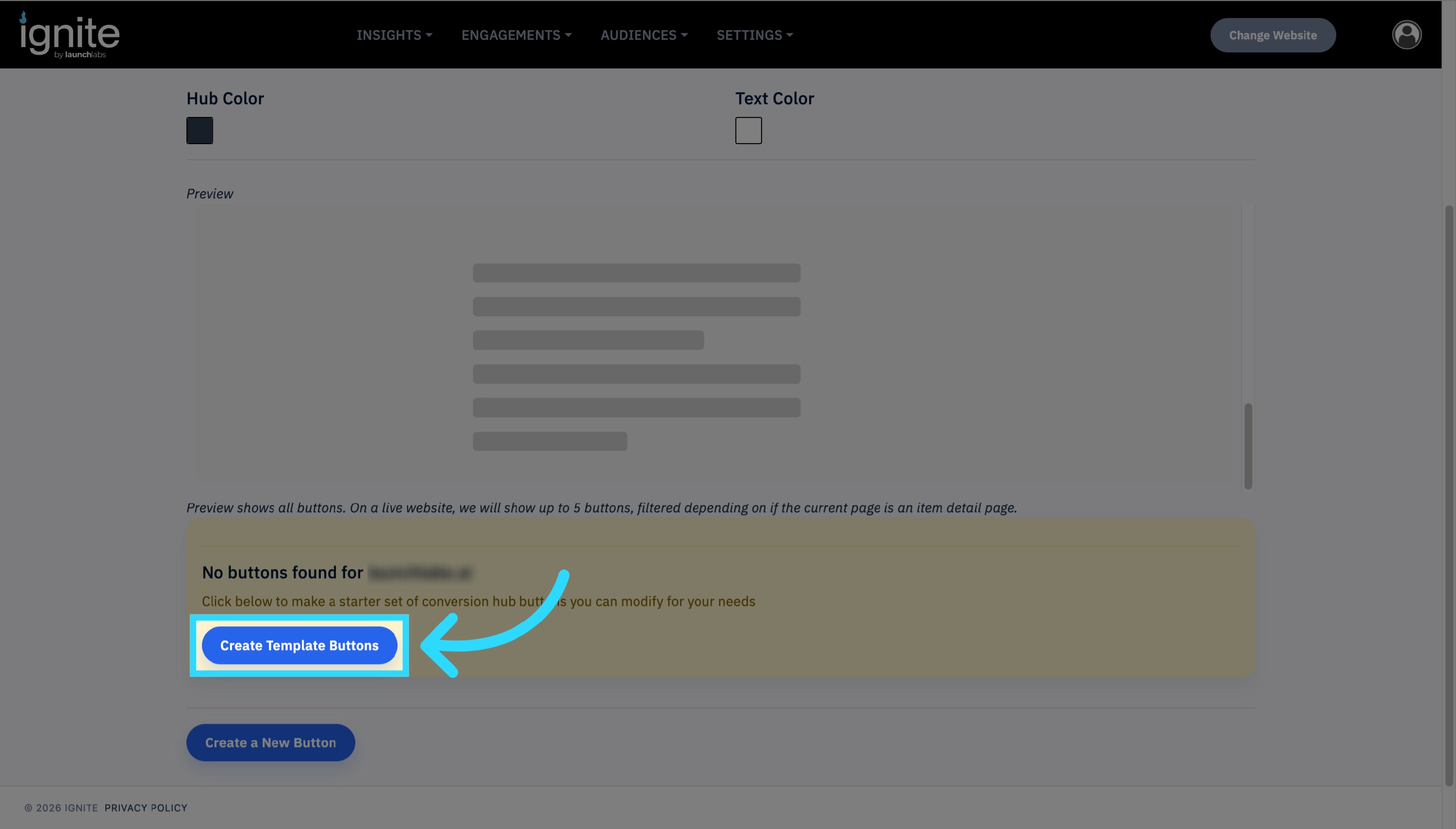
- Scroll down to the Create Template Buttons section and click Create Template Buttons.
-
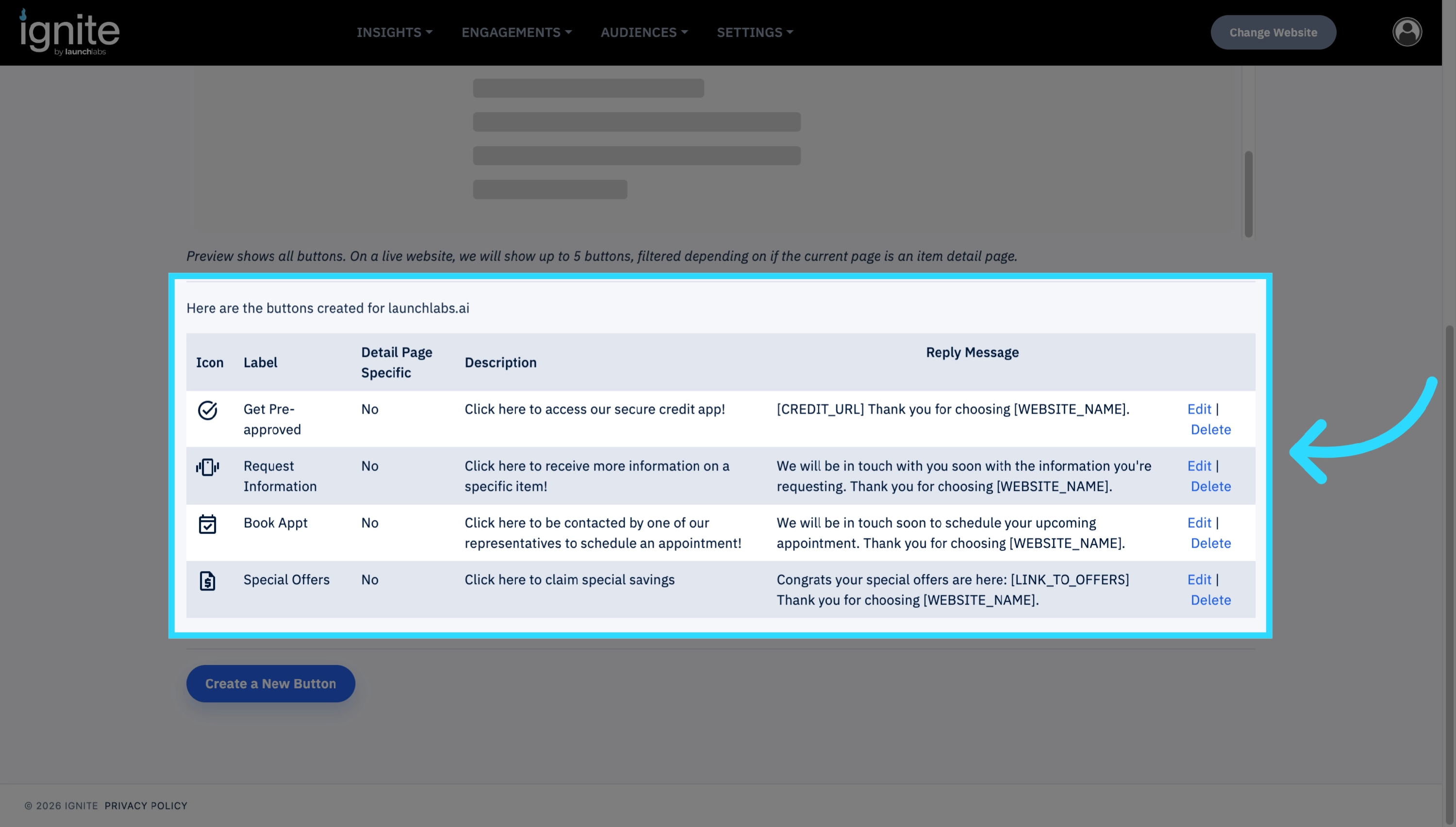
You can use the preconfigured Reply Messages by clicking Edit, or create your own custom message template.
4. Configure Button Settings
-
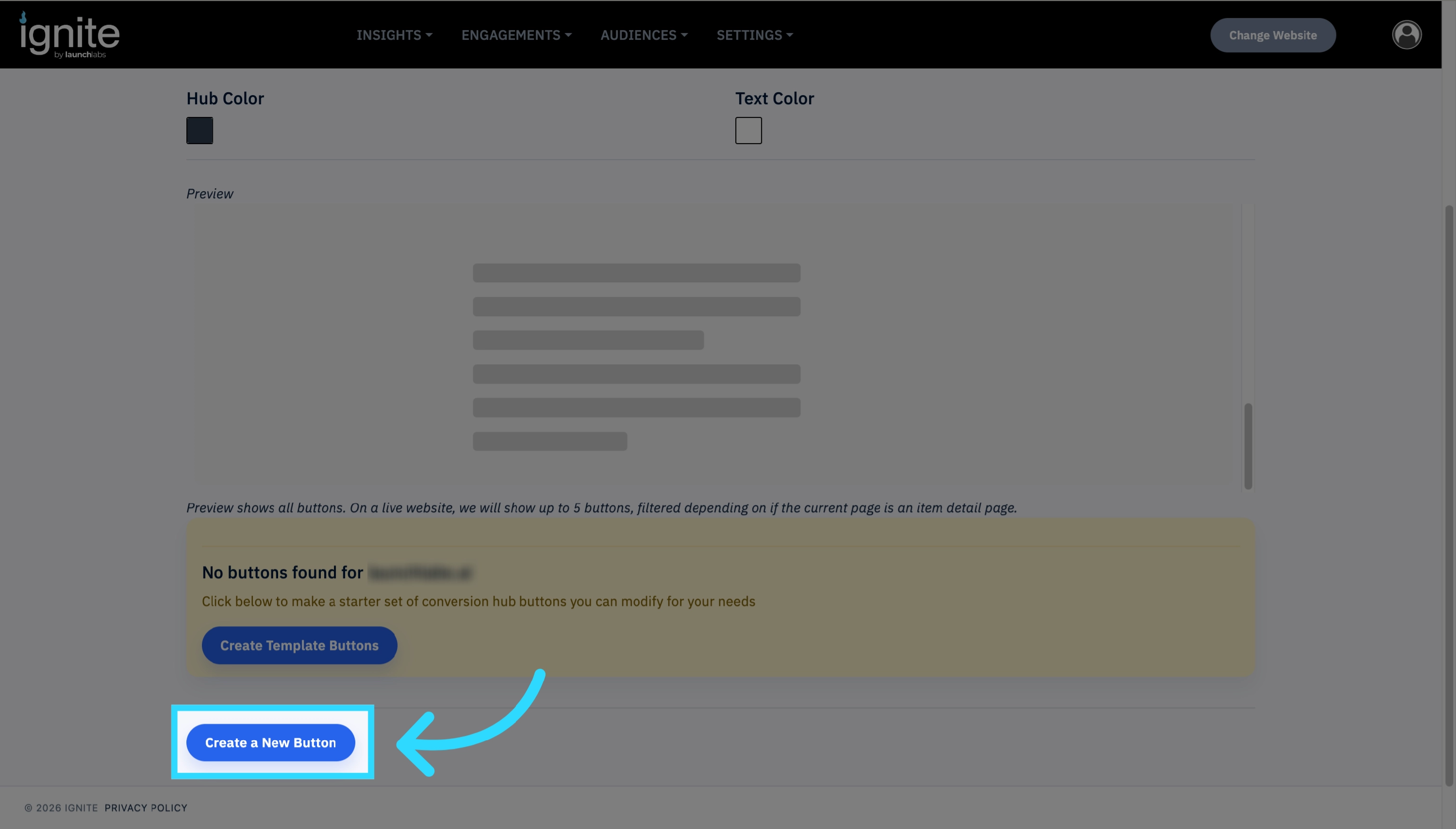
If you’d like to add your own buttons to the Conversion Hub, click Create a New Button.
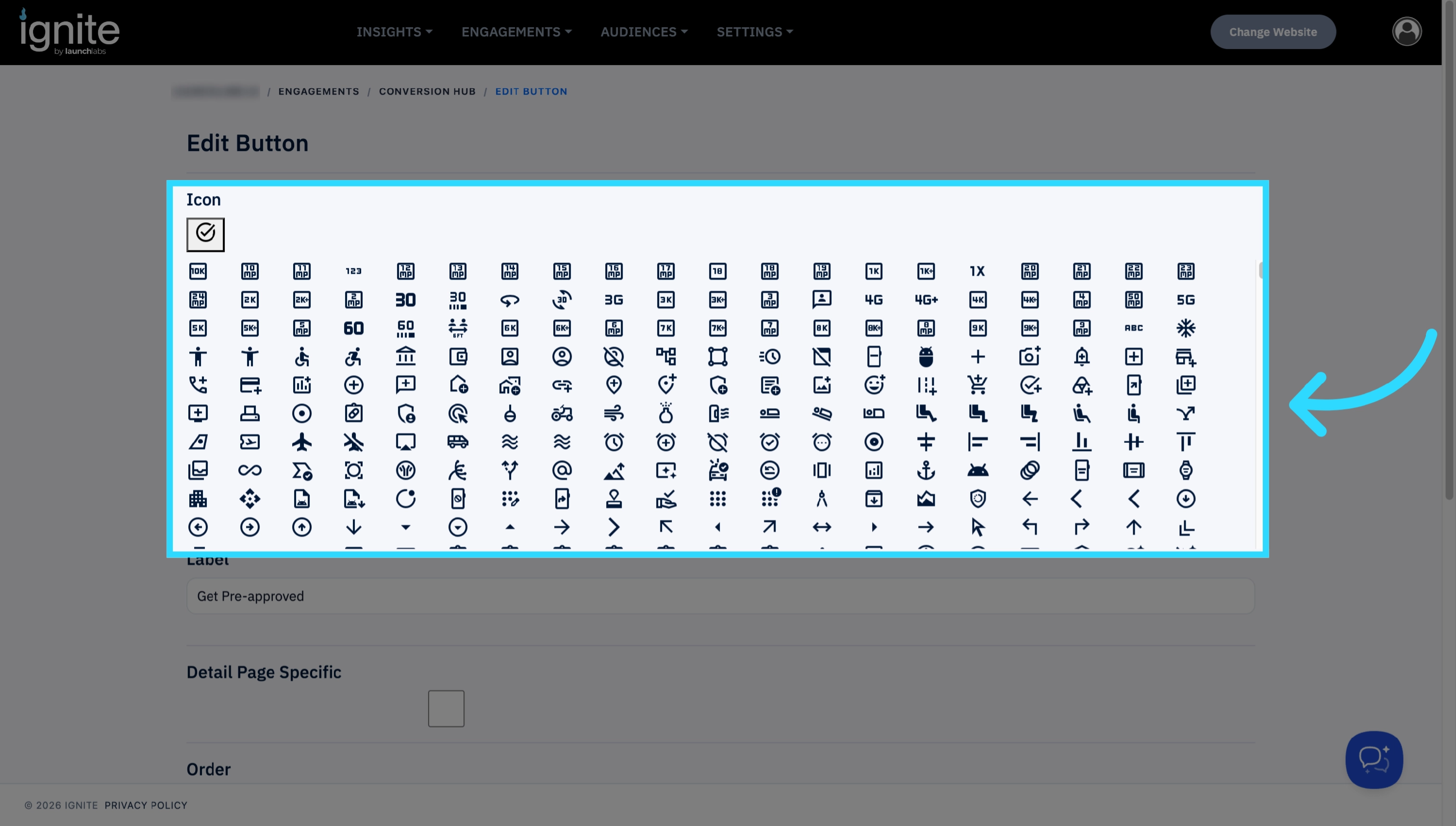
Under Icon, select a visual icon to represent the action.
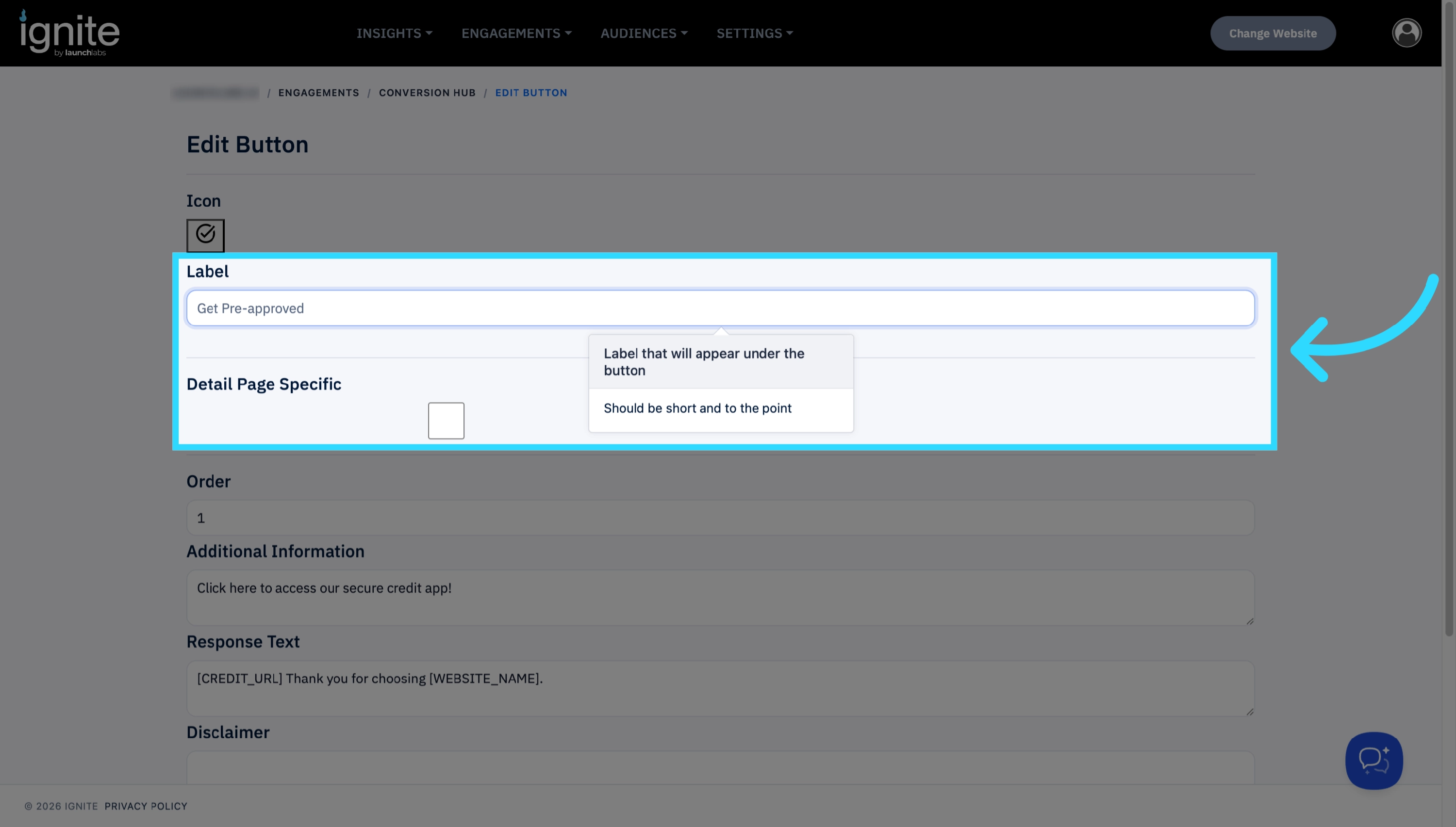
Enter a Label — this is the text customers will see on the Conversion Hub bar.
-
Examples: “Special Offers”, “Credit Check”, or “Schedule Test Drive”
-
-
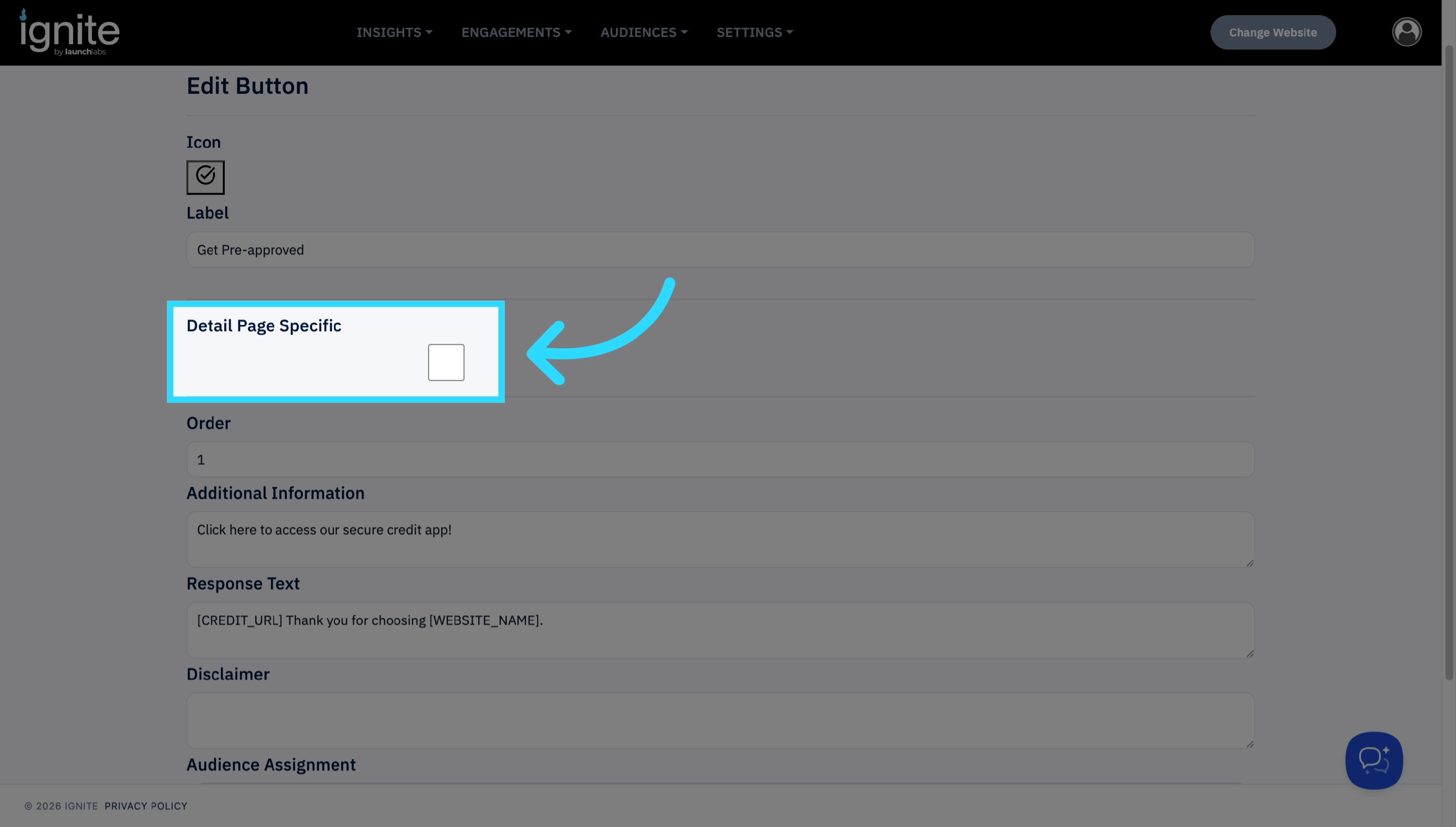
Detail Page Specific: Check this box if the button should appear only on vehicle detail pages. Leave unchecked to display on all pages.
-
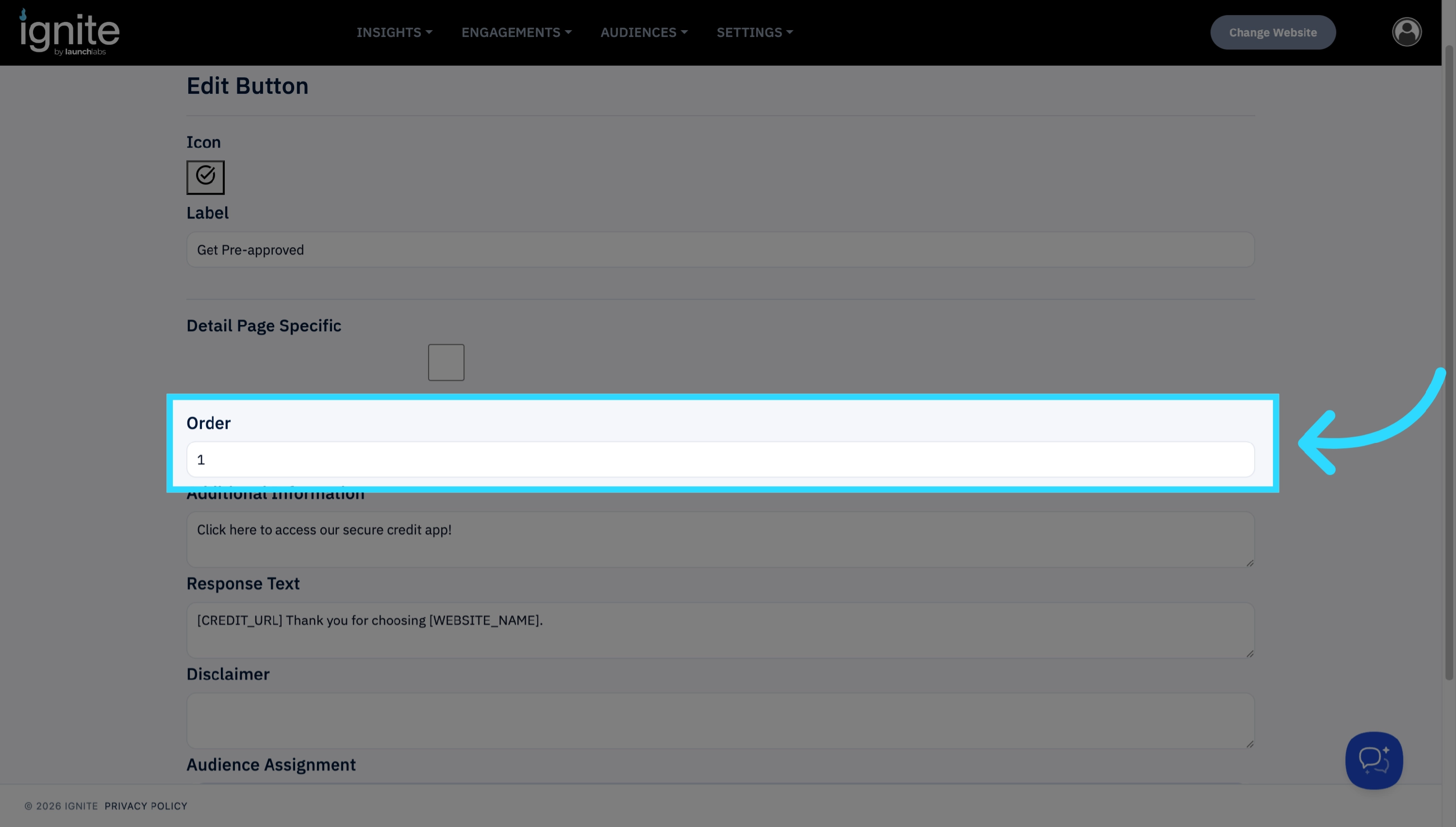
Order: Define the button’s display order within the Conversion Hub bar.
-
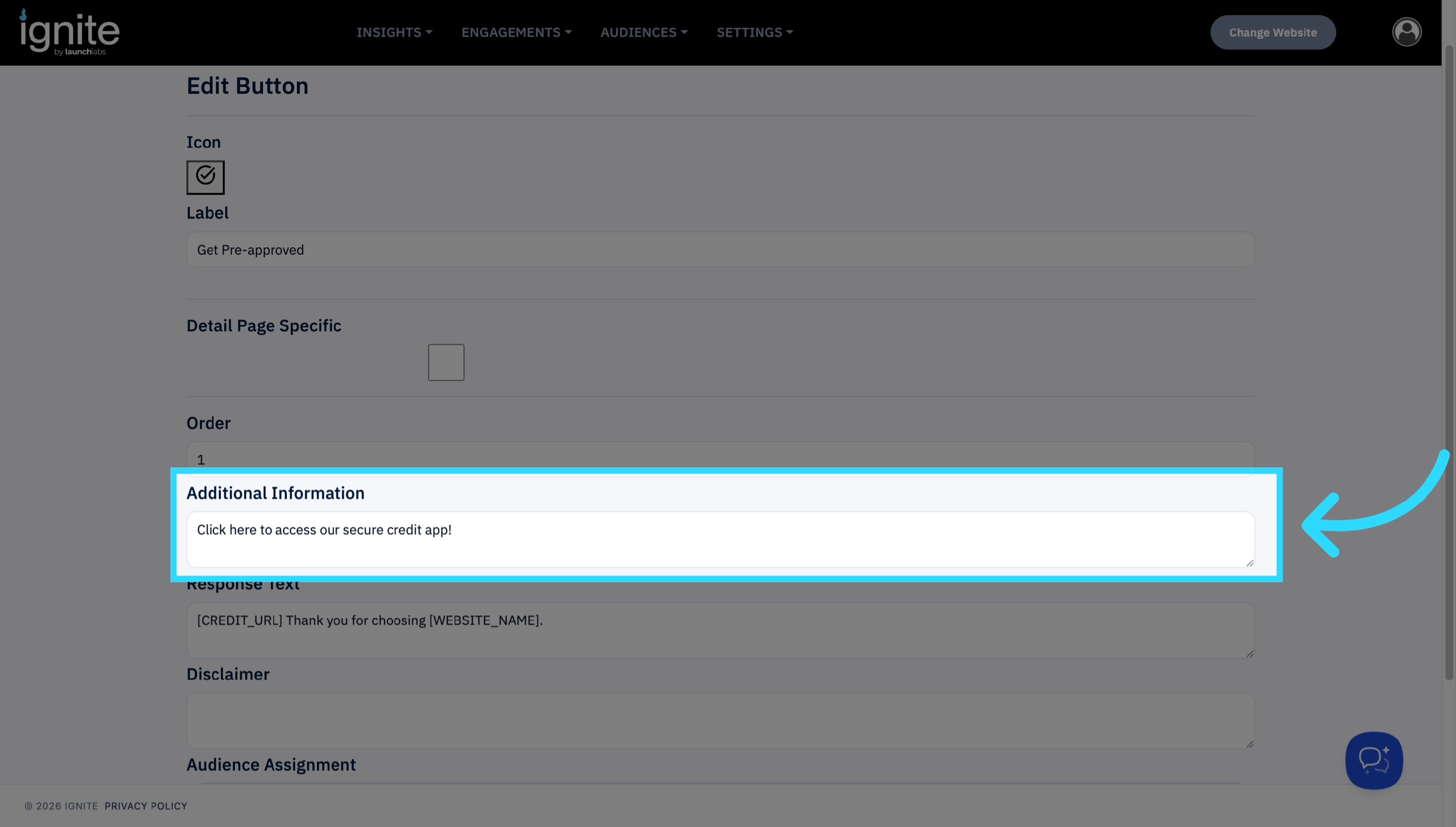
Additional Information: Add any details users should see when they click the button.
-
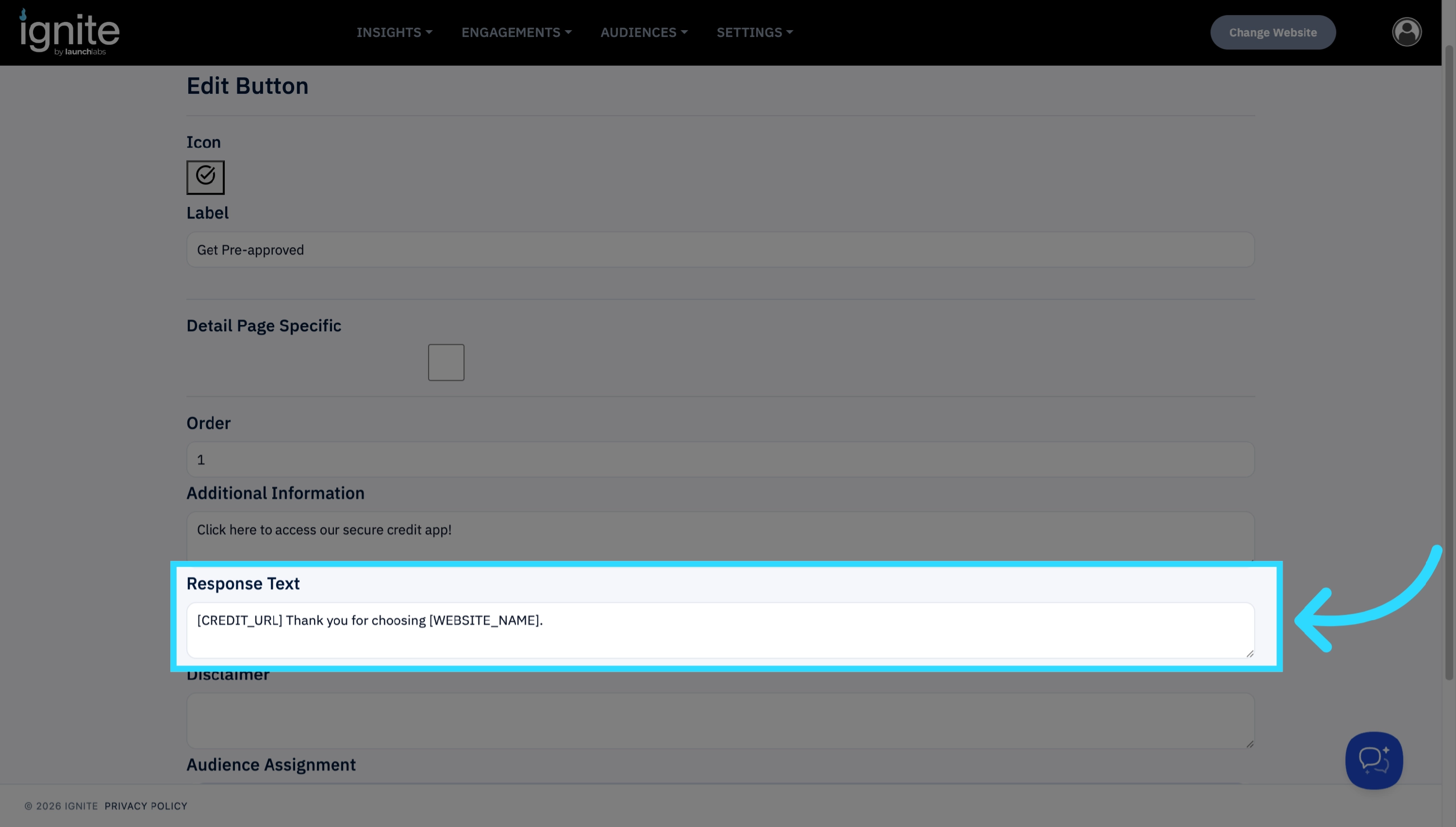
Response Text: Enter the message the customer will receive after engaging with the button.
-
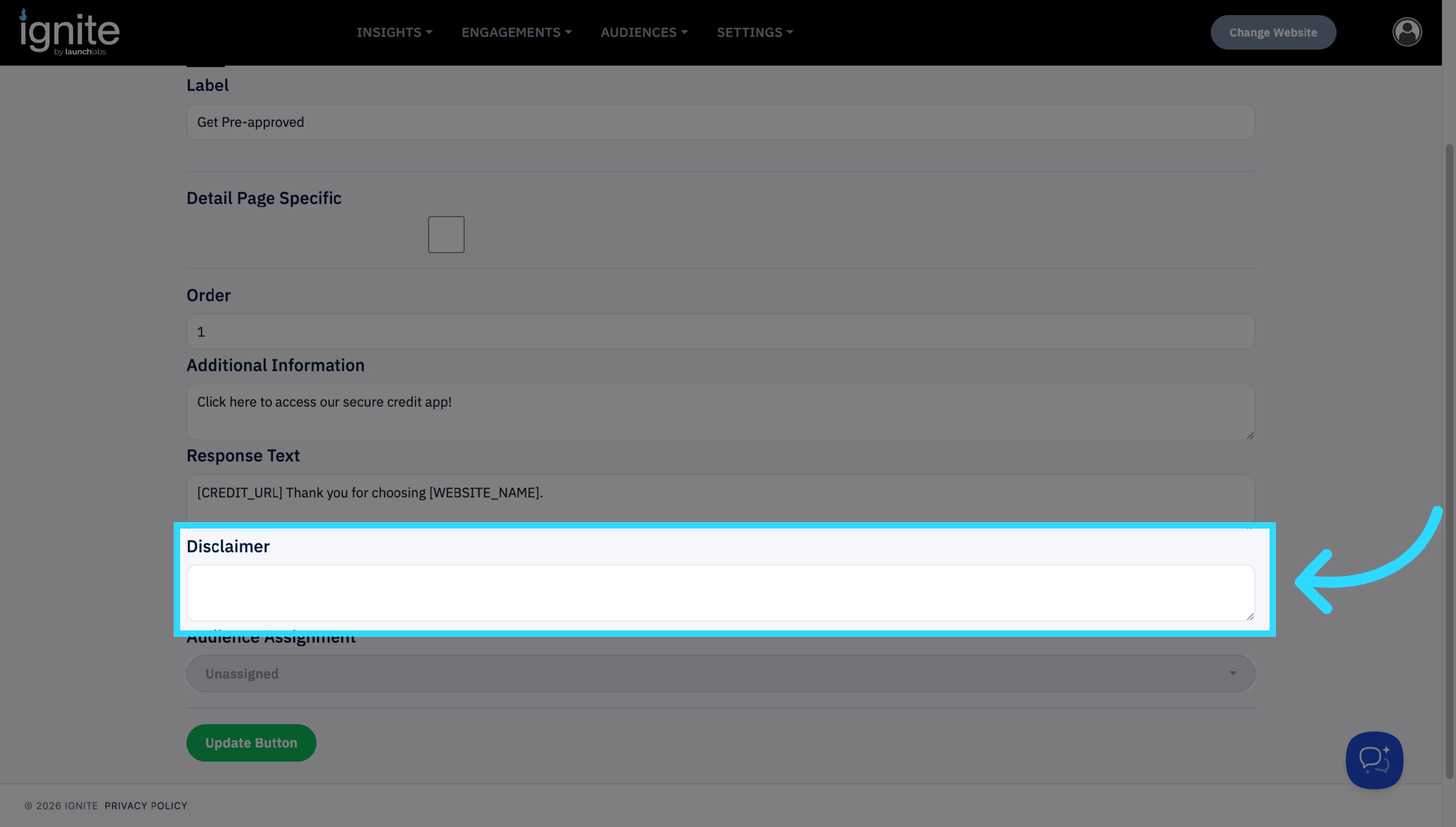
Disclaimer: Include any required legal or promotional disclaimers.
-
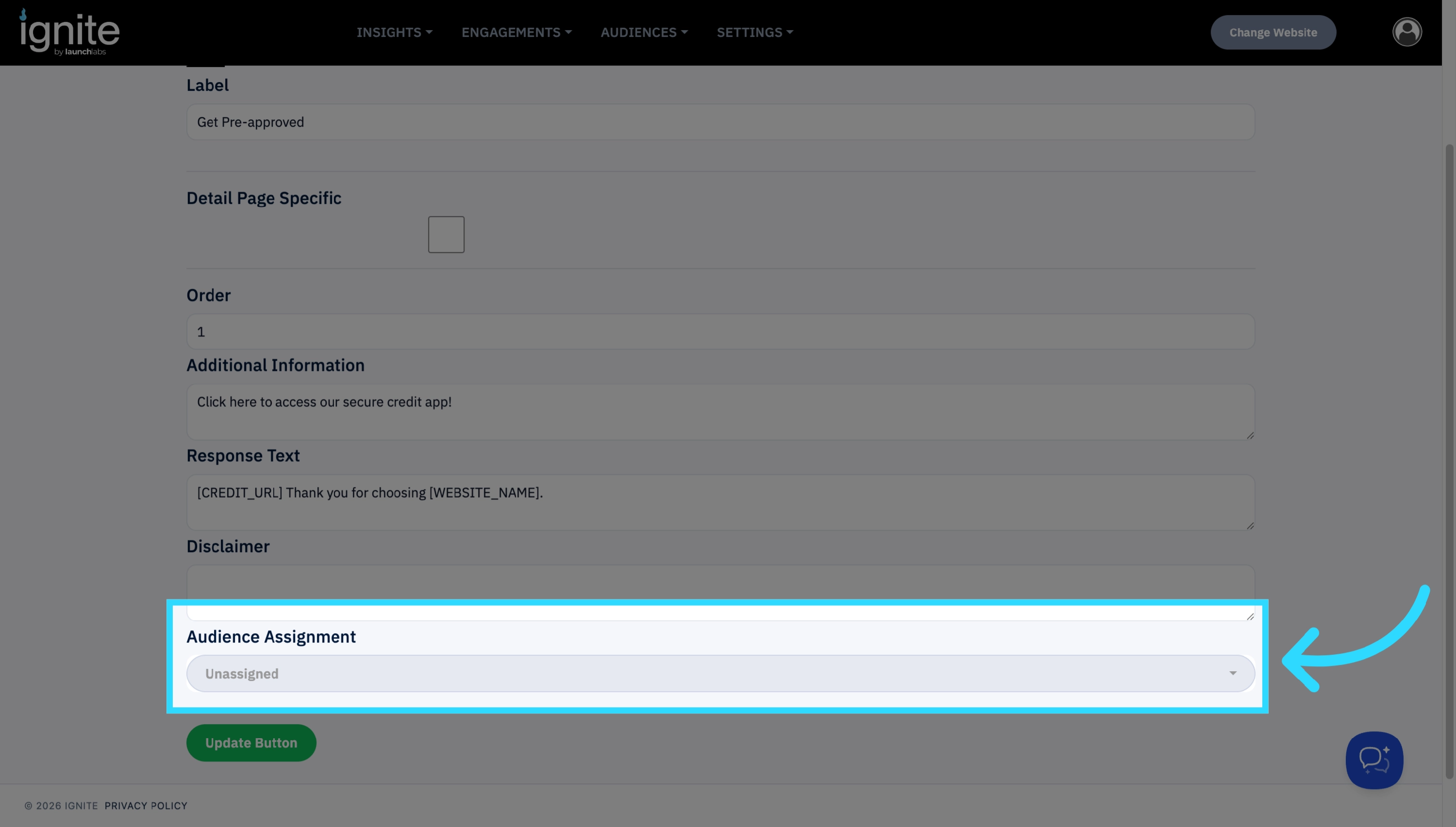
Audience Assignment: This button controls how the lead sent to your CRM will be tagged. Best practice is to leave this blank unless the button should generate service leads.
-
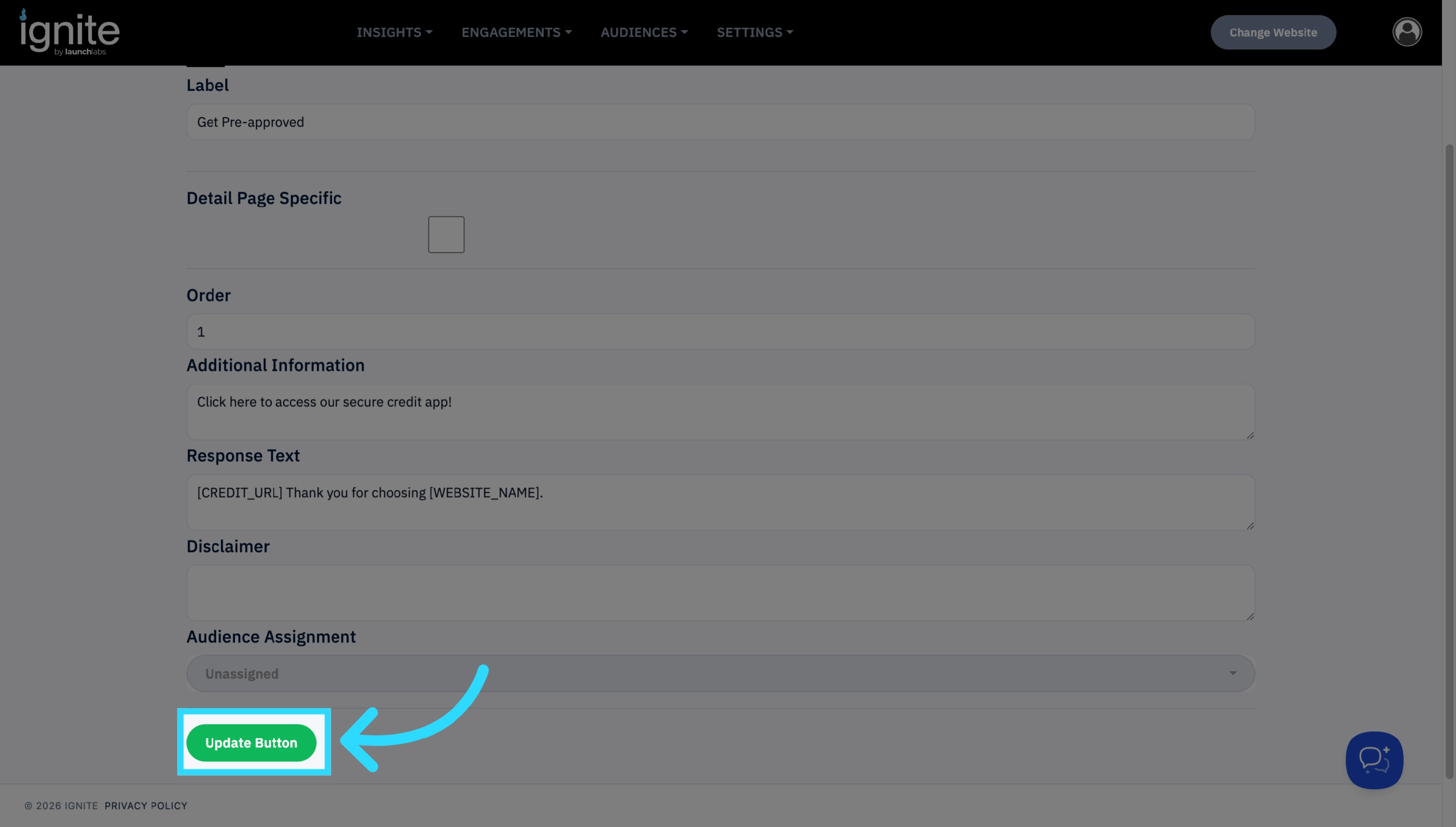
Once complete, click Create Button to save your configuration.
5. Enabled Conversion Hub
-
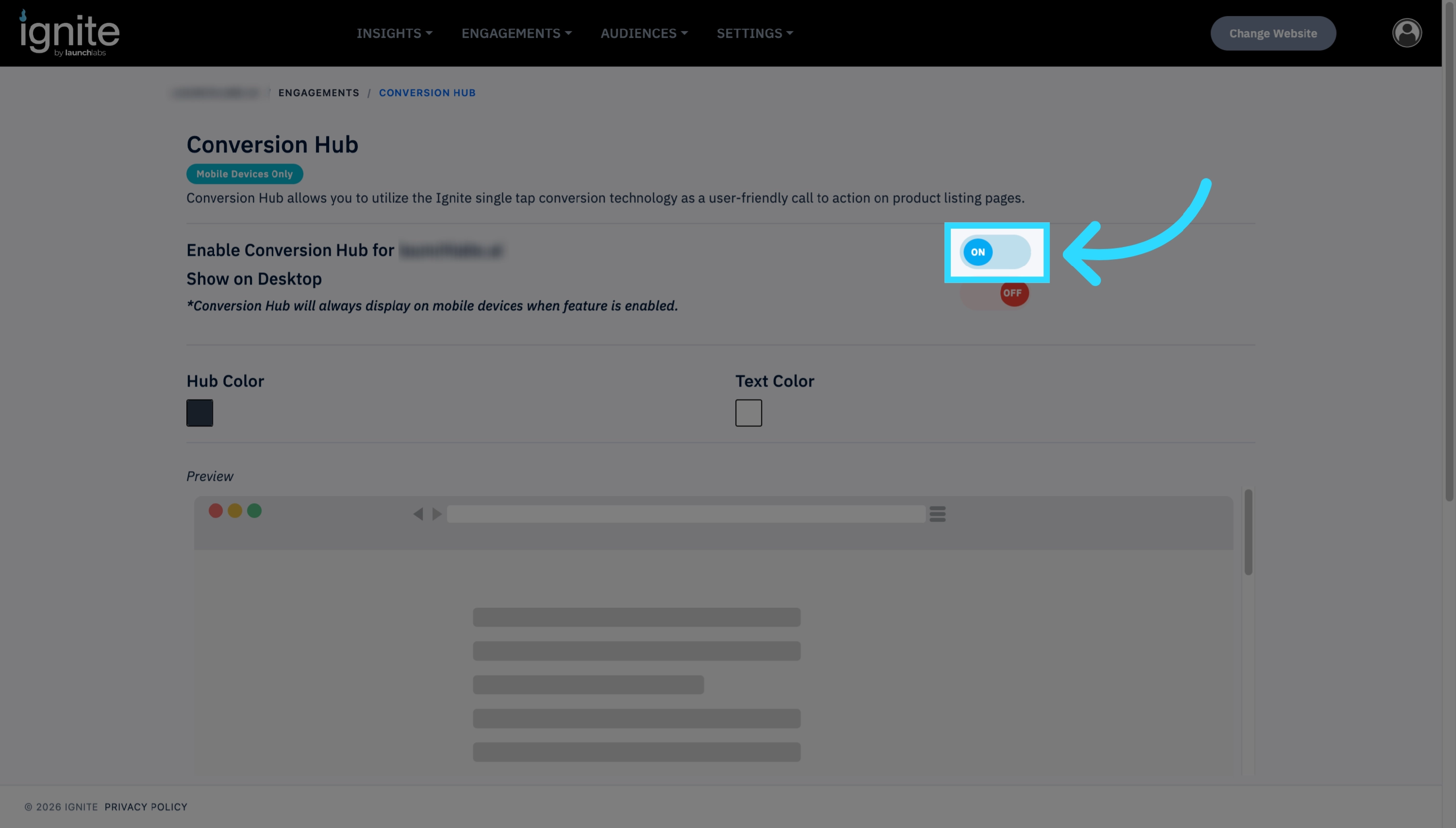
Now that the buttons are created, make sure the engagement is enabled. By default, the conversion hub will appear on Mobile devices only.
-
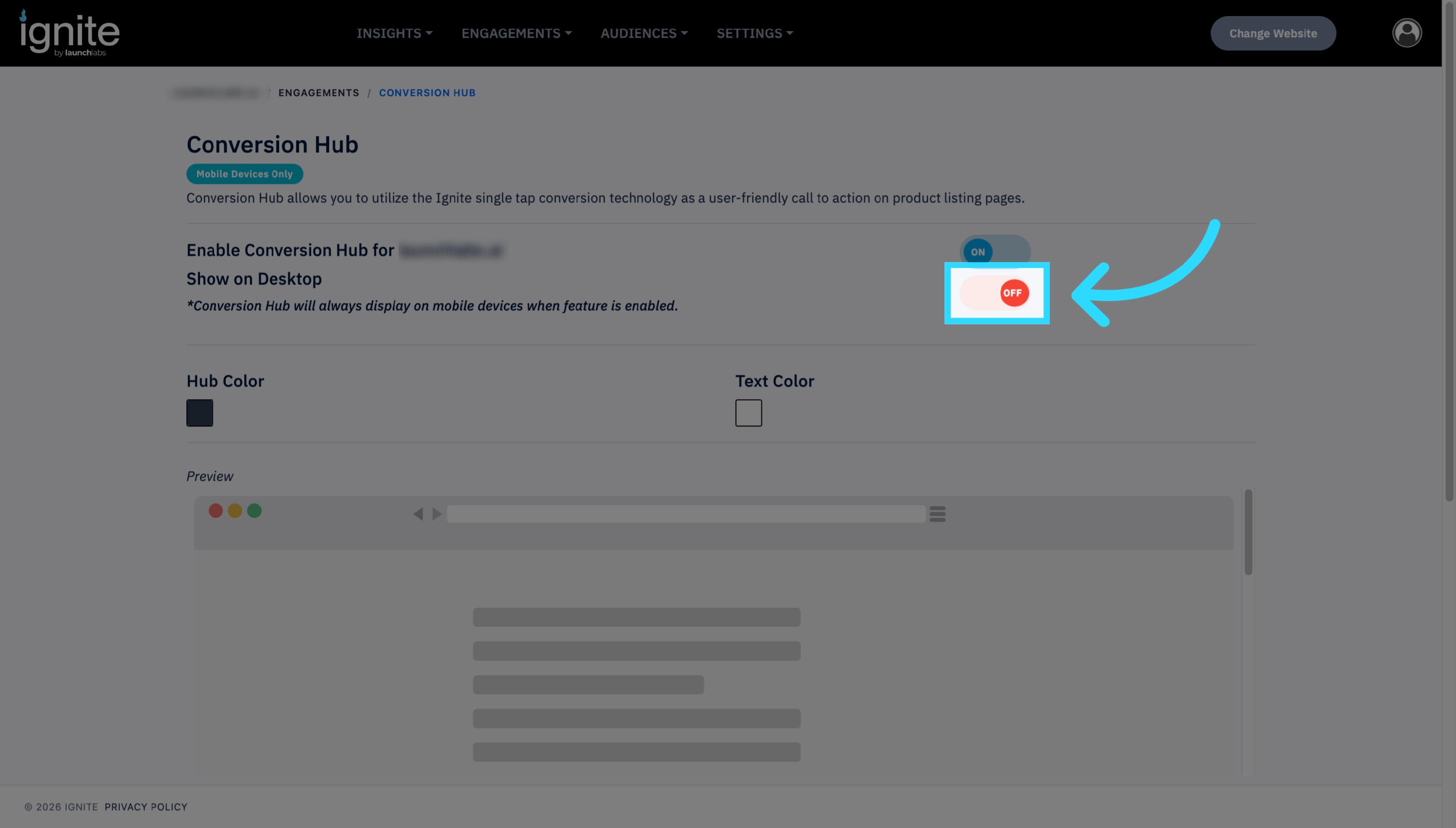
Enable Show on Desktop if you'd like Conversion Hub to appear for desktop visitors. Note that Mobile display is automatic and not affected by this setting.
6. Preview and Verify
After configuration, preview your Conversion Hub to ensure:
- Buttons are displaying correctly and in the right order.
- The response text appears as intended.
- The hub layout looks clean and professional.