How to Change the Color Palette for Charts
This article explains how to customize the color palette used for charts throughout the platform. Updating your agency's chart colors allows you to better align reports and dashboards with your organization's branding.
Watch this video tutorial to see the full process in action:
⚠️ Before continuing, make sure you have permission to edit Agency Settings
Step-by-Step Instructions
1. Open Agency Settings
-
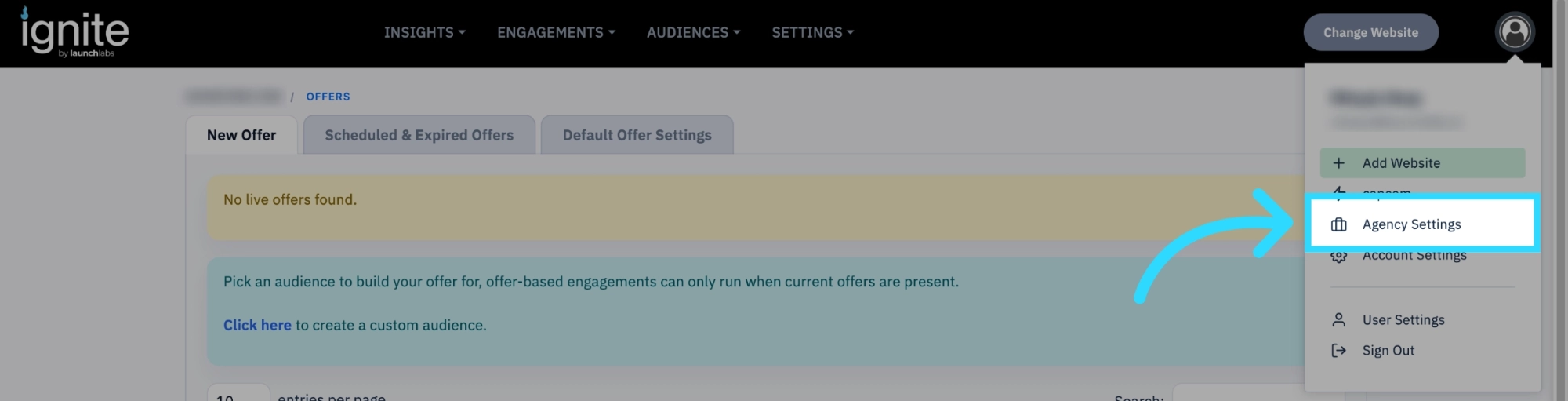
Click your User Profile in the top-right corner of Ignite.

-
Select Agency Settings.
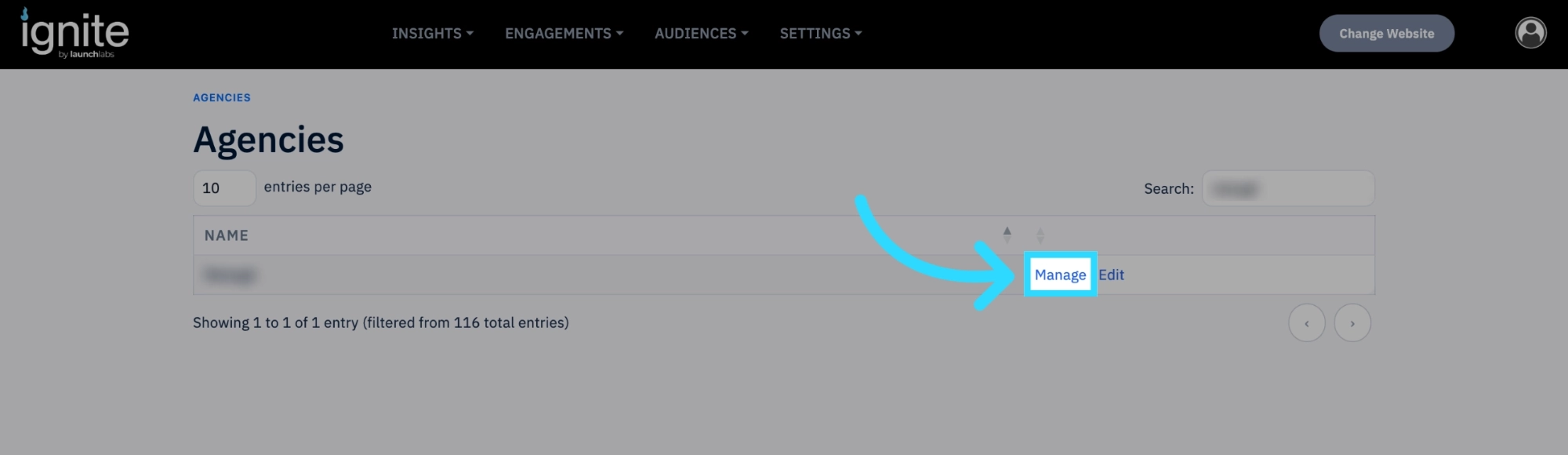
- Search for the agency you want to update.
-
Click Manage.
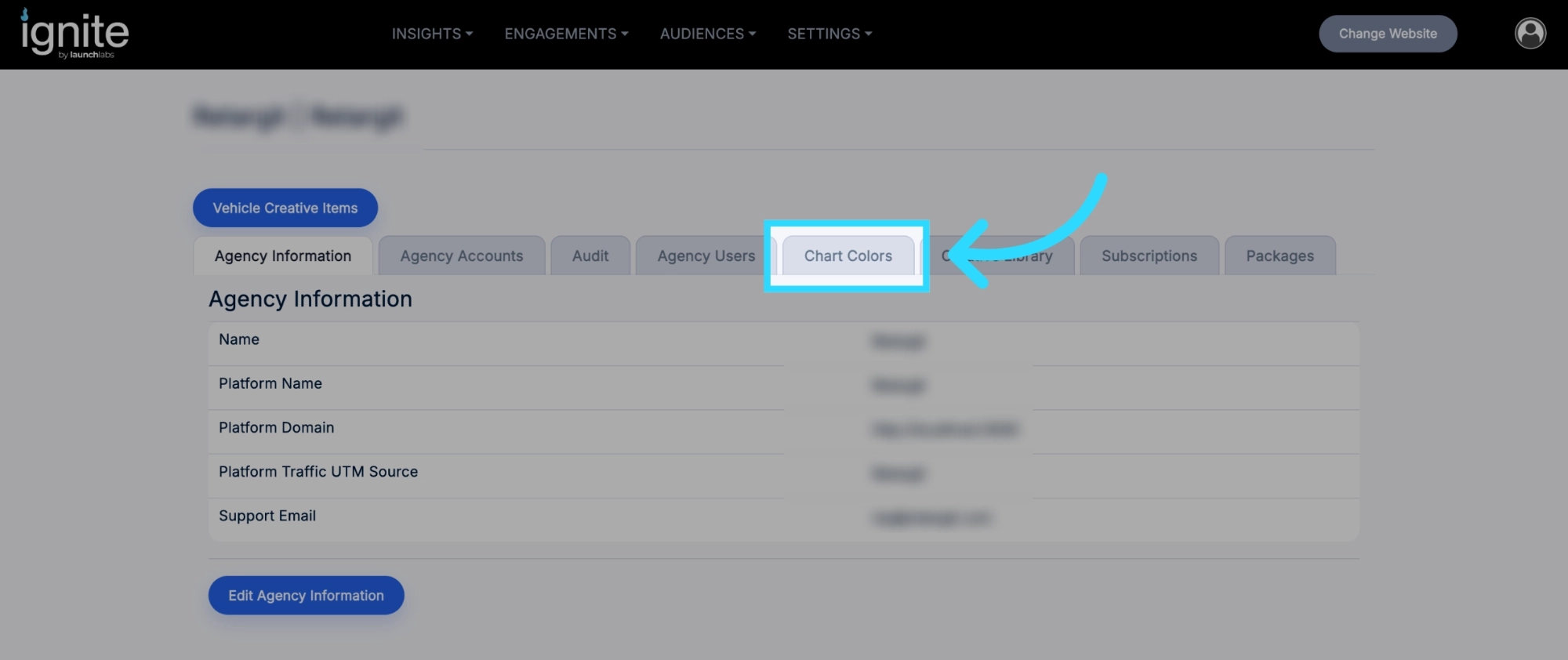
2. Navigate to Chart Colors
Click the Chart Colors tab.
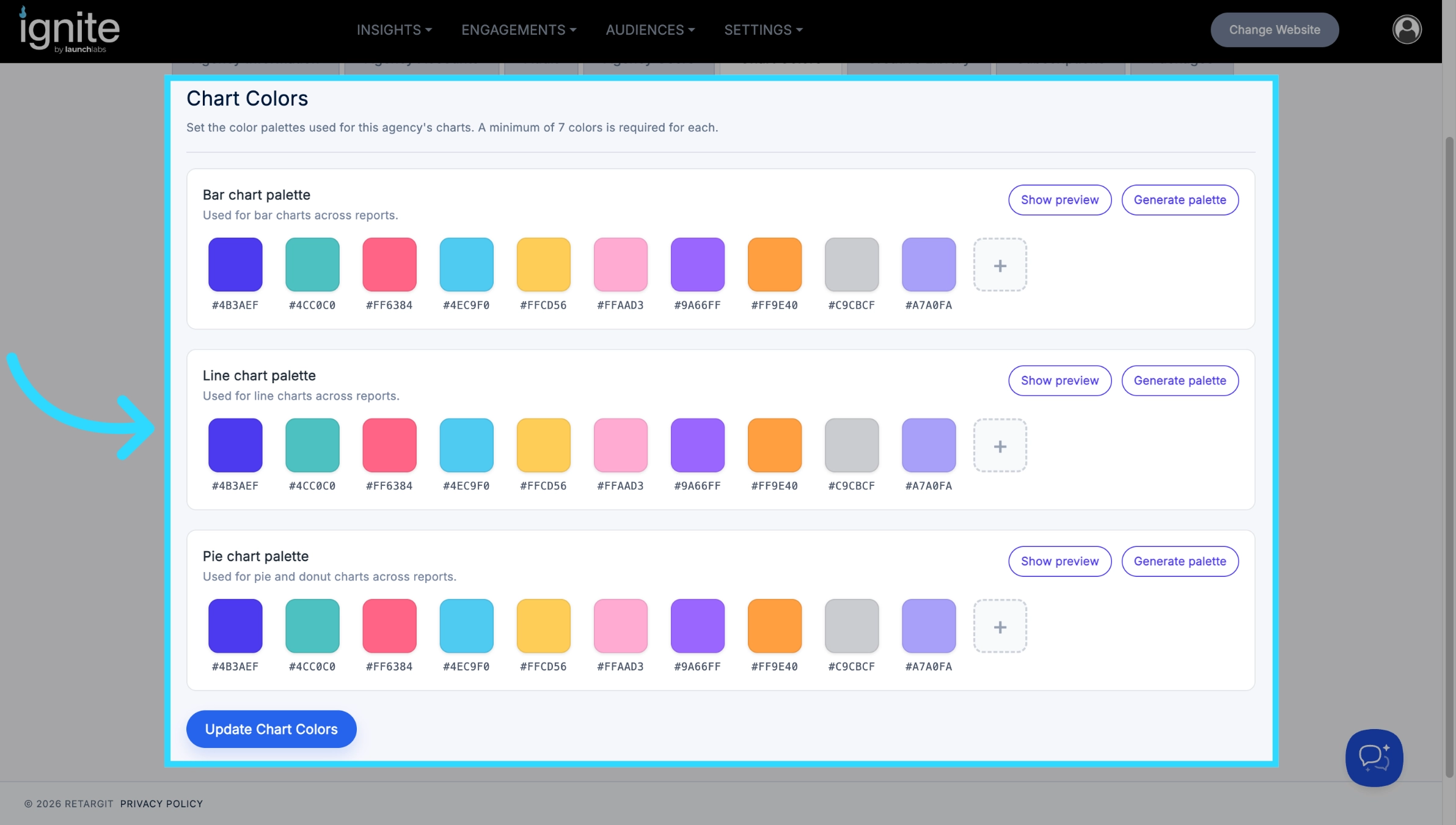
Under Chart Colors, you'll find the color settings used throughout the platform's charts and reports.
3. Update Chart Colors
- Click the color you want to change.
-
Use the Color Picker to select a new color.
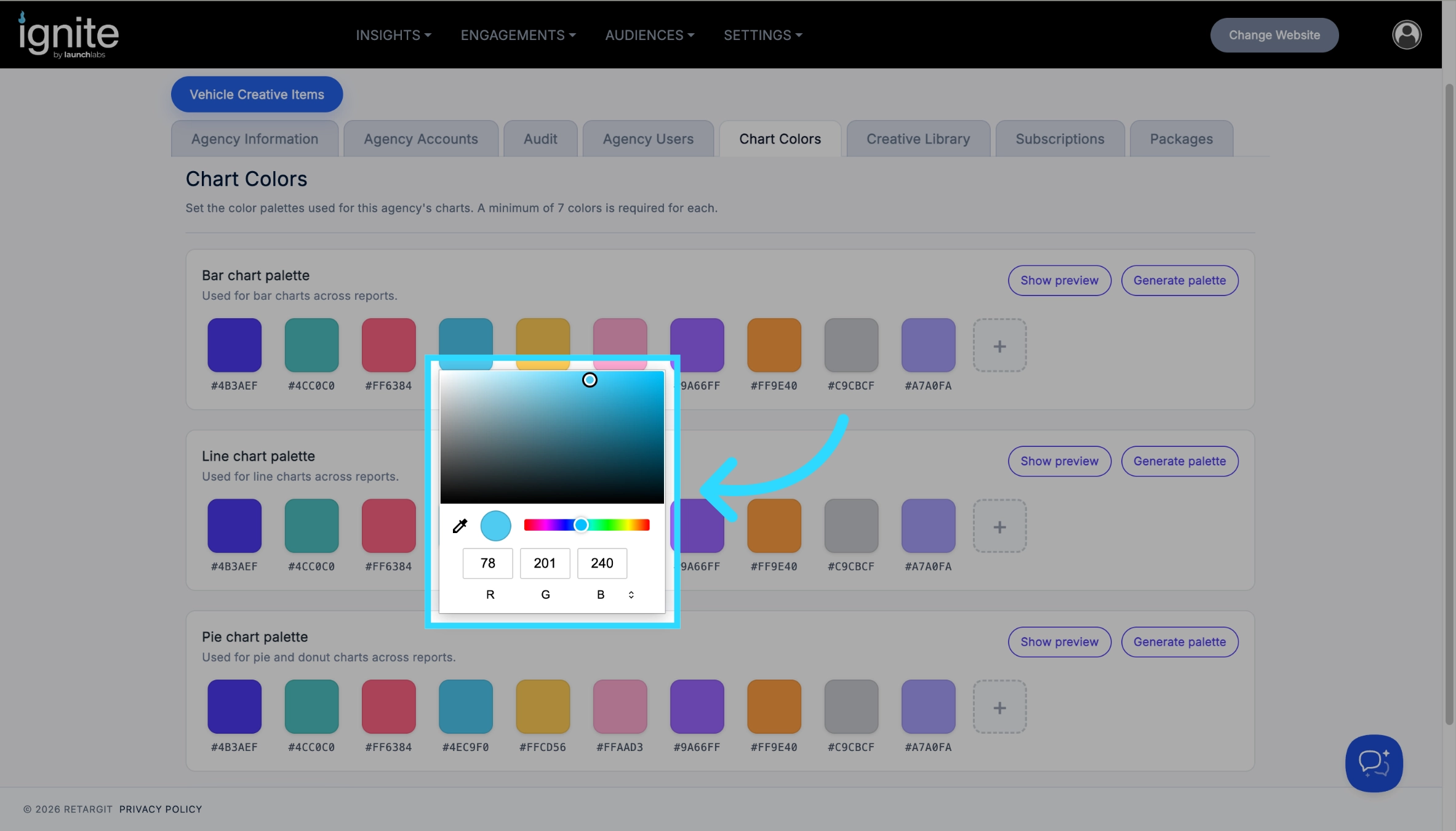
The color picker allows you to choose a color visually or enter a color value manually.
4. Enter a Color Value (Optional)
If you have specific colors you want to use, click the text at the bottom of the color picker to switch input modes.
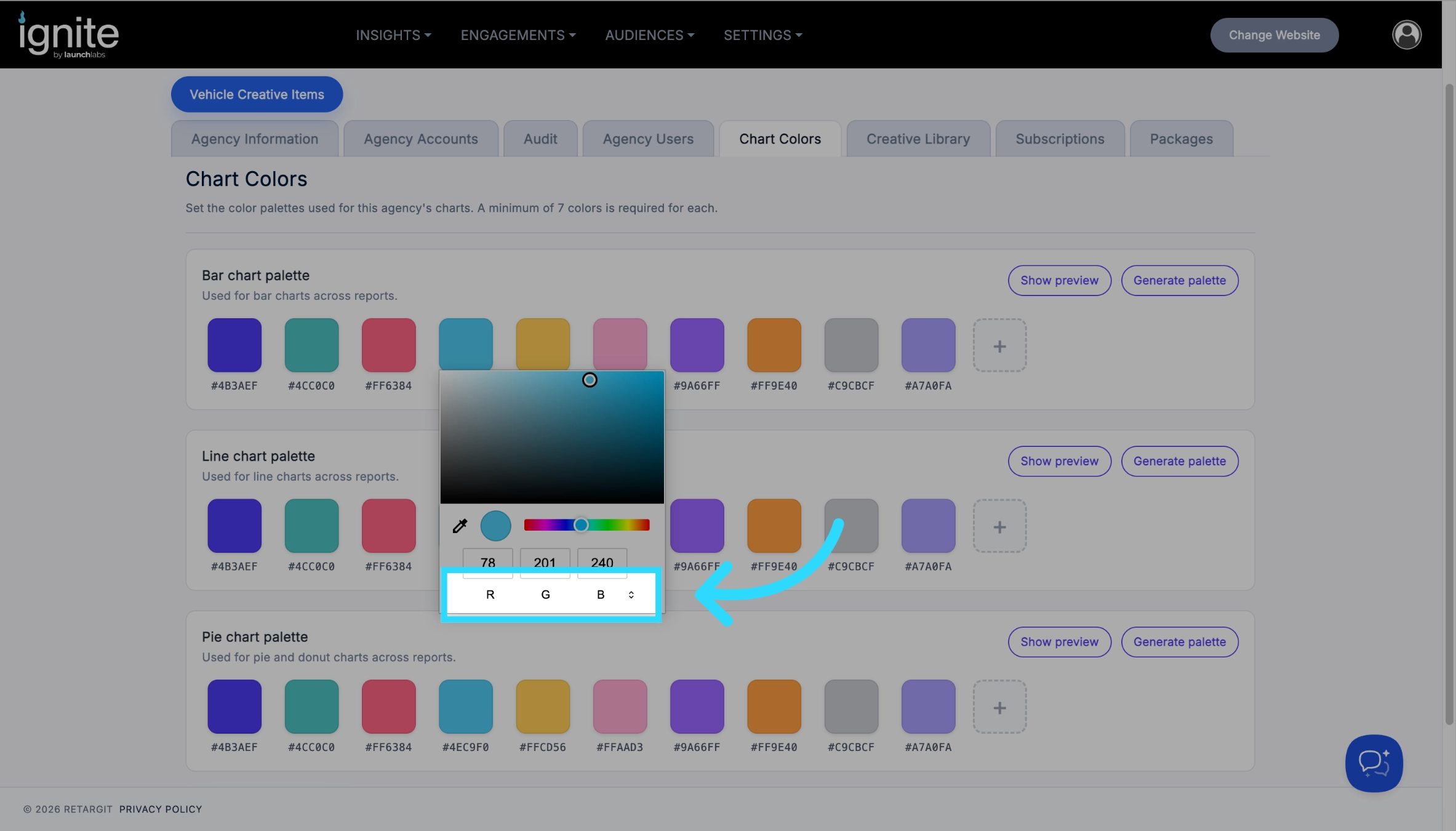
Depending on the mode selected, you can enter values such as:
- Hex color codes (for example,
#5A2D82) - RGB values
- HSL values
This makes it easy to match your organization's branding guidelines.
5. Preview Your Changes
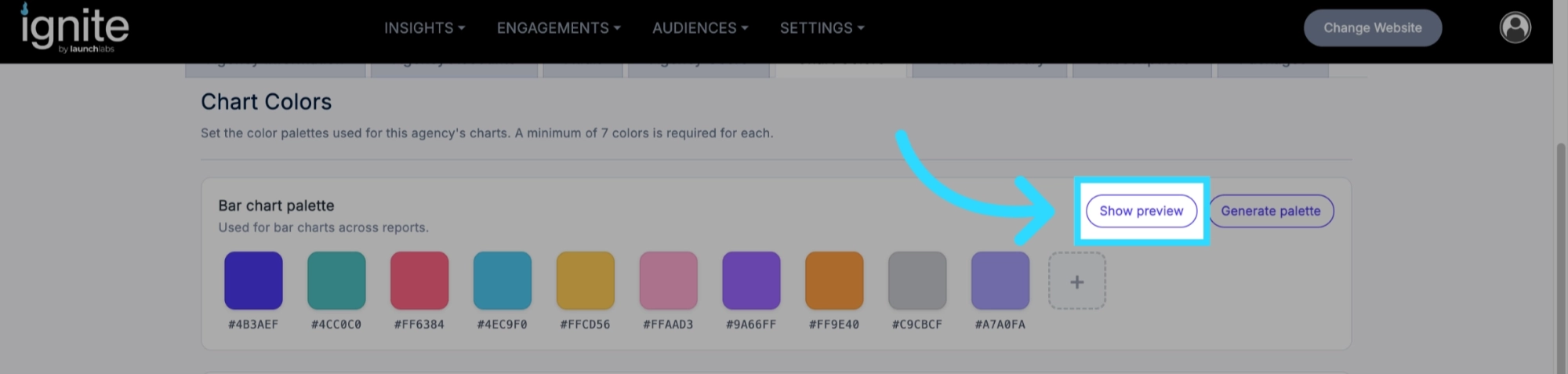
Click Show Preview to see how your updated colors will appear in platform charts.
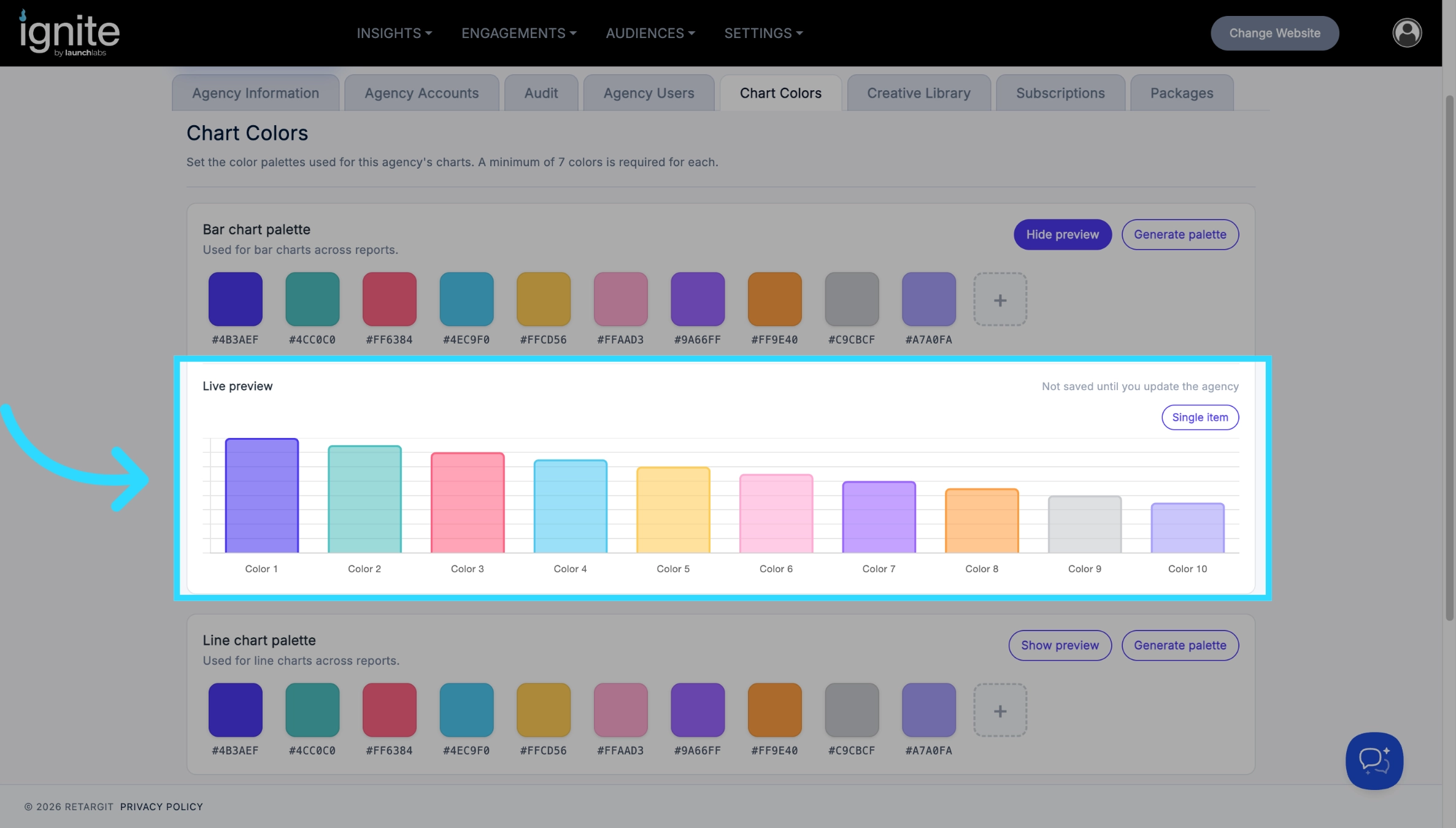
The preview allows you to:
- Review the updated color palette before saving.
- Toggle between different chart layouts and views to ensure the colors are easy to read and visually consistent.
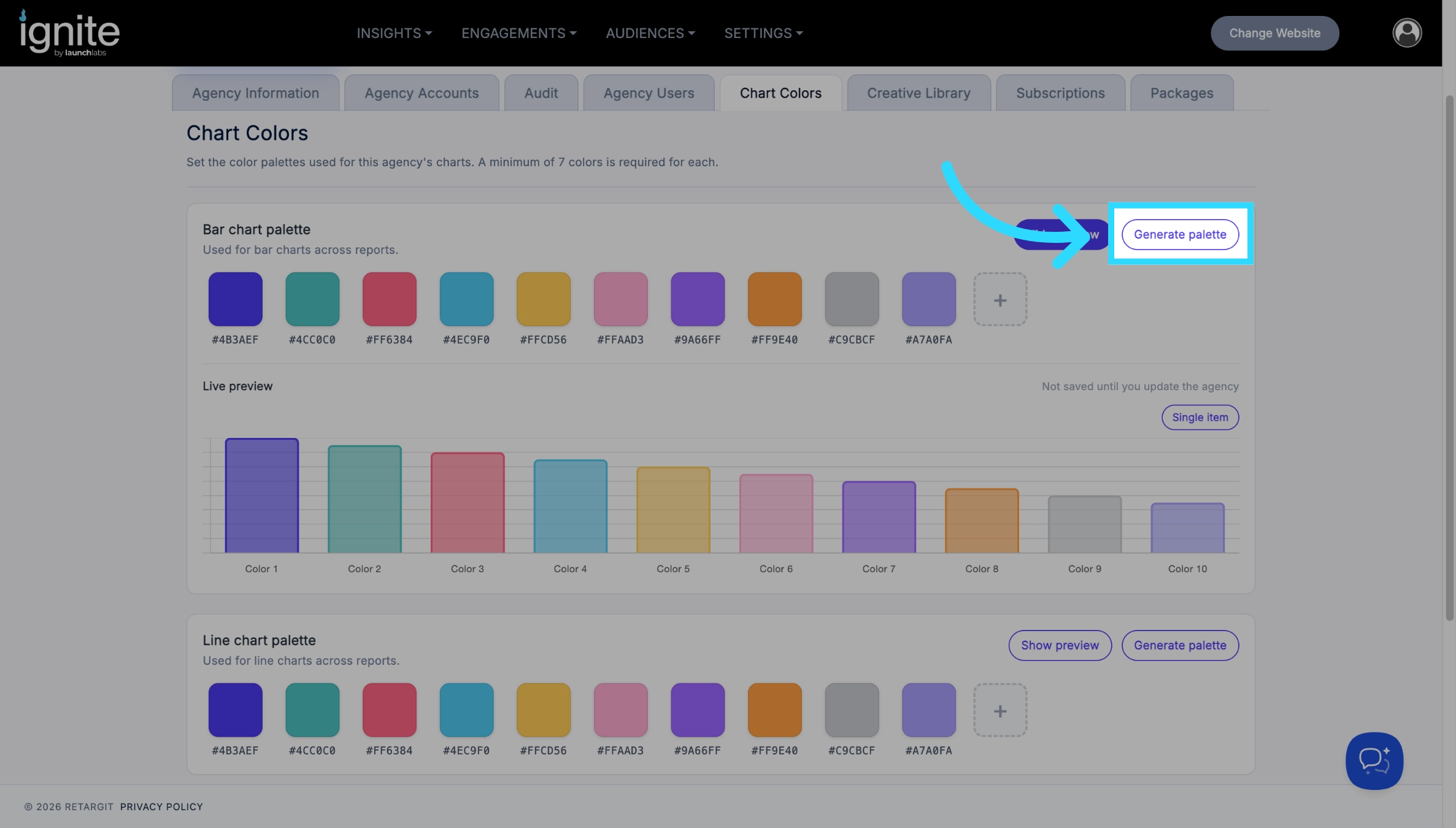
6. Generate Palette
Click Generate Palette button to change the entire color palette for that chart type.
7. Save Your Changes
Once you're happy with the updated color palette, click Update Chart Colors to save your changes.
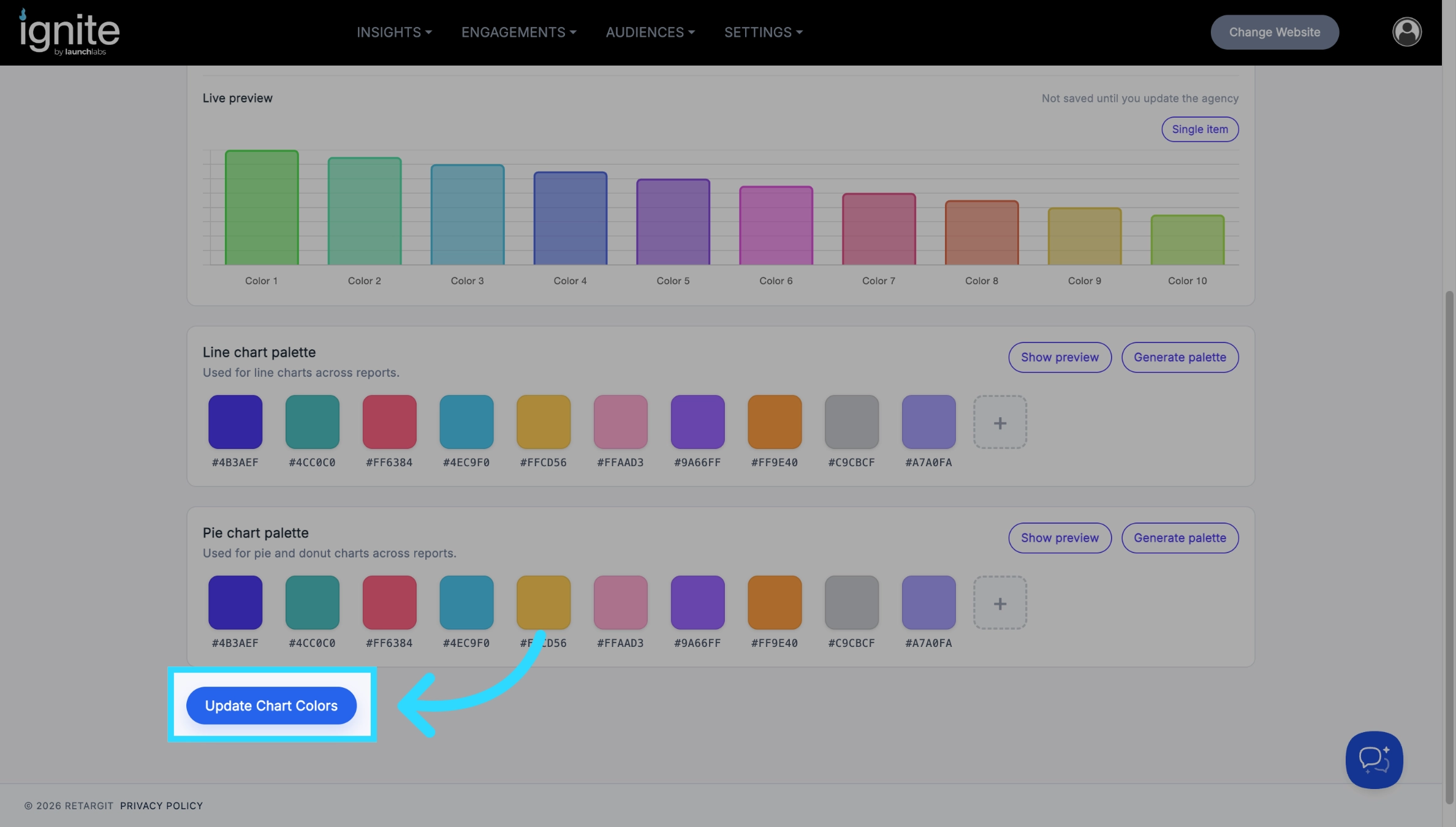
The new chart colors will be applied to all accounts across the agency.