How to Configure Offer Targeting
This article explains how to configure Offer Targeting in Ignite. Offer Targeting allows you to define geographic areas where an offer should be displayed, helping you deliver more relevant offers to the right shoppers.
Watch this video tutorial to see the full configuration process in action:
Step-by-Step Instructions
1. Open the Offer Targeting Settings
-
From the top navigation bar, click Engagements.

-
Select Offers.

-
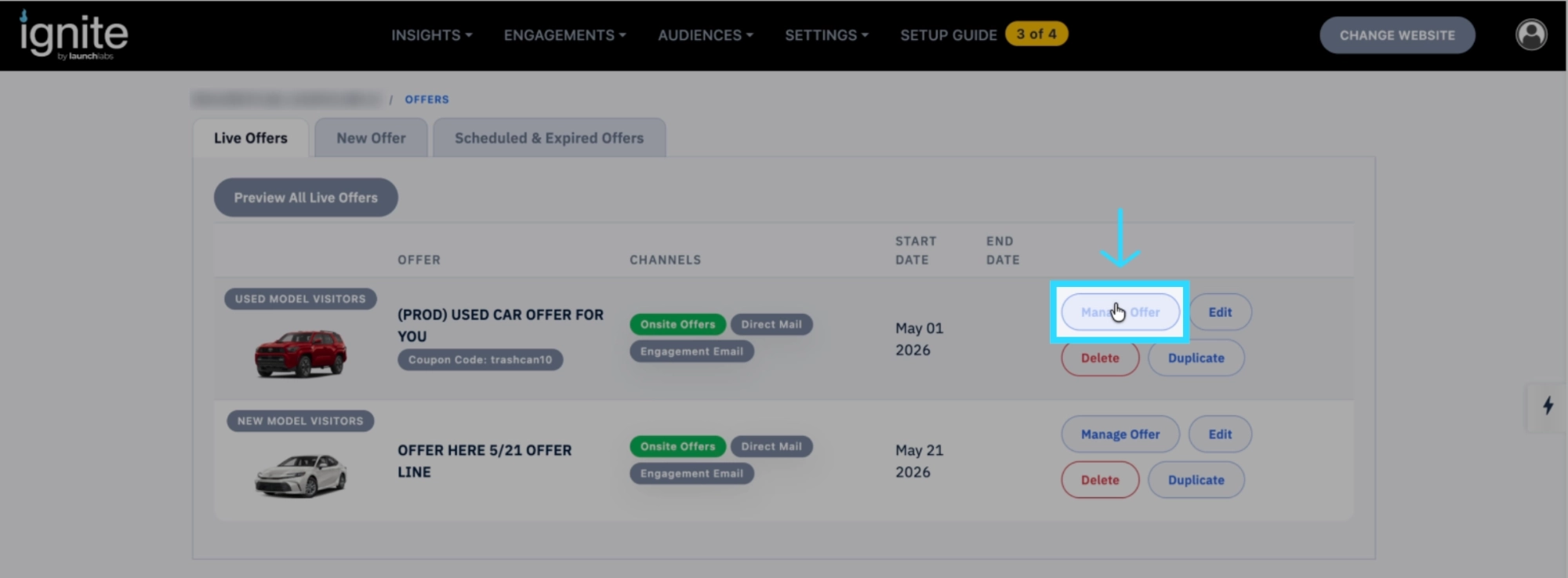
Locate the offer you want to configure and click Manage.
-
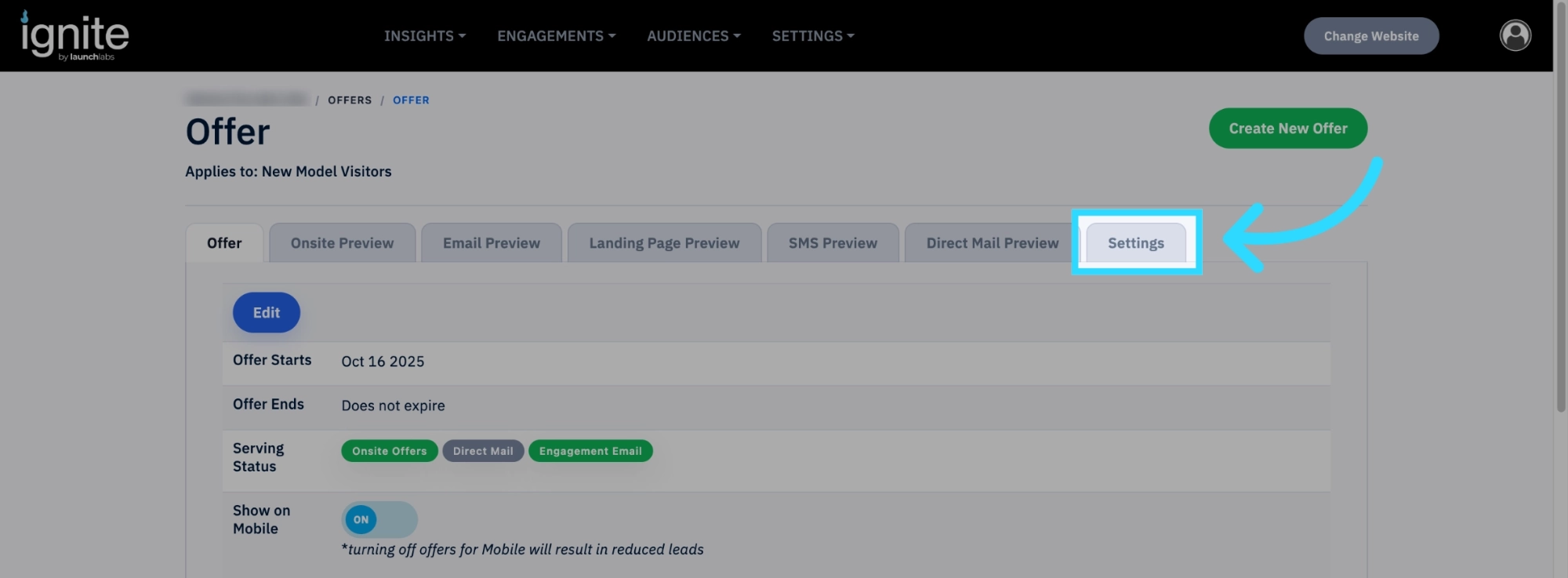
Open the Settings tab.
-
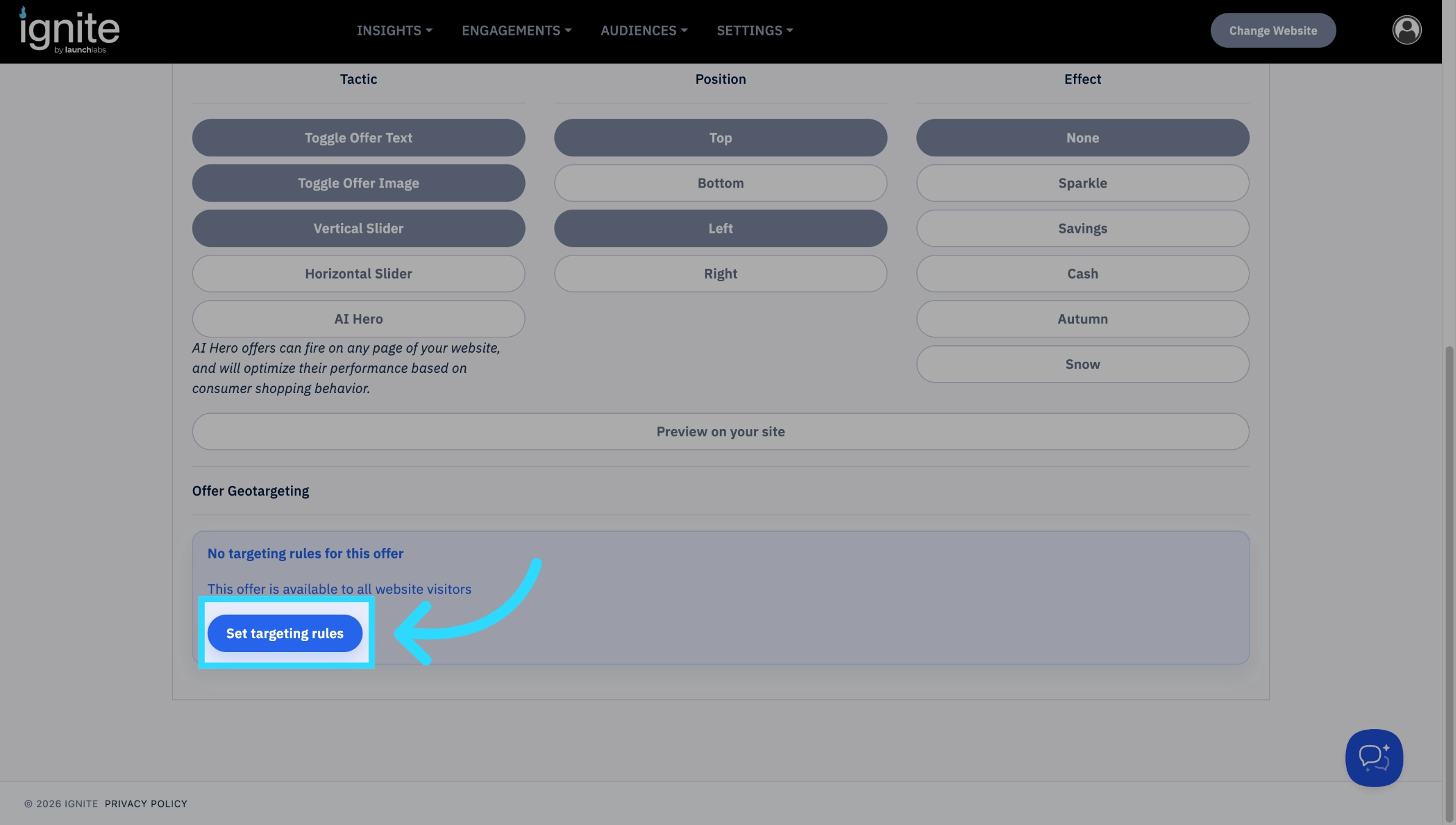
Click scroll to the bottom of the page and click Set Targeting Rules.
2. Review the Targeting Map
The Targeting Map allows you to define the geographic areas where your offer should be displayed.
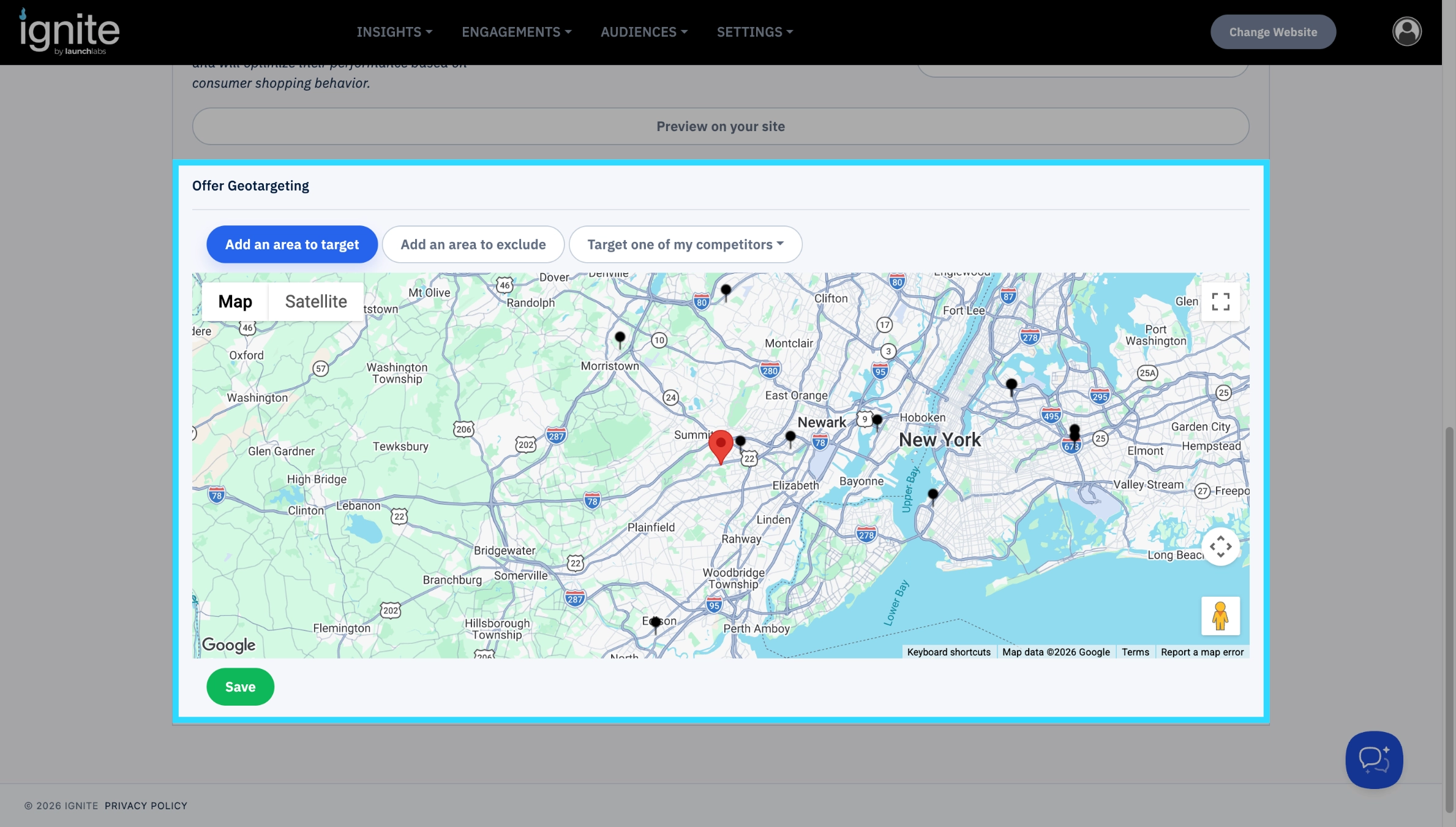
From this screen, you can:
- Create targeted areas where offers will appear.
- Create excluded areas where offers will not appear.
- Adjust targeting zones as your campaign needs change.
3. Fix the Map Cursor (If Needed)
Occasionally, the map cursor may not switch to the + icon required to draw a targeting area.
If this happens:
- Click Add an Area to Exclude.
- Then click Add an Area to Target (or switch back to your preferred option).
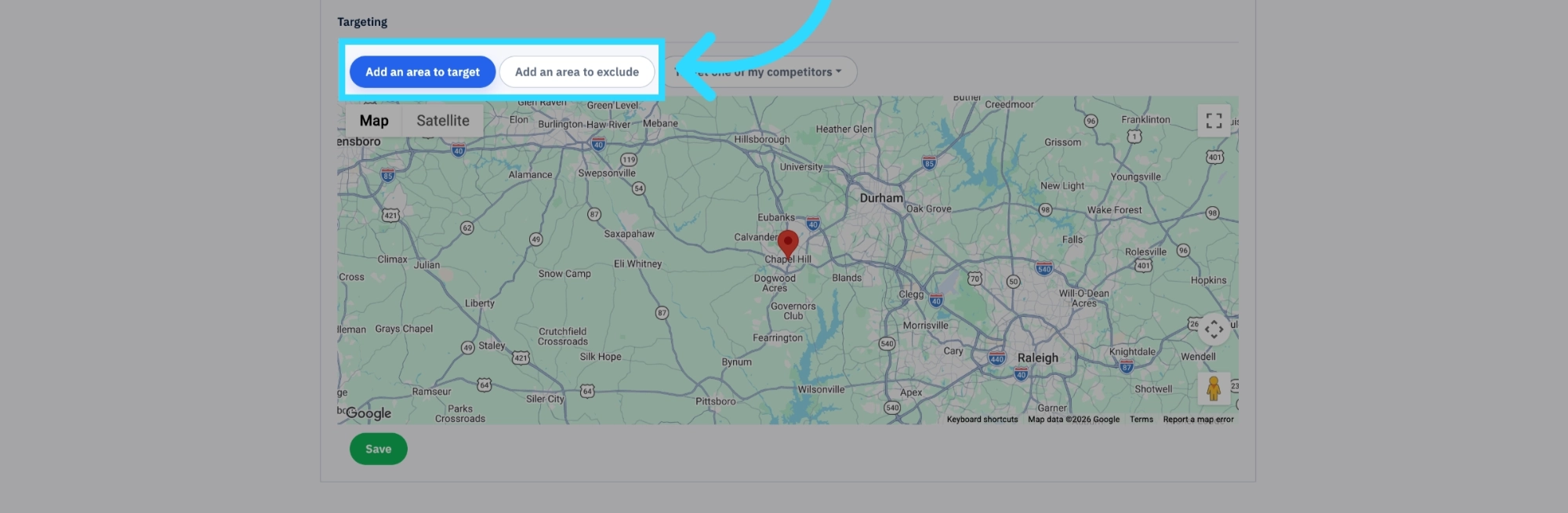
This refreshes the map controls and allows you to continue creating your targeting area.
4. Create a Target Area
To create a new targeted area:
-
Select Add an Area to Target.
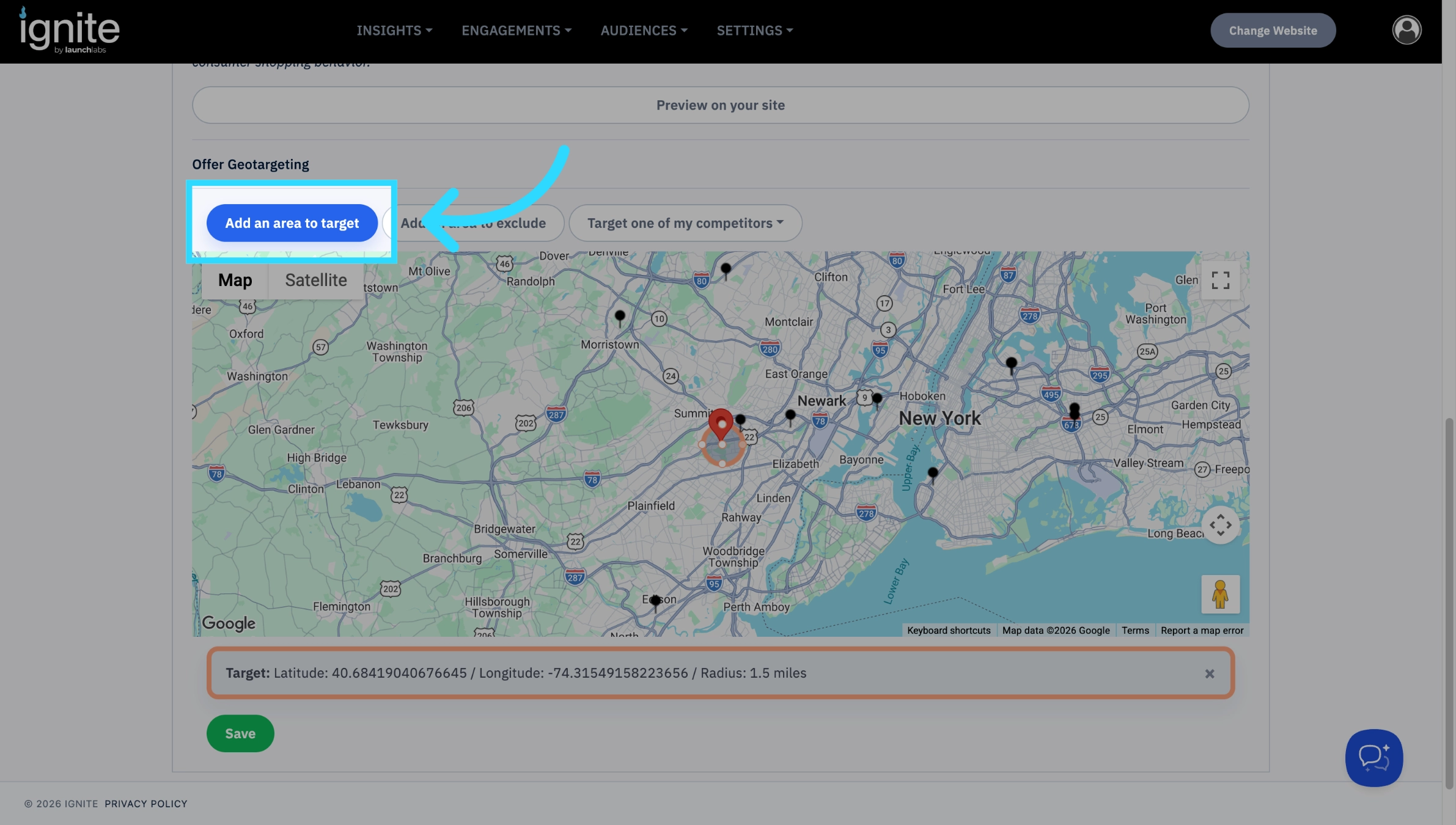
- Click on the map to place the center of the targeting area.
-
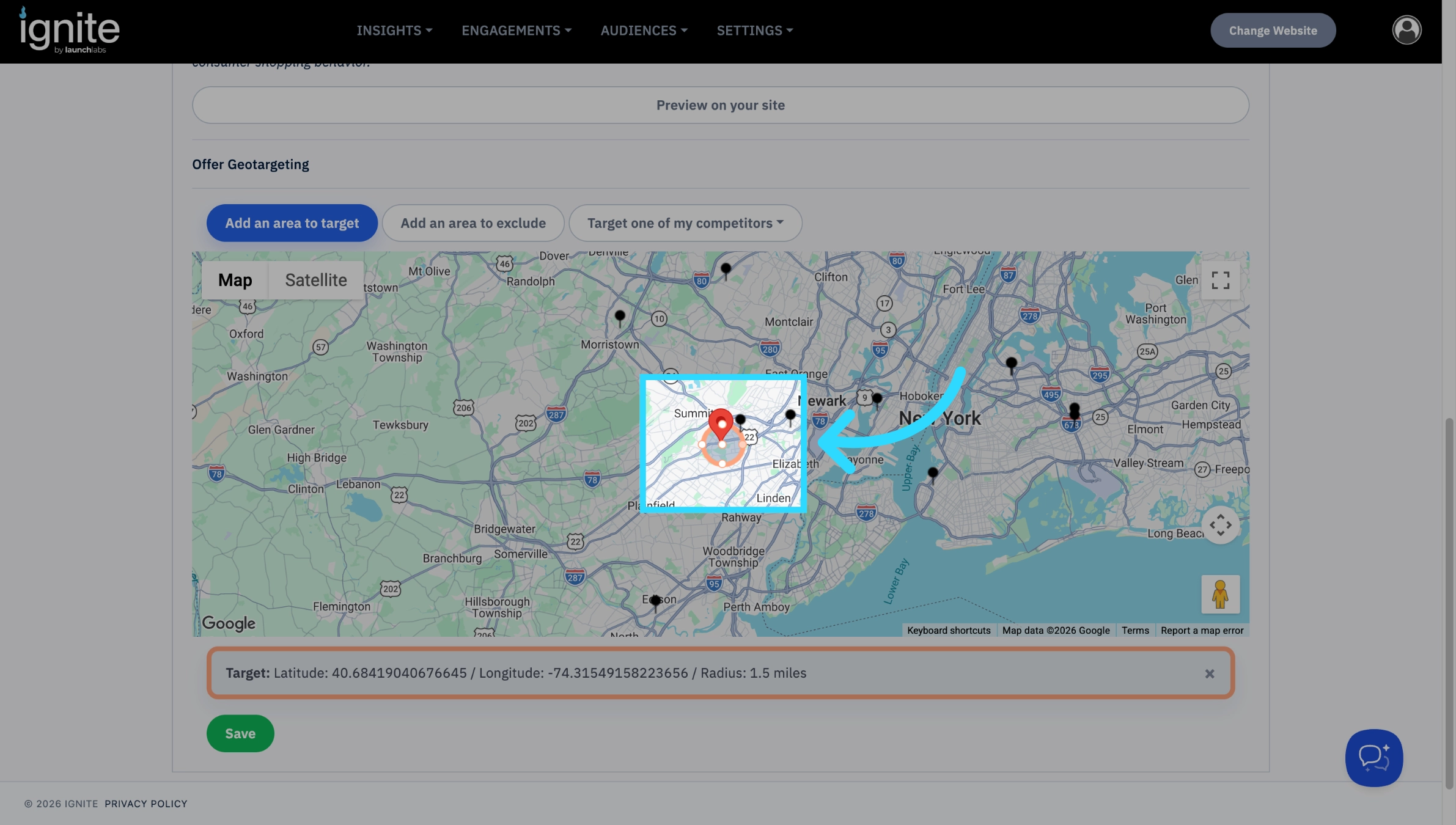
A circular targeting radius will appear around the selected location.
5. Adjust the Target Radius
Once the targeting area has been created, you can customize it to fit your campaign.
- Resize the radius: Click and drag any of the outer handles to increase or decrease the coverage area.
- Move the radius: Click and drag the center point to reposition the targeting area on the map.
Repeat this process to create additional targeted or excluded areas as needed.
Best Practices
- Target areas where your dealership or business is most likely to attract qualified shoppers.
- Use excluded areas to avoid displaying offers outside your desired market.
- Review targeting before launching new campaigns to ensure offers are reaching the intended audience.
- Test your targeting periodically to confirm offers are displaying as expected.