How to Configure Onsite Offers
This article explains how to configure Onsite Offers in the platform, including adjusting offer strategies, controlling offer distribution, and configuring firing rules to match your business goals.
Watch this video tutorial to see the full configuration process in action:
If you need help creating offers before configuring them, see How to Build an Offer guide.
This guide will walk you through configuring our pop-up offer types. If you have compliance concerns, or are interested in an alternative to the pop-up, Inline Offers might be for you. Checkout the article What are Inline Offers for more information.
Step-by-Step Instructions
1. Navigate to Onsite Offers
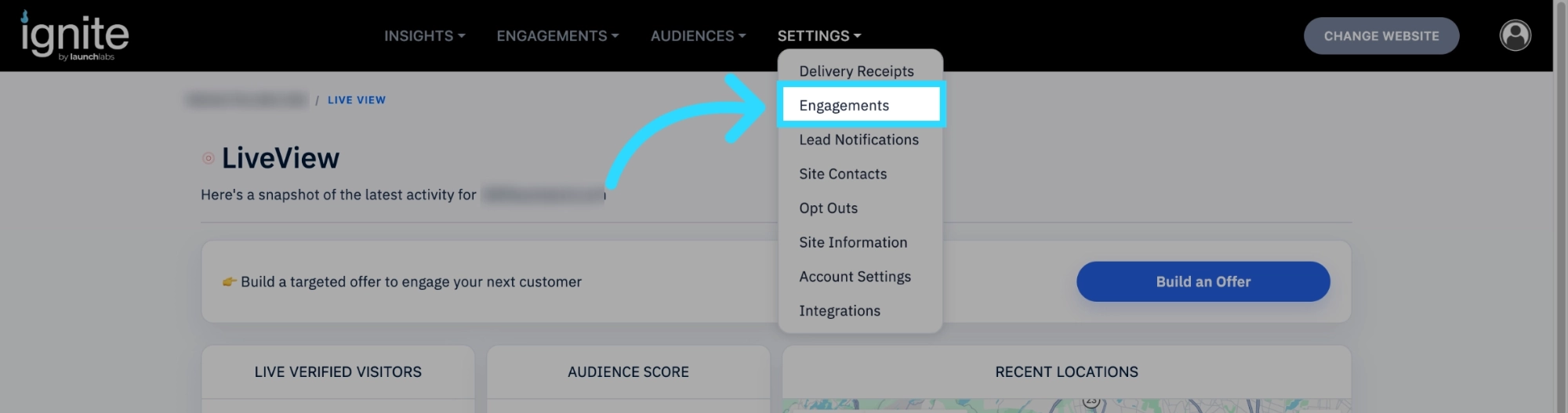
- In the platform, click Settings from the top navigation bar.
-
Select Engagements from the dropdown menu.
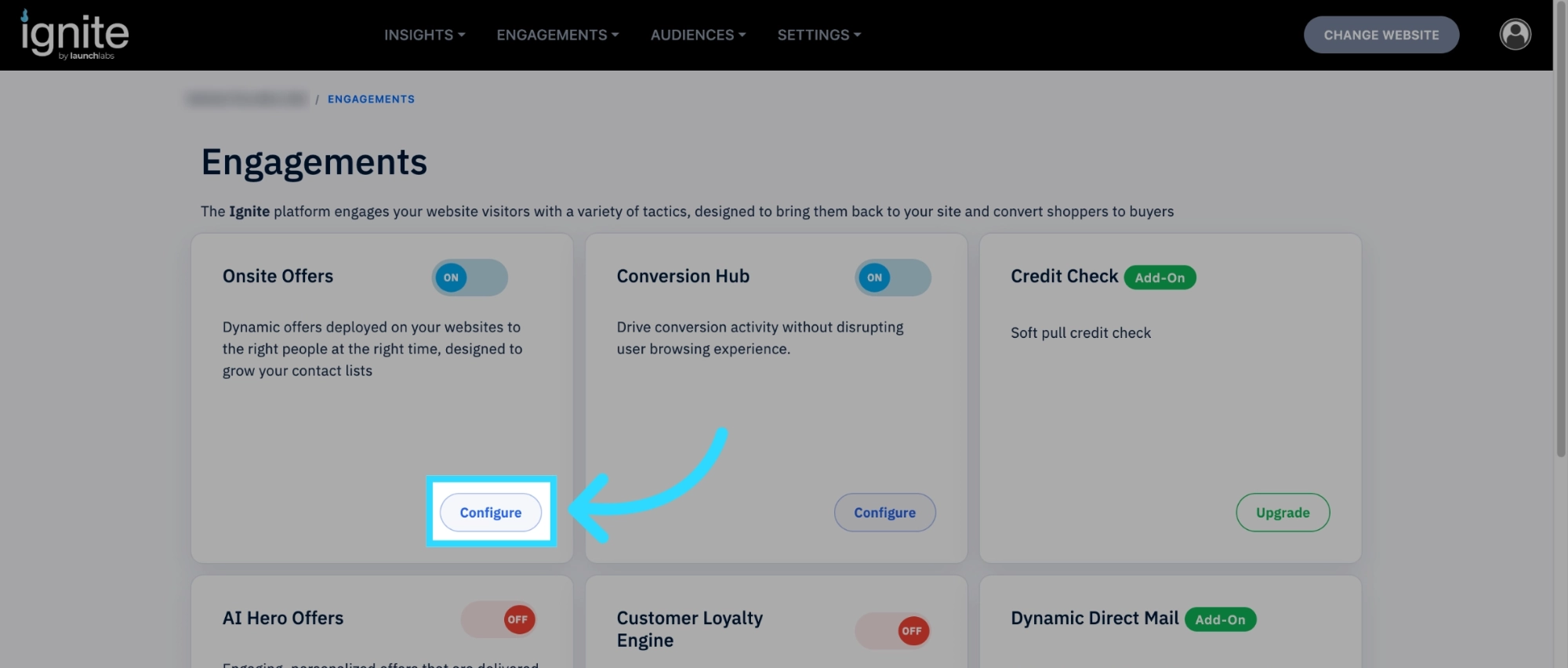
- Locate Onsite Offers on the Engagements page.
-
Click Configure.
2. The Approaches Page
After clicking Configure, you'll be taken to the Approaches page.
This page controls how onsite offers are distributed and displayed across your website.
The configuration settings on this page determine:
- Which types of offers are shown
- How frequently each offer type appears
- The overall onsite offer strategy for your website

3. Adjust Offer Strategy
Use the strategy slider to automatically adjust the percentage mix of different offer types.

This allows you to quickly optimize onsite offers based on your business goals, such as:
- Generating more leads
- Increasing engagement
- Promoting specific campaigns or offers
4. Customize Strategy with Advanced Settings
For more control, click Advanced Settings.

Within Advanced Settings, you can:
- Adjust the percentage allocation for each offer type
- Fine-tune how often specific offer approaches appear
- Create a custom offer strategy tailored to your website's needs
5. Preview Offer Types
Click the Strategy Preview dropdown to review the available onsite offer approaches.

The preview section provides:
- Examples of each offer type
- Descriptions of how each approach works
- Guidance on when each approach is most effective

Reviewing these options can help you choose the best strategy for your audience.
6. Manually Set the Offer Firing Type Per Offer
If you want an offer to only fire a specific way, you can set the offer types on a per-offer basis.
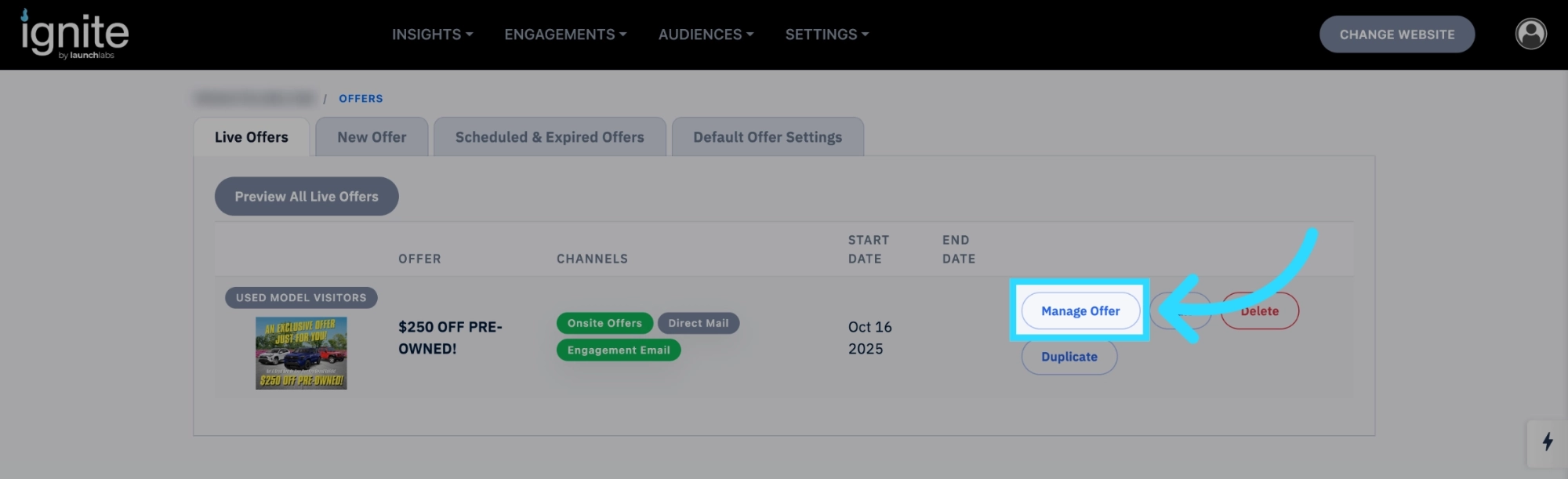
- Go to the live offers page.
-
Then click Manage Offer on the offer you want to set the firing type on.
-
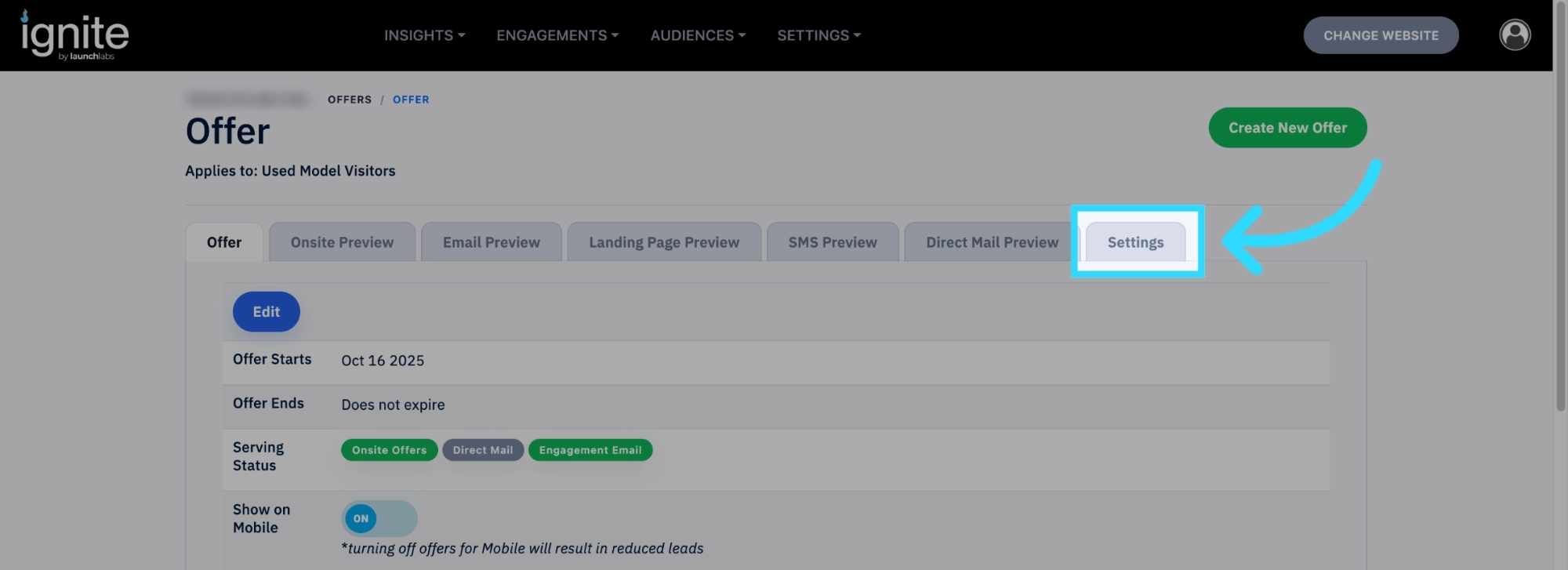
Go to Settings.
-
Choose the Firing Type.
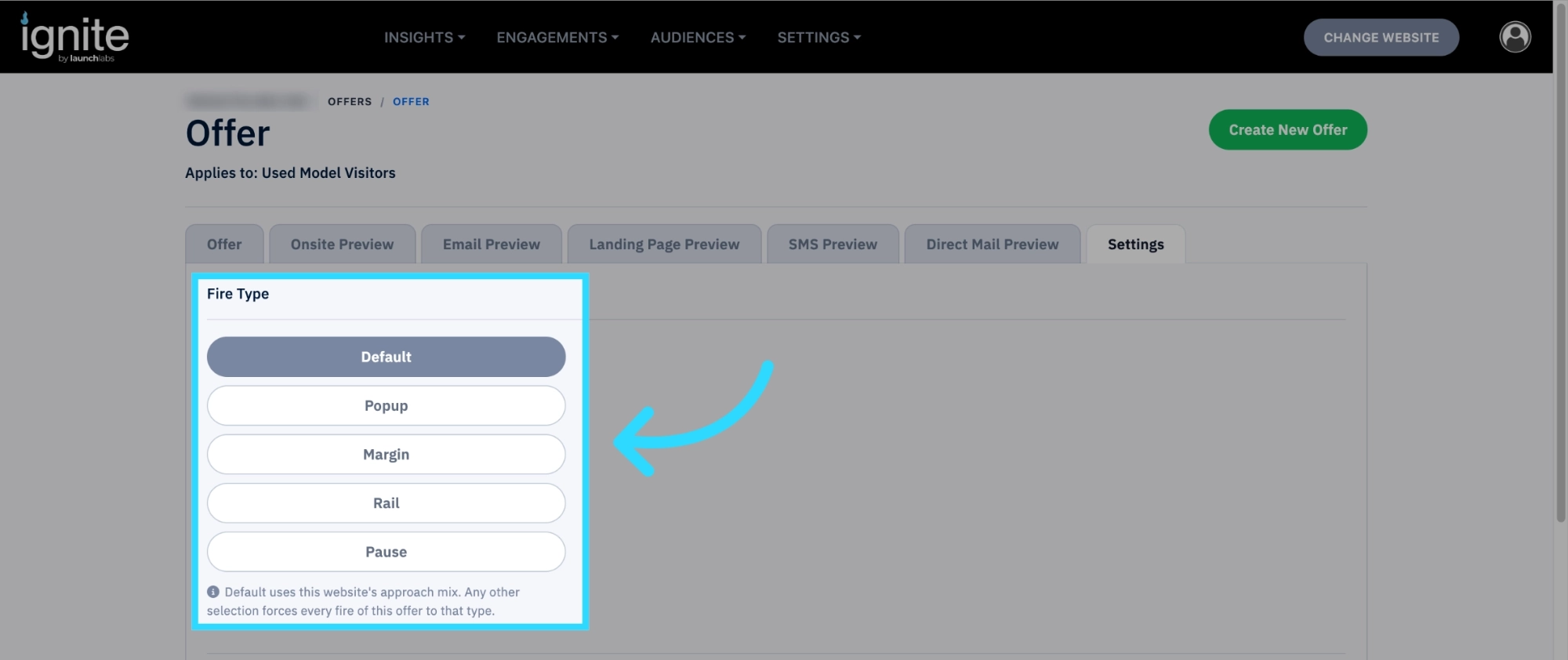
The default setting uses the website’s approach mix, so the offer can fire as any type. Selecting a specific type locks the offer to that type every time it fires.
You can also choose how you want pop-up offers to appear.

- Under Tactic, choose whether your offer includes text, the offer image, and whether it’s vertical or horizontal.
- Under Position, choose where the offer appears on the page, the default is top left.
- Under Effect, add effects to your offer. These effects apply only to the offer image—if the image is toggled off, the effects won’t appear.
7. Configure Offer Firing Rules
At the bottom of the page, you'll find the Firing Rules section.

These settings control:
- How many offers a visitor can see during a session
- How long the platform waits before displaying an offer
We recommend at least three Max Offers and a 0-second Delay. Because offers will be the last to load on your website, an additional delay is not necessary.
8. How to Change Offer Color Displays
On top of changing how to offers are displayed, you can change the colors of the text and the buttons on the offer as well.
-
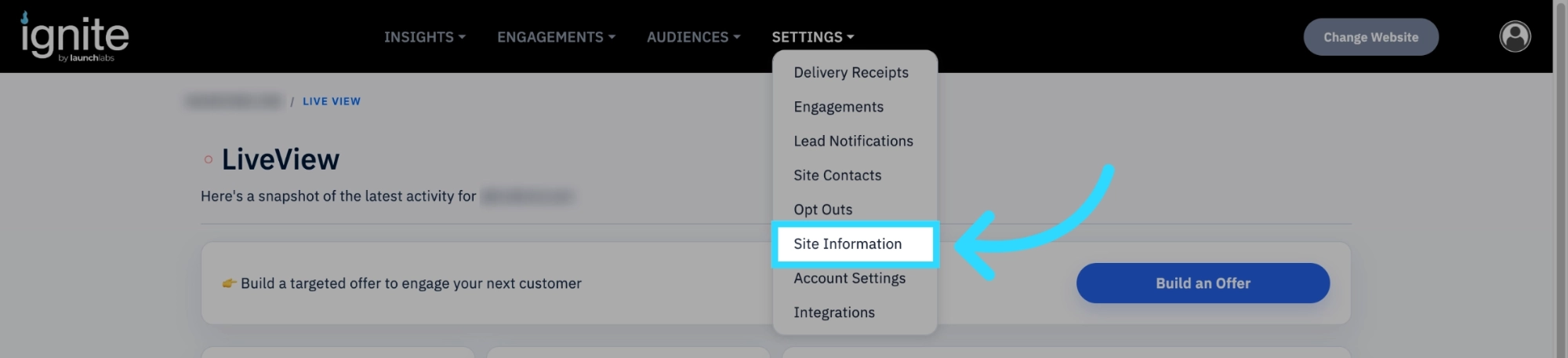
Navigate to Site Information
Click Edit Website Information
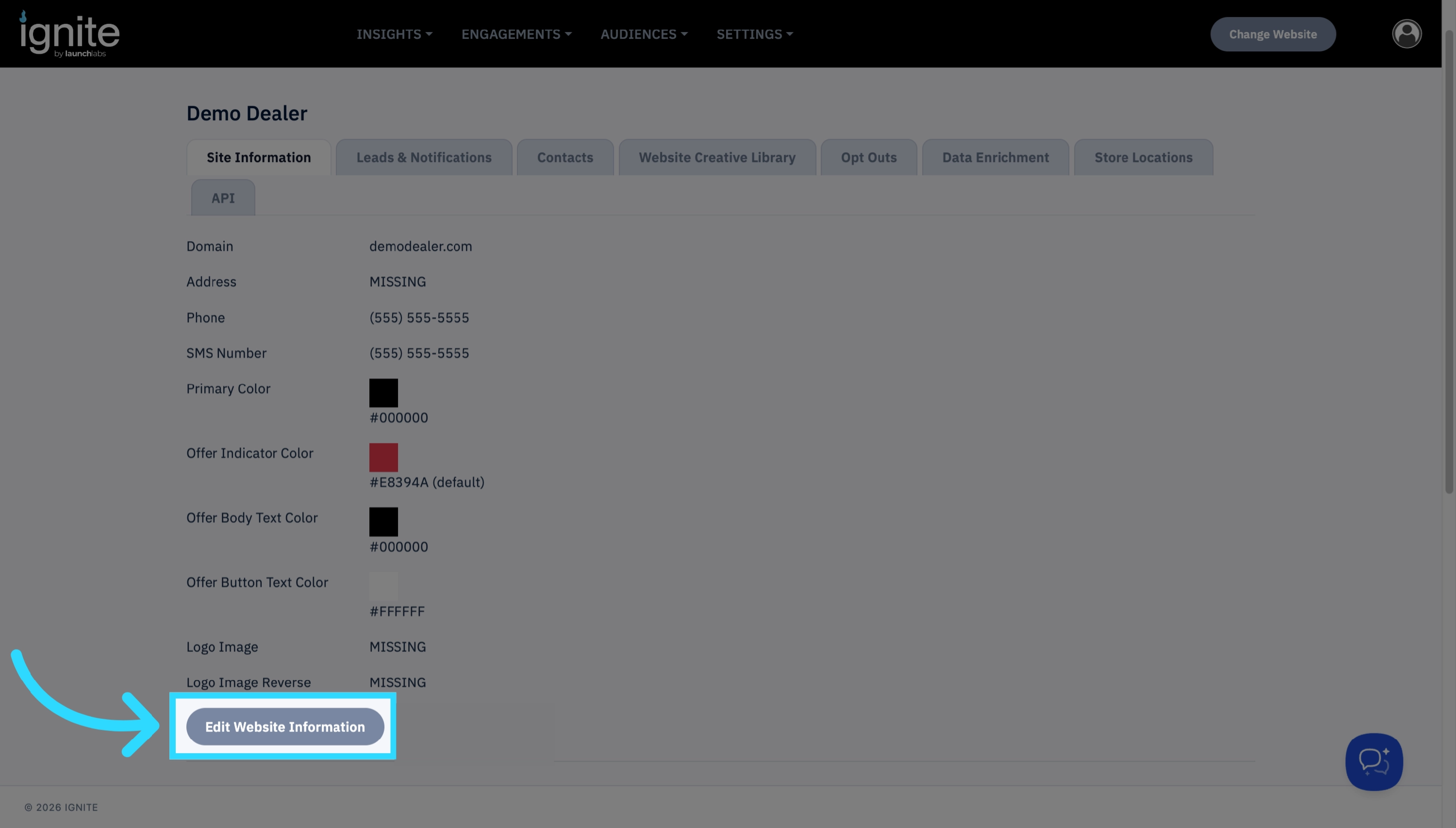
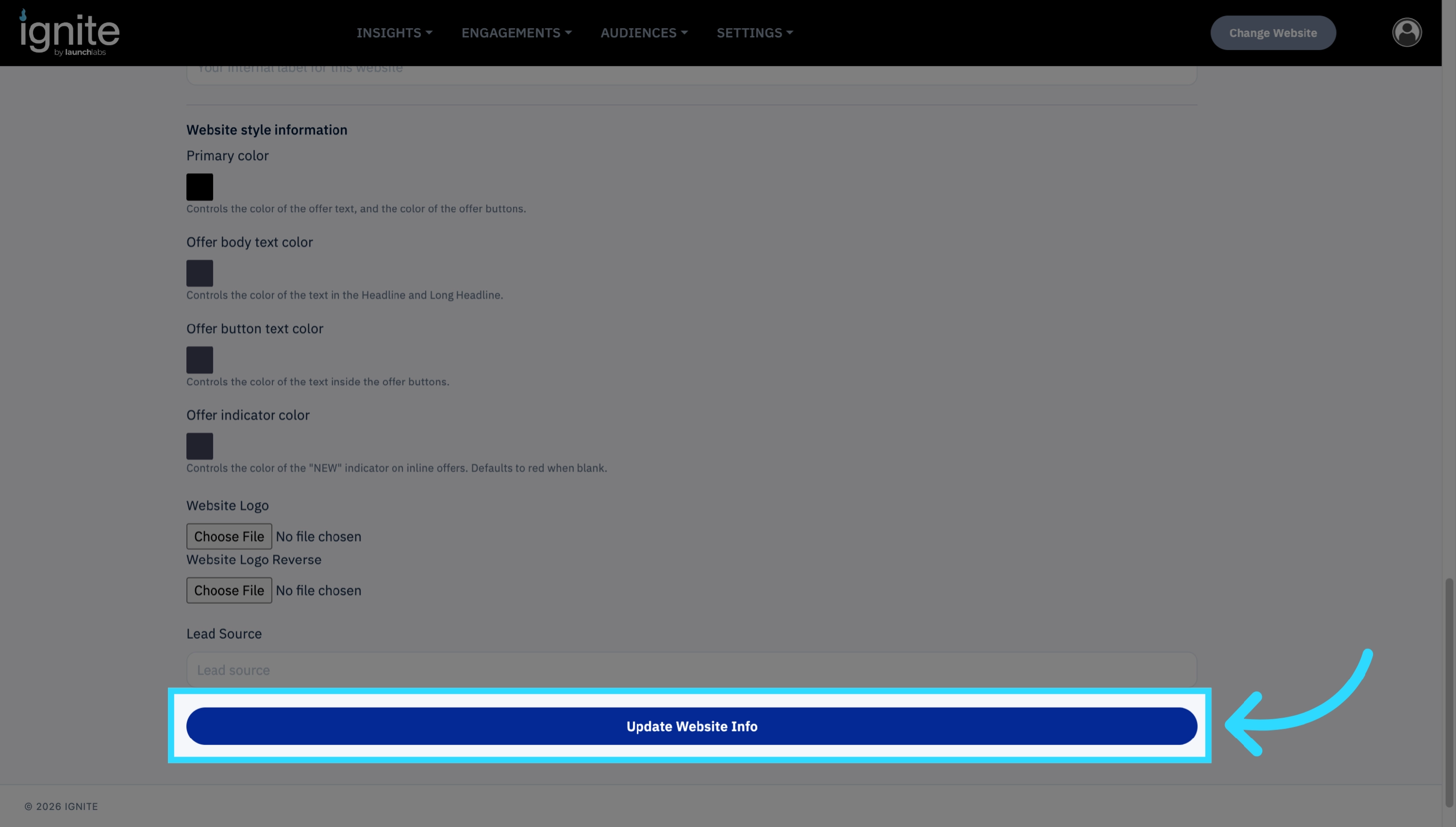
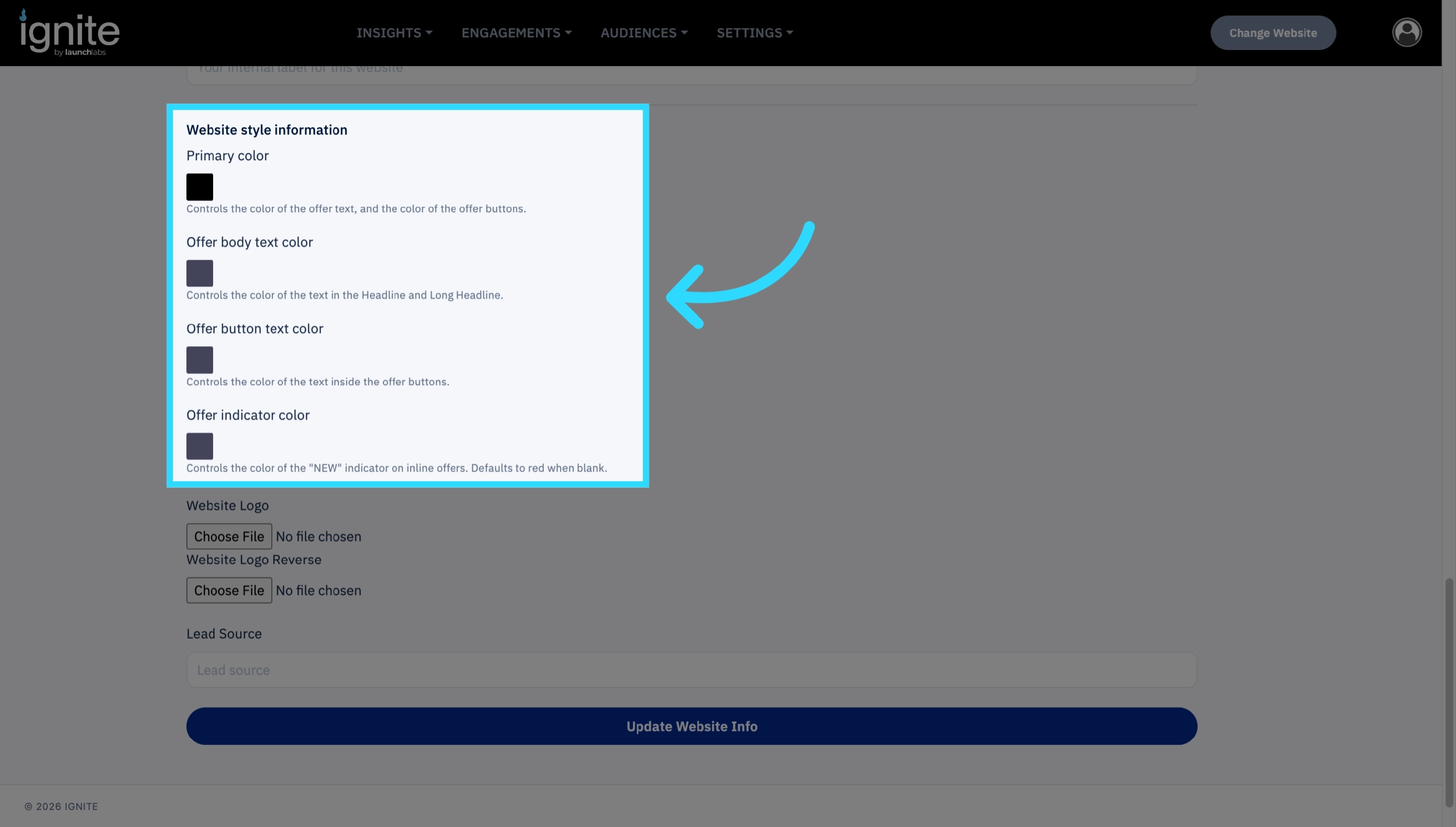
Find Website style information. Here you can select the colors that will appear on an offer.
- Primary Color: This controls the color of the Offer Text as well as the color of the Buttons.
- Offer Body Text Color: This controls the color of the Headline and Long Headline.
- Offer Button Text Color: This controls the color of the Text inside the button.
-
Offer Indicator Color: This controls the color of the “NEW” indicator: only applies to inline offers.
-
Click Update Website Info to save your changes.